---
title: Adding Locations to CareerPlug
description: Learn how to add a new Location to your CareerPlug account.
---
[Skip to content](https://adpsupport.careerplug.com/adding-locations#main-content)
[Submit a Request](https://adpsupport.careerplug.com/kb-tickets/new?hsLang=en)
[![CP ADP Logo 2025.png\]](https://adpsupport.careerplug.com/hs-fs/hubfs/CP%20ADP%20Logo%202025.png?width=297&height=40&name=CP%20ADP%20Logo%202025.png)](https://adpsupport.careerplug.com?hsLang=en)
Open main navigation
Close main navigation
- [Submit a Request](https://adpsupport.careerplug.com/kb-tickets/new)
- [Get help now!](https://adpsupport.careerplug.com/help)
[Get help now!](https://adpsupport.careerplug.com/help?hsLang=en)
How can we help?
- There are no suggestions because the search field is empty.
1. [ADP Help Center](https://adpsupport.careerplug.com/?hsLang=en)
2. [Account Set Up](https://adpsupport.careerplug.com/account-set-up?hsLang=en)
3. [Locations](https://adpsupport.careerplug.com/account-set-up?hsLang=en#locations)
# Adding Locations to CareerPlug
**Note:** Only [Admin users](https://adpsupport.careerplug.com/changing-a-users-access-level-permissions?hsLang=en) can add Locations to an account. An Admin user must [contact CareerPlug Support](https://adpsupport.careerplug.com/contacting-careerplug-support?hsLang=en) to delete Locations in their account.
Every job posted through CareerPlug needs to be associated with a Location. When [your job is sent to job boards](https://adpsupport.careerplug.com/job-boards-where-careerplug-automatically-sends-your-jobs?hsLang=en), the associated Location is copied over, ensuring your job is posted in the correct city and ZIP Code on job boards.
### To add a new location while creating a job:
1\. From your **Jobs** page, click the **+ New Job** button in the upper right corner and choose whether to **Use a Job Template** or **Create From Scratch** from the drop-down menu.

From your Dashboard, you can also click the **+ Create New** button and choose whether to **Use a Job Template** or **Create From Scratch** from the drop-down menu.
2\. Click the **Add a new location** link above the Hiring Location drop-down.
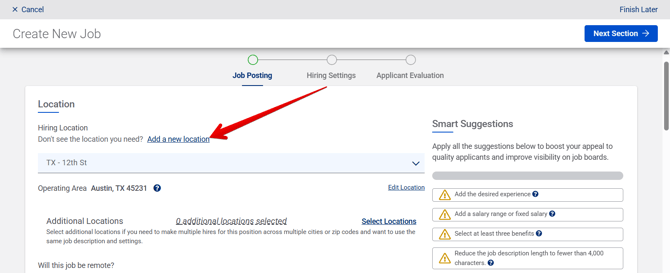
Don't see the **Add a new location** link? Your account might require approval to add a location. [Contact CareerPlug Support](https://adpsupport.careerplug.com/contacting-careerplug-support?hsLang=en) and include all required information for your new location (Name, Location Number/ID, City, ZIP Code, Country) in your request. We can help you add it to your account!
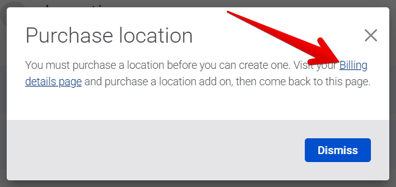
3\. In the Purchase location pop-up, click the **Billing details page** link to be redirected to your Plan Details page.
4\. Scroll to the bottom of the Plan Details page and enter the number of new locations you want to add in the open field. You can also click the **plus (+) and minus (-) icons** to choose how many new locations you want to add.
5\. Click the **Add locations** button.

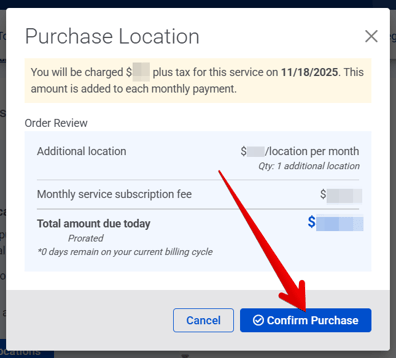
6\. Verify the details in the Purchase Location pop-up and click the **Confirm Purchase** button.
7\. Navigate back to **My Organization \> Locations**.

8\. Click the **plus (+) icon** in the upper left corner of the page.

9\. Fill in all fields for your new Location:
- **Name**
- **Location Number/ID**
- **Street Address**
- **City**
- **State**
- **ZIP Code**
- **Country**
- **Phone Number**
**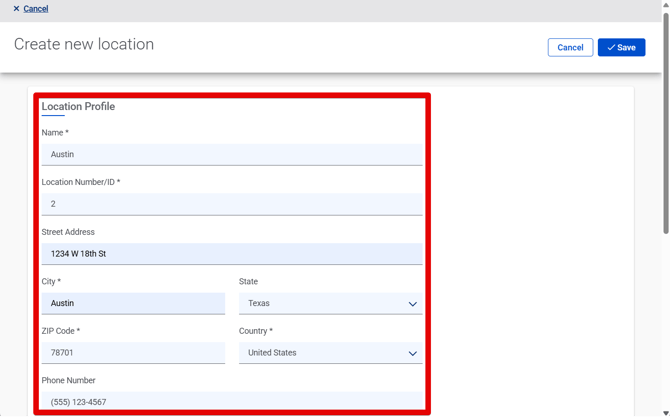**
The **Name** of your location can be a city name, a building name, or a cross street near it — it's up to you. The **Location Number/ID** can be the location's name if you don't use unique location identifiers.
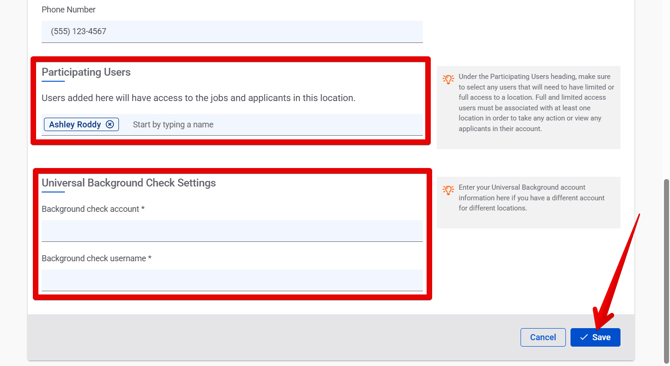
10\. Add **Participating Users** to your new Location by typing their name in the field and selecting it from the drop-down menu. *These are users who you want to have access to jobs and applicants associated with this Location.*
[Full and Limited Access users must be associated with at least one location](https://adpsupport.careerplug.com/giving-users-access-to-jobs-and-applicants-via-locations?hsLang=en) to take any action or view applicants on associated jobs. If you're unsure who you'd like to give access to, you can always do this later.
11\. If your CareerPlug account is integrated with Universal Background Screening, enter the **Background check account** and **Background check username** in the associated fields. *If your account doesn't use Universal Background Screening, skip this step.*
12\. Click the **Save** button in the bottom-right (or top-right) corner of the page.
Your new location is ready to use!
### To add a new location from your account's Settings:
1\. Navigate to **Settings (gear icon) \> My Organization \> Locations**.

2\. Click the **plus (+) icon** in the upper left corner of the page.

Don't see a **plus (+) icon** on your Locations page? Your account might require approval to add a location. [Contact CareerPlug Support](https://adpsupport.careerplug.com/contacting-careerplug-support?hsLang=en) and include all required information for your new location (Name, Location Number/ID, City, ZIP Code, Country) in your request. We can help you add it to your account!
3\. In the Purchase location pop-up, click the **Billing details page** link to be redirected to your Plan Details page.
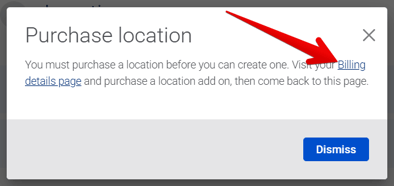
4\. Scroll to the bottom of the Plan Details page and enter the number of new locations you want to add in the open field. You can also click the **plus (+) and minus (-) icons** to choose how many new locations you want to add.
5\. Click the **Add locations** button.

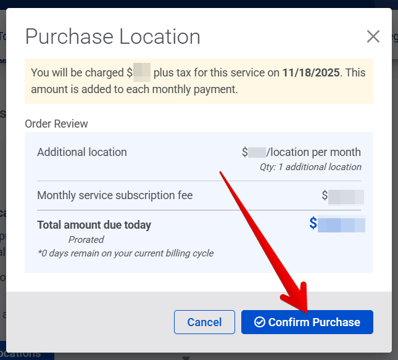
6\. Verify the details in the Purchase Location pop-up and click the **Confirm Purchase** button.
7\. Navigate back to **My Organization \> Locations**.

8\. Click the **plus (+) icon** in the upper left corner of the page.

9\. Fill in all fields for your new Location:
- **Name**
- **Location Number/ID**
- **Street Address**
- **City**
- **State**
- **ZIP Code**
- **Country**
- **Phone Number**

The **Name** of your location can be a city name, a building name, or a cross street near it — it's up to you. The **Location Number/ID** can be the location's name if you don't use unique location identifiers.
10\. Add **Participating Users** to your new Location by typing their name in the field and selecting it from the drop-down menu. *These are users who you want to have access to jobs and applicants associated with this Location.*
[Full and Limited Access users must be associated with at least one location](https://adpsupport.careerplug.com/giving-users-access-to-jobs-and-applicants-via-locations?hsLang=en) to take any action or view applicants on associated jobs. If you're unsure who you'd like to give access to, you can always do this later.
11\. If your CareerPlug account is integrated with [Universal Background Screening](https://adpsupport.careerplug.com/background-checks?hsLang=en), enter the **Background check account** and **Background check username** in the associated fields. *If your account doesn't use Universal Background Screening, skip this step.*
12\. Click the **Save** button in the bottom-right (or top-right) corner of the page.

Your new location is ready to use!
- [Getting Started](https://adpsupport.careerplug.com/getting-started?hsLang=en#main-content)
- [CareerPlug 101](https://adpsupport.careerplug.com/getting-started?hsLang=en#careerplug-101)
- [How To Hire](https://adpsupport.careerplug.com/getting-started?hsLang=en#how-to-hire)
- [Account Set Up](https://adpsupport.careerplug.com/account-set-up?hsLang=en#main-content)
- [About Your Account](https://adpsupport.careerplug.com/account-set-up?hsLang=en#about-your-account)
- [Billing](https://adpsupport.careerplug.com/account-set-up?hsLang=en#billing)
- [Configuring Your Account](https://adpsupport.careerplug.com/account-set-up?hsLang=en#configuring-your-account)
- [Locations](https://adpsupport.careerplug.com/account-set-up?hsLang=en#locations)
- [Your Careers Page](https://adpsupport.careerplug.com/account-set-up?hsLang=en#your-careers-page)
- [Notifications](https://adpsupport.careerplug.com/account-set-up?hsLang=en#notifications)
- [User Access](https://adpsupport.careerplug.com/account-set-up?hsLang=en#user-access)
- [Admin](https://adpsupport.careerplug.com/account-set-up?hsLang=en#admin)
- [Support](https://adpsupport.careerplug.com/support?hsLang=en#main-content)
- [Contacting Support](https://adpsupport.careerplug.com/support?hsLang=en#contacting-support)
- [Troubleshooting](https://adpsupport.careerplug.com/support?hsLang=en#troubleshooting)
- [Live Trainings](https://adpsupport.careerplug.com/support?hsLang=en#live-trainings)
- [Job Postings](https://adpsupport.careerplug.com/job-postings?hsLang=en#main-content)
- [About Your Jobs](https://adpsupport.careerplug.com/job-postings?hsLang=en#about-your-jobs)
- [Creating & Editing Job Postings](https://adpsupport.careerplug.com/job-postings?hsLang=en#creating-editing-job-postings)
- [Sponsoring Jobs](https://adpsupport.careerplug.com/job-postings?hsLang=en#sponsoring-jobs)
- [Passive Recruiting](https://adpsupport.careerplug.com/job-postings?hsLang=en#passive-recruiting)
- [Managing Your Jobs](https://adpsupport.careerplug.com/job-postings?hsLang=en#managing-your-jobs)
- [Sharing Your Jobs](https://adpsupport.careerplug.com/job-postings?hsLang=en#sharing-your-jobs)
- [Job Boards](https://adpsupport.careerplug.com/job-postings?hsLang=en#job-boards)
- [Applicant Flow](https://adpsupport.careerplug.com/job-postings?hsLang=en#applicant-flow)
- [Applicant Tracking](https://adpsupport.careerplug.com/applicant-tracking?hsLang=en#main-content)
- [Applicant Information](https://adpsupport.careerplug.com/applicant-tracking?hsLang=en#applicant-information)
- [Managing Applicants](https://adpsupport.careerplug.com/applicant-tracking?hsLang=en#managing-applicants)
- [Sorting & Filtering Applicants](https://adpsupport.careerplug.com/applicant-tracking?hsLang=en#sorting-filtering-applicants)
- [Contacting Applicants](https://adpsupport.careerplug.com/applicant-tracking?hsLang=en#contacting-applicants)
- [Interviewing Applicants](https://adpsupport.careerplug.com/applicant-tracking?hsLang=en#interviewing-applicants)
- [Applicant Activity](https://adpsupport.careerplug.com/applicant-tracking?hsLang=en#applicant-activity)
- [Hiring](https://adpsupport.careerplug.com/applicant-tracking?hsLang=en#hiring)
- [Applicant Experience](https://adpsupport.careerplug.com/applicant-tracking?hsLang=en#applicant-experience)
- [Hiring Tools & Automations](https://adpsupport.careerplug.com/hiring-tools-automations?hsLang=en#main-content)
- [Autopilot](https://adpsupport.careerplug.com/hiring-tools-automations?hsLang=en#autopilot)
- [Hiring Process](https://adpsupport.careerplug.com/hiring-tools-automations?hsLang=en#hiring-process)
- [Automations](https://adpsupport.careerplug.com/hiring-tools-automations?hsLang=en#automations)
- [Prescreen Questions](https://adpsupport.careerplug.com/hiring-tools-automations?hsLang=en#prescreen-questions)
- [Assessments](https://adpsupport.careerplug.com/hiring-tools-automations?hsLang=en#assessments)
- [Email & Text Messages](https://adpsupport.careerplug.com/hiring-tools-automations?hsLang=en#email-text-messages)
- [Scorecards](https://adpsupport.careerplug.com/hiring-tools-automations?hsLang=en#scorecards)
- [Offer Letters](https://adpsupport.careerplug.com/hiring-tools-automations?hsLang=en#offer-letters)
- [Templates](https://adpsupport.careerplug.com/hiring-tools-automations?hsLang=en#templates)
- [Integrations](https://adpsupport.careerplug.com/hiring-tools-automations?hsLang=en#integrations)
- [Other Tools](https://adpsupport.careerplug.com/hiring-tools-automations?hsLang=en#other-tools)
- [Reporting & Compliance](https://adpsupport.careerplug.com/reporting-compliance?hsLang=en#main-content)
- [Reporting](https://adpsupport.careerplug.com/reporting-compliance?hsLang=en#reporting)
- [Charts](https://adpsupport.careerplug.com/reporting-compliance?hsLang=en#charts)
- [Compliance](https://adpsupport.careerplug.com/reporting-compliance?hsLang=en#compliance)
- [FAQs & Integrations](https://adpsupport.careerplug.com/faqs-integrations?hsLang=en#main-content)
- [The CareerPlug + ADP Partnership](https://adpsupport.careerplug.com/faqs-integrations?hsLang=en#the-careerplug-adp-partnership)
- [Integrations](https://adpsupport.careerplug.com/faqs-integrations?hsLang=en#integrations)
- [What's New](https://adpsupport.careerplug.com/whats-new?hsLang=en#main-content)
- [Monthly Updates](https://adpsupport.careerplug.com/whats-new?hsLang=en#monthly-updates)
- [Account Changes](https://adpsupport.careerplug.com/whats-new?hsLang=en#account-changes)
[](https://adpsupport.careerplug.com?hsLang=en)
Handcrafted in Austin, Texas
© 2026 CareerPlug. All rights reserved.