![CP ADP Logo 2025.png]](https://adpsupport.careerplug.com/hs-fs/hubfs/CP%20ADP%20Logo%202025.png?width=297&height=40&name=CP%20ADP%20Logo%202025.png)
If you scheduled an email or text message to send at a later time and want to stop the message from being sent, you can do so from your Applicants page.
Locate the applicant you scheduled a message to be sent to and click the View/Edit link in the Actions column.
%20(View%20Edit%20highlighted)%20(Scheduled%20Email).png?width=670&height=253&name=Applicant%20Page%2c%20Cropped%20(Nav%20bar%20expanded)%20(View%20Edit%20highlighted)%20(Scheduled%20Email).png)
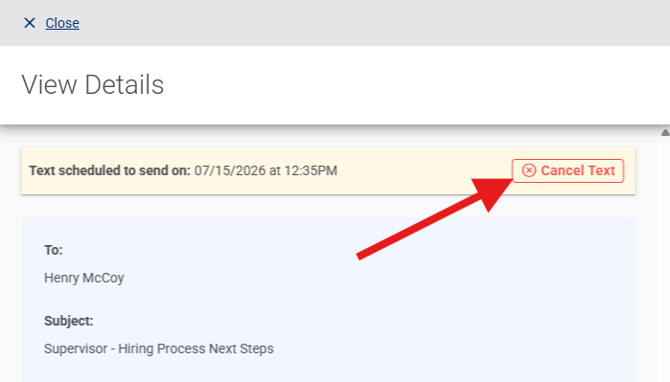
Click Cancel Email or Cancel Text (or both if you want to cancel the message altogether).
%20(7.14.26).png?width=670&height=408&name=Scheduled%20email%2c%20cancel%20(Cancel%20highlighted)%20(7.14.26).png)
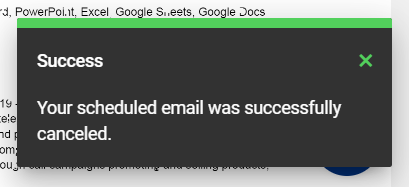
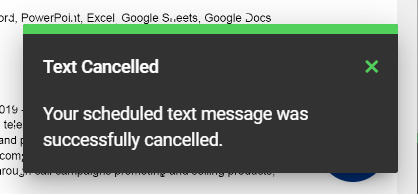
Once you cancel either message, you will receive a notification in the lower right corner of the screen.
If you don't see the View/Edit link on your Applicants page, follow these steps to cancel the message:
1. On your Applicants page, locate the applicant to whom a message is scheduled and click the applicant's name to view the applicant's profile.
%20(NavEXP)%20(Standard)%20Highlighting%20applicant%20page%2c%20applicant.png?width=670&height=268&name=Applicants%20page%20(6.9.26)%20(NavEXP)%20(Standard)%20Highlighting%20applicant%20page%2c%20applicant.png)
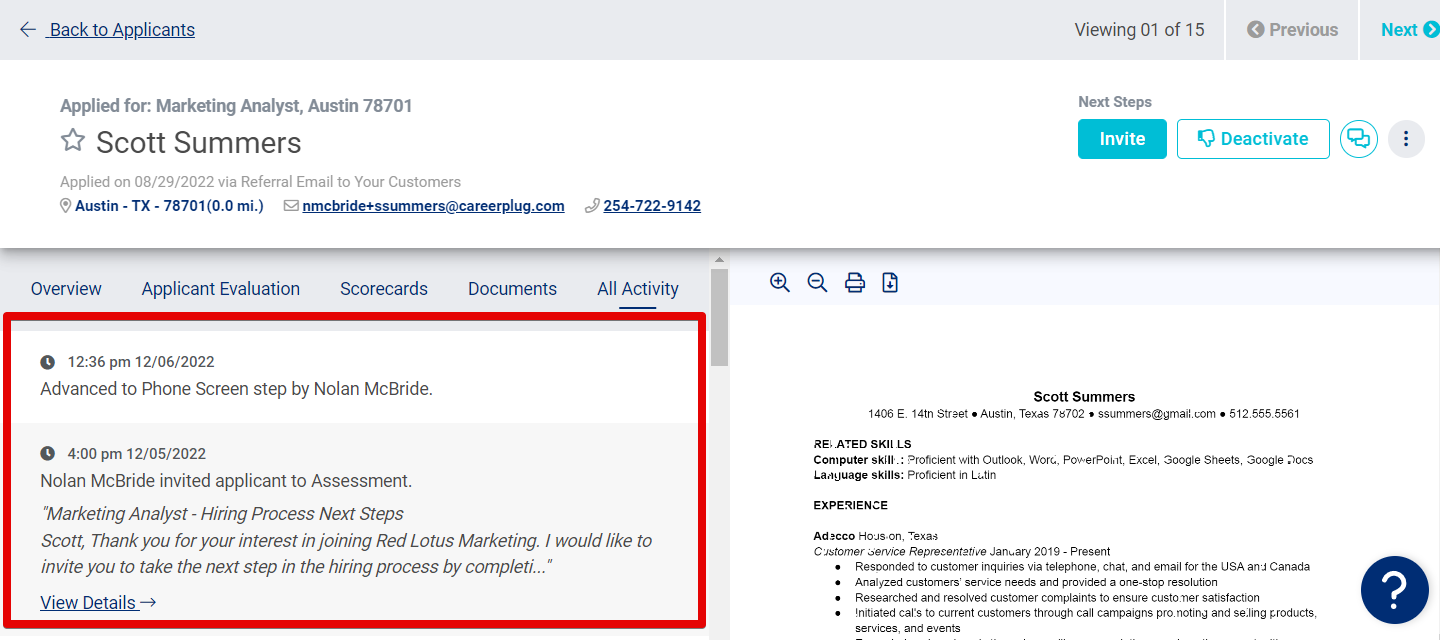
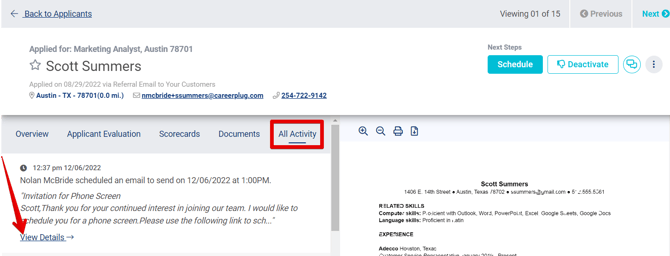
2. Click the All Activity tab.
3. Click the View Details link under the scheduled message.
Click the Cancel Email or Cancel Text button to prevent either from sending (or both if you want to cancel the message altogether).

You may need to click View Details link in this drawer to view the scheduled text message.

The scheduled message will not be sent and will be deleted from the applicant's All Activity tab.