---
title: Changing email or password
description: You can easily change your email address or password associated with your CareerPlug account. You can also reset your password if you are signed out, change another user's email address, or reset another user's password.
---
[Skip to content](https://adpsupport.careerplug.com/changing-email-or-password#main-content)
[Submit a Request](https://adpsupport.careerplug.com/kb-tickets/new?hsLang=en)
[![CP ADP Logo 2025.png\]](https://adpsupport.careerplug.com/hs-fs/hubfs/CP%20ADP%20Logo%202025.png?width=297&height=40&name=CP%20ADP%20Logo%202025.png)](https://adpsupport.careerplug.com?hsLang=en)
Open main navigation
Close main navigation
- [Submit a Request](https://adpsupport.careerplug.com/kb-tickets/new)
- [Get help now!](https://adpsupport.careerplug.com/help)
[Get help now!](https://adpsupport.careerplug.com/help?hsLang=en)
How can we help?
- There are no suggestions because the search field is empty.
1. [ADP Help Center](https://adpsupport.careerplug.com/?hsLang=en)
2. [Account Set Up](https://adpsupport.careerplug.com/account-set-up?hsLang=en)
3. [Admin](https://adpsupport.careerplug.com/account-set-up?hsLang=en#admin)
# Changing email or password
You can change your email address or password — or another user’s email or password — from the **My profile** page.
##### In this article:
- [Changing your email or password while signed in to CareerPlug](https://adpsupport.careerplug.com/changing-email-or-password#loggedin)
- [Resetting your password when signed out of CareerPlug](https://adpsupport.careerplug.com/changing-email-or-password#loggedout)
- [Changing another user’s email or resetting their password](https://adpsupport.careerplug.com/changing-email-or-password#anotheruser)
### Changing your email or password while signed in to CareerPlug
1\. Navigate to **Account (circle with initials icon)** \> **My profile**.
%20(NavEXP)%20(Account%20drop-down)%20My%20profile%20highlighted%20(6.11.26).png?width=670&height=196&name=Dashboard%20(6.9.26)%20(NavEXP)%20(Account%20drop-down)%20My%20profile%20highlighted%20(6.11.26).png)
2\. Navigate to the **Settings** tab and click the **Edit** button.
%20Pointed%20towards%20edit%20(6.11.26).png?width=670&height=289&name=My%20Profile%2c%20Settings%20(Nav%20Bar%20Minimized)%20Pointed%20towards%20edit%20(6.11.26).png)
3\. At the top of your Profile Settings page, enter a new **Email**, as well as your **Current Password**.
%20Email%2c%20Password%20Highlighted%20(6.11.26).png?width=670&height=208&name=My%20Profile%2c%20Settings%2c%20Email%20Password%20(Nav%20Bar%20Minimized)%20Email%2c%20Password%20Highlighted%20(6.11.26).png)
4\. If you wish to change your password, enter a **New Password**.
Passwords should be at least 8 characters long, and include an uppercase letter, a lowercase letter, a symbol, and a number. Passwords cannot contain personal identifiers, such as first and last names or email addresses.
5\. Once you've updated your email and/or password, scroll to the bottom of the page and click the **Save** button.
%20Pointed%20to%20Save.png?width=670&height=307&name=User%20Profile%2c%20Settings%2c%20Edit%2c%20Save%20(Nav%20Bar%20Minimized)%20Pointed%20to%20Save.png)
#### Resetting your password
1\. You also have the option to update your password by clicking the **Reset Password** button on the **Settings** tab in My profile.
%20Reset%20Password.png?width=670&height=242&name=User%20Profile%2c%20Settings%2c%20Resend%20Password%20(Nav%20Bar%20Minimized)%20Reset%20Password.png)
2\. A pop-up will prompt you to confirm the password reset — click the **Send Reset Password Email** button. A secure link to reset your password will be sent to your email address.

3\. When you visit the link sent to your email, enter your new password twice and click the **Change Password** button.

Passwords should be at least 8 characters long, and include an uppercase letter, a lowercase letter, a symbol, and a number. Passwords cannot contain personal identifiers, such as first and last names or email addresses.
Your password has been updated!
### Resetting your password when signed out of CareerPlug
1\. Navigate to the [CareerPlug sign-in page](https://app.careerplug.com/user/sign_in).
2\. Enter your **Email Address** and click the **Continue** button.

3\. Click the **Forgot your password?** link under the Submit button.
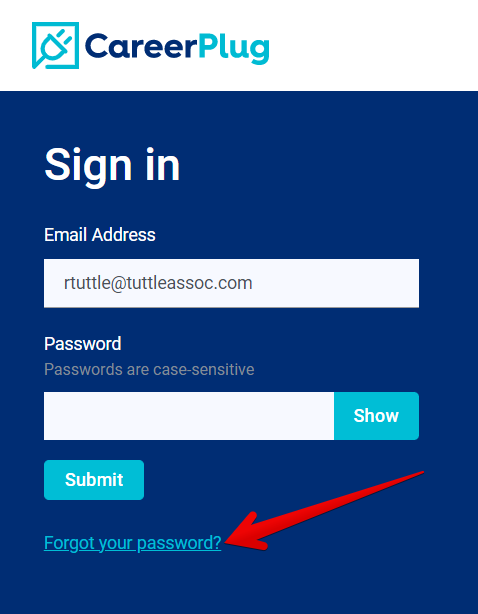
4\. Enter the **Email Address** associated with your CareerPlug account and click the **Submit** button. You'll receive an email with a link to reset your password.
%20Sign%20In%20Page%20(Forgot%20Pass+Email%20Entered)%20(fixed).png?width=549&height=476&name=(10)%20Sign%20In%20Page%20(Forgot%20Pass+Email%20Entered)%20(fixed).png)
Password reset emails contain a link that expires after 10 hours. If you wait more than 10 hours to reset your password, you'll need to click the **Forgot your password?** link again start the password reset process over.
**Didn't get the password reset email?** It's possible we have a different email for you on file than the one that you're using to sign in. [Contact CareerPlug's Hiring Experts](https://adpsupport.careerplug.com/contacting-careerplug-support?hsLang=en) for more help troubleshooting your account!
5\. Click the link included in your password reset email.
6\. Enter your new password in both the **New Password** and **Confirm New Password** fields.
7\. Click the **Change Password** button.

Passwords should be at least 8 characters long, and include an uppercase letter, a lowercase letter, a symbol, and a number. Passwords cannot contain personal identifiers, such as first and last names or email addresses.
Your password has been updated!
### Changing another user’s email or resetting their password
For security reasons, only [Admin users](https://adpsupport.careerplug.com/changing-a-users-access-level-permissions?hsLang=en) can change another user's email address.
1\. To edit an employee's email address, navigate to your **Employees** page.
%20(NavEXP)%20(Standard)%20Pointed%20to%20employees.png?width=670&height=303&name=Dashboard%20(6.9.26)%20(NavEXP)%20(Standard)%20Pointed%20to%20employees.png)
2\. Find the employee whose email address you want to change and click their name, or click the **three dots icon** followed by **View Profile**.
If you don't see the employee you're looking for, you can use the search box above your team roster to search by name.
%20View%20profile.png?width=670&height=284&name=Employees%20Page%2c%20Three%20Dots%20(Nav%20Bar%20Minimized)%20View%20profile.png)
3\. Navigate to the user's **Settings** tab and click the **Edit** button in the top-right corner of the page.
%20Pointed%20to%20edit.png?width=670&height=308&name=User%20Profile%2c%20Settings%20(Nav%20bar%20minimized)%20Pointed%20to%20edit.png)
4\. Enter a new **Email** for the user.
%20Email%20Edit.png?width=670&height=282&name=User%20Profile%2c%20Settings%2c%20Edit%2c%20Email%20(Nav%20Bar%20Minimized)%20Email%20Edit.png)
5\. At the bottom of the Profile Settings page, click the **Save** button.
#### %20Pointed%20to%20Save.png?width=670&height=307&name=User%20Profile%2c%20Settings%2c%20Edit%2c%20Save%20(Nav%20Bar%20Minimized)%20Pointed%20to%20Save.png) Resetting another user's password
1\. If the user needs to reset their password, click the **Reset Password** button.
%20Reset%20Password.png?width=670&height=242&name=User%20Profile%2c%20Settings%2c%20Resend%20Password%20(Nav%20Bar%20Minimized)%20Reset%20Password.png)
2\. A pop-up will prompt you to confirm the password reset. Click the **Send Reset Password Email** button.

A secure link to reset their password will be sent to their email address.
#### Did you encounter an error?
In order to protect our clients, their employees, and their applicants, we have implemented a new password policy. Any time a user sets a password (whether changing their existing password or setting a new one), we check the user's password against an independently verified database of exposed passwords.
As the sophistication of bad actors and their tooling increases, it is important that we make constant improvements to maintain the security of our system and our clients' data.
If your chosen password was exposed in a previous data breach, an error message will be displayed and you'll need to choose a different password.
.png?width=550&height=198&name=Change%20Password%20%5BPassword%20found%20in%20breach%5D%20(3.30.26).png)
- [Getting Started](https://adpsupport.careerplug.com/getting-started?hsLang=en#main-content)
- [CareerPlug 101](https://adpsupport.careerplug.com/getting-started?hsLang=en#careerplug-101)
- [How To Hire](https://adpsupport.careerplug.com/getting-started?hsLang=en#how-to-hire)
- [Account Set Up](https://adpsupport.careerplug.com/account-set-up?hsLang=en#main-content)
- [About Your Account](https://adpsupport.careerplug.com/account-set-up?hsLang=en#about-your-account)
- [Billing](https://adpsupport.careerplug.com/account-set-up?hsLang=en#billing)
- [Configuring Your Account](https://adpsupport.careerplug.com/account-set-up?hsLang=en#configuring-your-account)
- [Locations](https://adpsupport.careerplug.com/account-set-up?hsLang=en#locations)
- [Your Careers Page](https://adpsupport.careerplug.com/account-set-up?hsLang=en#your-careers-page)
- [Notifications](https://adpsupport.careerplug.com/account-set-up?hsLang=en#notifications)
- [User Access](https://adpsupport.careerplug.com/account-set-up?hsLang=en#user-access)
- [Admin](https://adpsupport.careerplug.com/account-set-up?hsLang=en#admin)
- [Support](https://adpsupport.careerplug.com/support?hsLang=en#main-content)
- [Contacting Support](https://adpsupport.careerplug.com/support?hsLang=en#contacting-support)
- [Troubleshooting](https://adpsupport.careerplug.com/support?hsLang=en#troubleshooting)
- [Live Trainings](https://adpsupport.careerplug.com/support?hsLang=en#live-trainings)
- [Job Postings](https://adpsupport.careerplug.com/job-postings?hsLang=en#main-content)
- [About Your Jobs](https://adpsupport.careerplug.com/job-postings?hsLang=en#about-your-jobs)
- [Creating & Editing Job Postings](https://adpsupport.careerplug.com/job-postings?hsLang=en#creating-editing-job-postings)
- [Sponsoring Jobs](https://adpsupport.careerplug.com/job-postings?hsLang=en#sponsoring-jobs)
- [Passive Recruiting](https://adpsupport.careerplug.com/job-postings?hsLang=en#passive-recruiting)
- [Managing Your Jobs](https://adpsupport.careerplug.com/job-postings?hsLang=en#managing-your-jobs)
- [Sharing Your Jobs](https://adpsupport.careerplug.com/job-postings?hsLang=en#sharing-your-jobs)
- [Job Boards](https://adpsupport.careerplug.com/job-postings?hsLang=en#job-boards)
- [Applicant Flow](https://adpsupport.careerplug.com/job-postings?hsLang=en#applicant-flow)
- [Applicant Tracking](https://adpsupport.careerplug.com/applicant-tracking?hsLang=en#main-content)
- [Applicant Information](https://adpsupport.careerplug.com/applicant-tracking?hsLang=en#applicant-information)
- [Managing Applicants](https://adpsupport.careerplug.com/applicant-tracking?hsLang=en#managing-applicants)
- [Sorting & Filtering Applicants](https://adpsupport.careerplug.com/applicant-tracking?hsLang=en#sorting-filtering-applicants)
- [Contacting Applicants](https://adpsupport.careerplug.com/applicant-tracking?hsLang=en#contacting-applicants)
- [Interviewing Applicants](https://adpsupport.careerplug.com/applicant-tracking?hsLang=en#interviewing-applicants)
- [Applicant Activity](https://adpsupport.careerplug.com/applicant-tracking?hsLang=en#applicant-activity)
- [Hiring](https://adpsupport.careerplug.com/applicant-tracking?hsLang=en#hiring)
- [Applicant Experience](https://adpsupport.careerplug.com/applicant-tracking?hsLang=en#applicant-experience)
- [Hiring Tools & Automations](https://adpsupport.careerplug.com/hiring-tools-automations?hsLang=en#main-content)
- [Autopilot](https://adpsupport.careerplug.com/hiring-tools-automations?hsLang=en#autopilot)
- [Hiring Process](https://adpsupport.careerplug.com/hiring-tools-automations?hsLang=en#hiring-process)
- [Automations](https://adpsupport.careerplug.com/hiring-tools-automations?hsLang=en#automations)
- [Prescreen Questions](https://adpsupport.careerplug.com/hiring-tools-automations?hsLang=en#prescreen-questions)
- [Assessments](https://adpsupport.careerplug.com/hiring-tools-automations?hsLang=en#assessments)
- [Email & Text Messages](https://adpsupport.careerplug.com/hiring-tools-automations?hsLang=en#email-text-messages)
- [Scorecards](https://adpsupport.careerplug.com/hiring-tools-automations?hsLang=en#scorecards)
- [Offer Letters](https://adpsupport.careerplug.com/hiring-tools-automations?hsLang=en#offer-letters)
- [Templates](https://adpsupport.careerplug.com/hiring-tools-automations?hsLang=en#templates)
- [Integrations](https://adpsupport.careerplug.com/hiring-tools-automations?hsLang=en#integrations)
- [Other Tools](https://adpsupport.careerplug.com/hiring-tools-automations?hsLang=en#other-tools)
- [Reporting & Compliance](https://adpsupport.careerplug.com/reporting-compliance?hsLang=en#main-content)
- [Reporting](https://adpsupport.careerplug.com/reporting-compliance?hsLang=en#reporting)
- [Charts](https://adpsupport.careerplug.com/reporting-compliance?hsLang=en#charts)
- [Compliance](https://adpsupport.careerplug.com/reporting-compliance?hsLang=en#compliance)
- [FAQs & Integrations](https://adpsupport.careerplug.com/faqs-integrations?hsLang=en#main-content)
- [The CareerPlug + ADP Partnership](https://adpsupport.careerplug.com/faqs-integrations?hsLang=en#the-careerplug-adp-partnership)
- [Integrations](https://adpsupport.careerplug.com/faqs-integrations?hsLang=en#integrations)
- [What's New](https://adpsupport.careerplug.com/whats-new?hsLang=en#main-content)
- [Monthly Updates](https://adpsupport.careerplug.com/whats-new?hsLang=en#monthly-updates)
- [Account Changes](https://adpsupport.careerplug.com/whats-new?hsLang=en#account-changes)
[](https://adpsupport.careerplug.com?hsLang=en)
Handcrafted in Austin, Texas
© 2026 CareerPlug. All rights reserved.