---
title: Hiring process automation
description: CareerPlug's hiring process automation saves time for hiring managers by letting you review and email your new applicants with just one click.
---
[Skip to content](https://adpsupport.careerplug.com/hiring-process-automation#main-content)
[Submit a Request](https://adpsupport.careerplug.com/kb-tickets/new?hsLang=en)
[![CP ADP Logo 2025.png\]](https://adpsupport.careerplug.com/hs-fs/hubfs/CP%20ADP%20Logo%202025.png?width=297&height=40&name=CP%20ADP%20Logo%202025.png)](https://adpsupport.careerplug.com?hsLang=en)
Open main navigation
Close main navigation
- [Submit a Request](https://adpsupport.careerplug.com/kb-tickets/new)
- [Get help now!](https://adpsupport.careerplug.com/help)
[Get help now!](https://adpsupport.careerplug.com/help?hsLang=en)
How can we help?
- There are no suggestions because the search field is empty.
1. [ADP Help Center](https://adpsupport.careerplug.com/?hsLang=en)
2. [Hiring Tools & Automations](https://adpsupport.careerplug.com/hiring-tools-automations?hsLang=en)
3. [Automations](https://adpsupport.careerplug.com/hiring-tools-automations?hsLang=en#automations)
# Hiring process automation
CareerPlug's hiring process automation saves time for hiring managers by letting you review and email your new applicants with just one click.
When you set up the automation, CareerPlug will automatically send your applicants emails based on whether you decide to move them forward in your hiring process, or deactivate and reject them.
For example, by clicking the **thumbs up icon** on an applicant when you see their resume, CareerPlug can automatically email them to ask for days/times they are available for a phone interview. By clicking the **thumbs down icon**, CareerPlug can automatically send them a rejection email.
Here’s a [5-minute video](https://www.loom.com/share/bac2bcc15f73495182c9464dec508756) about how to review your new applicants and use the automation:
##### In this article:
- [How the automation works](https://adpsupport.careerplug.com/hiring-process-automation#how)
- [Enabling and configuring the automation](https://adpsupport.careerplug.com/hiring-process-automation#enable)
- [Undoing an automated step or canceling a scheduled email](https://adpsupport.careerplug.com/hiring-process-automation#undo)
- [Disabling the automation](https://adpsupport.careerplug.com/hiring-process-automation#disable)
### How the automation works
[When you’re reviewing new applicants](https://adpsupport.careerplug.com/reviewing-your-new-applicants?hsLang=en), you’ll notice the **thumbs up** and **thumbs down** icons at the top of the page. Clicking the **thumbs up icon** advances the applicant to the next step in your hiring process, while clicking the **thumbs down icon** deactivates them.

Without the automation enabled, you have to choose which email template to send when you click the thumbs up or thumbs down. **With the automation, you can automate the emails that are sent.**
When you have the automation enabled, advancing or deactivating an applicant automatically sends an email with one click, so you can quickly move to the next applicant to review.
When CareerPlug takes care of sending emails, reviewing and working with applicants is even faster!
Emails can be automated, but [text messages](https://adpsupport.careerplug.com/using-text-messaging?hsLang=en) cannot be automated at this time.
### Enabling and configuring the automation
An administrator on your account can configure this automation.
To turn on the automation, navigate to **Company Settings (gear icon)\> Hiring Tools \> Hiring Process**.
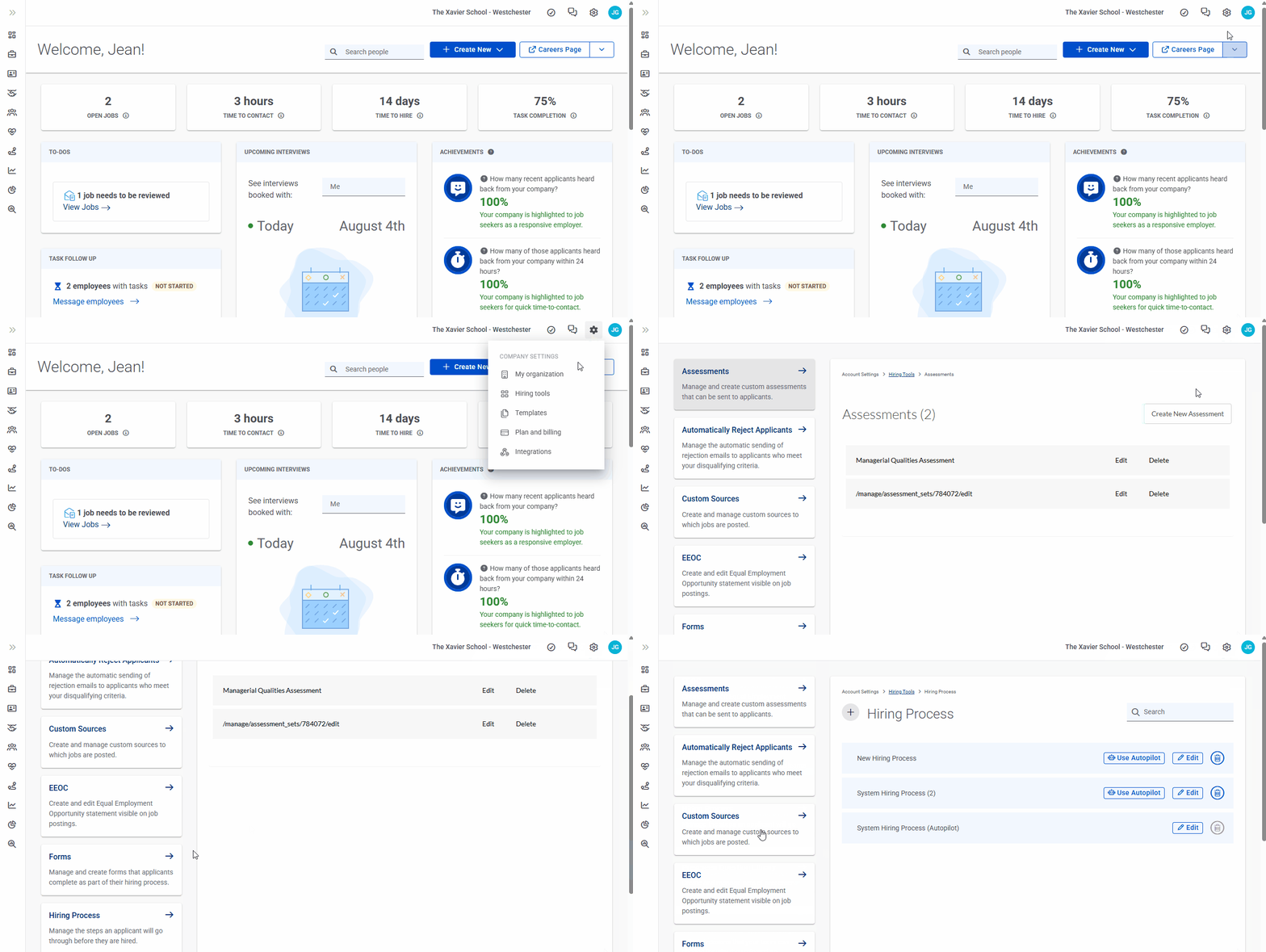
Click the **Edit** button to add the automation to a hiring process.

Toggle on the slider to turn on and configure the automation.

Currently, you can only automate what happens after you advance or deactivate an applicant as part of the process for reviewing your new applicants. More automation options are coming in future releases.
When you decide to turn on this automation, you will configure what happens in each of two scenarios:
| You advance the applicant **(thumbs up)** | - Choose the email template that is sent to advance the applicant to that step. - Example: The next step is phone screen, and you send them an email asking them for days/times that work for them to interview. - Choose whether to delay that email for a period of time after you advance them. |
| --- | --- |
| You deactivate the applicant **(thumbs down)** | - Choose the rejection email template. - Choose whether to delay the rejection email for a period of time after you deactivate them. |
**Note:** We recommend emailing your applicants immediately if you advance them. 30% of job seeker respondents to [a recent CareerPlug survey](https://www.careerplug.com/blog/candidate-experience-statistics/) ranked responsiveness after they apply as most important to them when it comes to candidate experience. Candidates are looking for prompt and clear communication as they evaluate their interest in your position.
### Undoing an automated step or canceling a scheduled email
Automations that do not include a send delay (i.e. the email will send immediately) can be undone for 5 seconds after the **thumbs up** or **thumbs down** icon is clicked. The toast in the bottom right corner of the screen has an **Undo** button that you can click.

Doing so will only prevent the email from being sent. The applicant will still be moved forward in the hiring process or deactivated. You can always [undo this change as well](https://adpsupport.careerplug.com/undoing-changes-made-to-an-applicant-s-status-in-the-hiring-process?hsLang=en).
If you delay an email — like a rejection email, as shown in the example below — you have more time to prevent it from being sent. You can cancel an email in the **All Activity** tab on the applicant’s profile page.
#### Here’s an example of canceling a rejection email:
Find an applicant you deactivated by clicking the **Inactive** tab.

Click the applicant’s name, then click their **All Activity** tab. Click the **View Details** link under the scheduled rejection email.

Click the **Cancel Email** button.

You can then choose to reactivate the applicant at this time. This will simply allow you to view them along with all of your other active applicants — no email will be sent to the applicant.

### Disabling the automation
Only account administrators can create a new automation. Full and limited access users can view live automations for the applicants they review and can turn them on and off with the toggle at the top of their screen.
Although users can turn automation on and off, they cannot have their own automation different from those of another user. Automations are tied to hiring processes, not users.
Although users can turn automation on and off, they cannot have their own automation different from those of another user. Automations are tied to hiring processes, not users.
While you are reviewing applicants, if you want to turn off automation for a short period of time or for a few applicants, simply click the toggle at the top of the page.

While automations are turned off, you'll need to send emails manually after you click the **thumbs up** or **thumbs down**.

To turn automations back on, toggle the slider on.
Toggling the slider on and off only impacts the automation for the individual user who does so. Each full and limited access user can decide whether to use the automations set up by an account administrator.
If you want to turn off the automation for this hiring process for all applicants, an administrator on your account can edit the hiring process and turn off the slider for automation.

- [Getting Started](https://adpsupport.careerplug.com/getting-started?hsLang=en#main-content)
- [CareerPlug 101](https://adpsupport.careerplug.com/getting-started?hsLang=en#careerplug-101)
- [How To Hire](https://adpsupport.careerplug.com/getting-started?hsLang=en#how-to-hire)
- [Account Set Up](https://adpsupport.careerplug.com/account-set-up?hsLang=en#main-content)
- [About Your Account](https://adpsupport.careerplug.com/account-set-up?hsLang=en#about-your-account)
- [Billing](https://adpsupport.careerplug.com/account-set-up?hsLang=en#billing)
- [Configuring Your Account](https://adpsupport.careerplug.com/account-set-up?hsLang=en#configuring-your-account)
- [Locations](https://adpsupport.careerplug.com/account-set-up?hsLang=en#locations)
- [Your Careers Page](https://adpsupport.careerplug.com/account-set-up?hsLang=en#your-careers-page)
- [Notifications](https://adpsupport.careerplug.com/account-set-up?hsLang=en#notifications)
- [User Access](https://adpsupport.careerplug.com/account-set-up?hsLang=en#user-access)
- [Admin](https://adpsupport.careerplug.com/account-set-up?hsLang=en#admin)
- [Support](https://adpsupport.careerplug.com/support?hsLang=en#main-content)
- [Contacting Support](https://adpsupport.careerplug.com/support?hsLang=en#contacting-support)
- [Troubleshooting](https://adpsupport.careerplug.com/support?hsLang=en#troubleshooting)
- [Live Trainings](https://adpsupport.careerplug.com/support?hsLang=en#live-trainings)
- [Job Postings](https://adpsupport.careerplug.com/job-postings?hsLang=en#main-content)
- [About Your Jobs](https://adpsupport.careerplug.com/job-postings?hsLang=en#about-your-jobs)
- [Creating & Editing Job Postings](https://adpsupport.careerplug.com/job-postings?hsLang=en#creating-editing-job-postings)
- [Sponsoring Jobs](https://adpsupport.careerplug.com/job-postings?hsLang=en#sponsoring-jobs)
- [Passive Recruiting](https://adpsupport.careerplug.com/job-postings?hsLang=en#passive-recruiting)
- [Managing Your Jobs](https://adpsupport.careerplug.com/job-postings?hsLang=en#managing-your-jobs)
- [Sharing Your Jobs](https://adpsupport.careerplug.com/job-postings?hsLang=en#sharing-your-jobs)
- [Job Boards](https://adpsupport.careerplug.com/job-postings?hsLang=en#job-boards)
- [Applicant Flow](https://adpsupport.careerplug.com/job-postings?hsLang=en#applicant-flow)
- [Applicant Tracking](https://adpsupport.careerplug.com/applicant-tracking?hsLang=en#main-content)
- [Applicant Information](https://adpsupport.careerplug.com/applicant-tracking?hsLang=en#applicant-information)
- [Managing Applicants](https://adpsupport.careerplug.com/applicant-tracking?hsLang=en#managing-applicants)
- [Sorting & Filtering Applicants](https://adpsupport.careerplug.com/applicant-tracking?hsLang=en#sorting-filtering-applicants)
- [Contacting Applicants](https://adpsupport.careerplug.com/applicant-tracking?hsLang=en#contacting-applicants)
- [Interviewing Applicants](https://adpsupport.careerplug.com/applicant-tracking?hsLang=en#interviewing-applicants)
- [Applicant Activity](https://adpsupport.careerplug.com/applicant-tracking?hsLang=en#applicant-activity)
- [Hiring](https://adpsupport.careerplug.com/applicant-tracking?hsLang=en#hiring)
- [Applicant Experience](https://adpsupport.careerplug.com/applicant-tracking?hsLang=en#applicant-experience)
- [Hiring Tools & Automations](https://adpsupport.careerplug.com/hiring-tools-automations?hsLang=en#main-content)
- [Autopilot](https://adpsupport.careerplug.com/hiring-tools-automations?hsLang=en#autopilot)
- [Hiring Process](https://adpsupport.careerplug.com/hiring-tools-automations?hsLang=en#hiring-process)
- [Automations](https://adpsupport.careerplug.com/hiring-tools-automations?hsLang=en#automations)
- [Prescreen Questions](https://adpsupport.careerplug.com/hiring-tools-automations?hsLang=en#prescreen-questions)
- [Assessments](https://adpsupport.careerplug.com/hiring-tools-automations?hsLang=en#assessments)
- [Email & Text Messages](https://adpsupport.careerplug.com/hiring-tools-automations?hsLang=en#email-text-messages)
- [Scorecards](https://adpsupport.careerplug.com/hiring-tools-automations?hsLang=en#scorecards)
- [Offer Letters](https://adpsupport.careerplug.com/hiring-tools-automations?hsLang=en#offer-letters)
- [Templates](https://adpsupport.careerplug.com/hiring-tools-automations?hsLang=en#templates)
- [Integrations](https://adpsupport.careerplug.com/hiring-tools-automations?hsLang=en#integrations)
- [Other Tools](https://adpsupport.careerplug.com/hiring-tools-automations?hsLang=en#other-tools)
- [Reporting & Compliance](https://adpsupport.careerplug.com/reporting-compliance?hsLang=en#main-content)
- [Reporting](https://adpsupport.careerplug.com/reporting-compliance?hsLang=en#reporting)
- [Charts](https://adpsupport.careerplug.com/reporting-compliance?hsLang=en#charts)
- [Compliance](https://adpsupport.careerplug.com/reporting-compliance?hsLang=en#compliance)
- [FAQs & Integrations](https://adpsupport.careerplug.com/faqs-integrations?hsLang=en#main-content)
- [The CareerPlug + ADP Partnership](https://adpsupport.careerplug.com/faqs-integrations?hsLang=en#the-careerplug-adp-partnership)
- [Integrations](https://adpsupport.careerplug.com/faqs-integrations?hsLang=en#integrations)
- [What's New](https://adpsupport.careerplug.com/whats-new?hsLang=en#main-content)
- [Monthly Updates](https://adpsupport.careerplug.com/whats-new?hsLang=en#monthly-updates)
- [Account Changes](https://adpsupport.careerplug.com/whats-new?hsLang=en#account-changes)
[](https://adpsupport.careerplug.com?hsLang=en)
Handcrafted in Austin, Texas
© 2026 CareerPlug. All rights reserved.