---
title: Posting a job
description: This article will walk you through the entire process of creating a new job posting in your CareerPlug account, step-by-step.
---
[Skip to content](https://adpsupport.careerplug.com/posting-a-job#main-content)
[Submit a Request](https://adpsupport.careerplug.com/kb-tickets/new?hsLang=en)
[![CP ADP Logo 2025.png\]](https://adpsupport.careerplug.com/hs-fs/hubfs/CP%20ADP%20Logo%202025.png?width=297&height=40&name=CP%20ADP%20Logo%202025.png)](https://adpsupport.careerplug.com?hsLang=en)
Open main navigation
Close main navigation
- [Submit a Request](https://adpsupport.careerplug.com/kb-tickets/new)
- [Get help now!](https://adpsupport.careerplug.com/help)
[Get help now!](https://adpsupport.careerplug.com/help?hsLang=en)
How can we help?
- There are no suggestions because the search field is empty.
1. [ADP Help Center](https://adpsupport.careerplug.com/?hsLang=en)
2. [Job Postings](https://adpsupport.careerplug.com/job-postings?hsLang=en)
3. [Creating & Editing Job Postings](https://adpsupport.careerplug.com/job-postings?hsLang=en#creating-editing-job-postings)
# Posting a job
This article will walk you through the entire process of creating a new job posting in your CareerPlug account, step-by-step. If you're familiar with posting jobs in CareerPlug but need a reminder on a particular topic, you can use the links below to quickly jump to any step in the process.
Watch [this video](https://www.loom.com/share/71cdeba6c499485ebb31e64041090f04) to learn how to post a job, or follow the steps below:
##### In this article:
- [Edit an existing job posting](https://adpsupport.careerplug.com/posting-a-job#edit)
- [Use a job template](https://adpsupport.careerplug.com/posting-a-job#template)
- [Create a blank job posting](https://adpsupport.careerplug.com/posting-a-job#blank)
- [Follow CareerPlug's Smart Suggestions](https://adpsupport.careerplug.com/posting-a-job#smart)
- [Set hiring location and remote status](https://adpsupport.careerplug.com/posting-a-job#location)
- [Enter job title and job description](https://adpsupport.careerplug.com/posting-a-job#title)
- [Add benefits](https://adpsupport.careerplug.com/posting-a-job#benefits)
- [Set job details and salary information](https://adpsupport.careerplug.com/posting-a-job#details)
- [Select job categories](https://adpsupport.careerplug.com/posting-a-job#categories)
- [Set hiring goals](https://adpsupport.careerplug.com/posting-a-job#goals)
- [Select hiring process and offer letter](https://adpsupport.careerplug.com/posting-a-job#process)
- [Change permissions](https://adpsupport.careerplug.com/posting-a-job#permissions)
- [Set hiring manager](https://adpsupport.careerplug.com/posting-a-job#manager)
- [Configure notifications](https://adpsupport.careerplug.com/posting-a-job#notifications)
- [Require a resume](https://adpsupport.careerplug.com/posting-a-job#resume)
- [Add prescreen questions](https://adpsupport.careerplug.com/posting-a-job#prescreen)
- [Select assessments](https://adpsupport.careerplug.com/posting-a-job#assessments)
- [Select posting status](https://adpsupport.careerplug.com/posting-a-job#posting-status)
### Edit an existing job posting
If you need to make changes to a job that is currently posted, navigate to your **Jobs** page, find the job you want to edit, and click the **Edit (pencil) icon** to the far right.

**Note:** You can also find an **Edit** button in the top right corner of the [job profile page](https://adpsupport.careerplug.com/using-your-job-profile-page?hsLang=en). Click the title of a job on your **Jobs** page to access the job profile page.
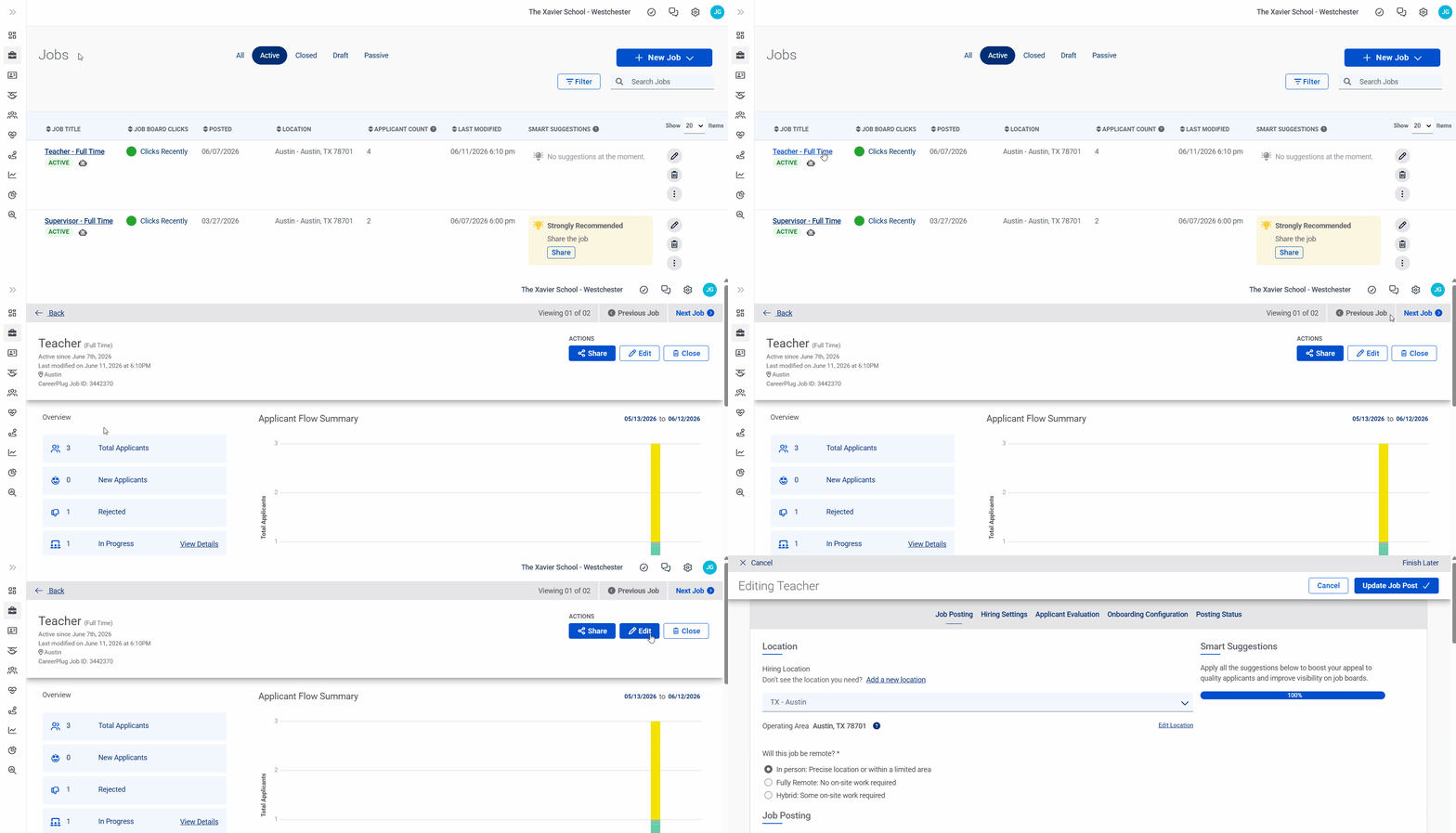
Make any edits you want to your job posting (as outlined in the various sections below).
When you're done, click the **Update Job Post** button to save your changes.

Your changes will appear on your careers page immediately. It may take up to 24 hours for changes to be reflected on external job boards.
### Use a job template
If you already have any job templates created in your account, you can select a job template instead of creating a blank job from scratch. A job template has a preset job title, description, and settings, which you can always edit. A job template is a great way to ensure you're building a consistent hiring process and save you time in the future.
From your **Jobs** page, click the **+ New Job** button in the upper right corner and select **Job from Template** from the drop-down menu.

From your Dashboard, you can also click the **+ Create New** button and select **Job from Template** from the drop-down menu.
A pop-up will prompt you to choose a job template from the list of available options. Make your selection and click the **Create Job** button.

Need help hiring within your specific industry? CareerPlug integrates with industry-specific job platforms like [ToolBelt](https://adpsupport.careerplug.com/careerplug-partner-toolbelt?hsLang=en) and [myCNAjobs](https://adpsupport.careerplug.com/mycnajobs-integration?hsLang=en) to give you access to a larger group of qualified candidates and help you grow your winning team.
### Create a blank job posting
If your business already has an existing active job post that you created on any job boards, such as Indeed or ZipRecruiter, disable those before making an active posting through CareerPlug. This helps prevent job visibility issues due to violating these job boards' duplicate posting guidelines.
From your **Jobs** page, click the **+ New Job** button in the upper right corner and select **Job From Scratch** from the drop-down menu.

From your Dashboard, you can click the **+ Create New** button and select **Create From Scratch** from the drop-down menu.
### Follow CareerPlug's Smart Suggestions
Available with a CareerPlug [Hire](https://adpsupport.careerplug.com/benefits-of-a-careerplug-hire-subscription?hsLang=en) or [Grow](https://adpsupport.careerplug.com/benefits-of-a-careerplug-grow-subscription?hsLang=en) Subscription.
As you set up your job posting, you'll notice a set of recommendations on the right side of the page. These are CareerPlug's Smart Suggestions.
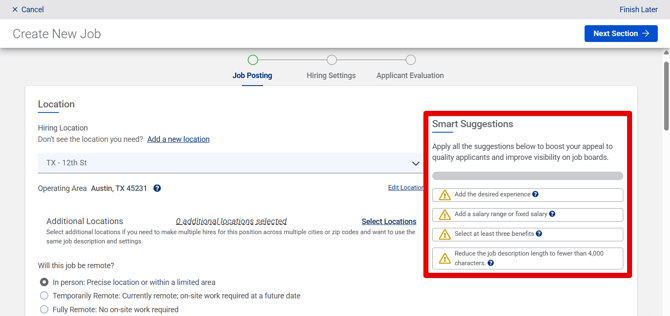
Ensure your job follows all of our Smart Suggestions to attract higher-quality candidates and improve visibility on job boards.

### Set hiring location and remote status
The Location you set in CareerPlug determines where (i.e., city and ZIP Code) your job is posted on job boards.
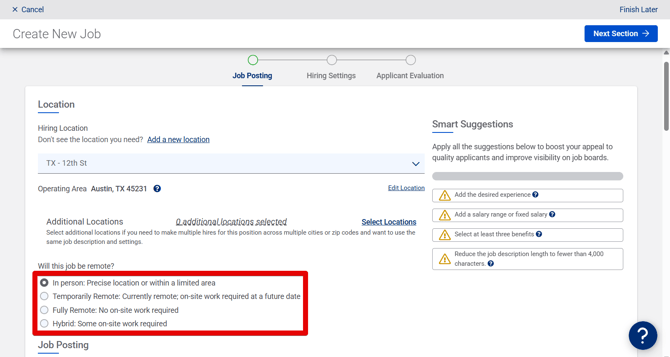
Choose a Location for your job from the **Hiring Location** drop-down menu.
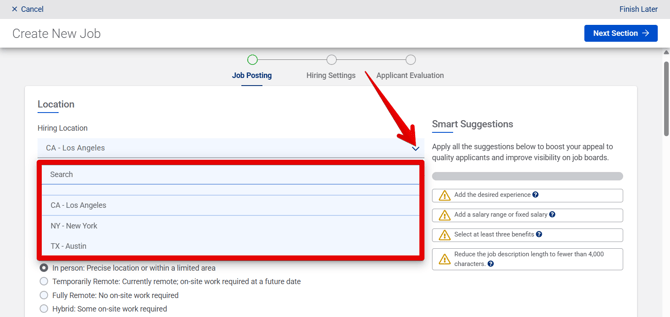
If you don’t see the Location you're looking for — or you don't see *any* Locations — click the **[Add a new location](https://adpsupport.careerplug.com/adding-locations?hsLang=en)** link. Only [Admin users](https://adpsupport.careerplug.com/changing-a-users-access-level-permissions?hsLang=en) can add Locations to an account. If you need to edit the Location you've selected for a job, click the **Edit Location** link.

#### Post a job to multiple locations at once
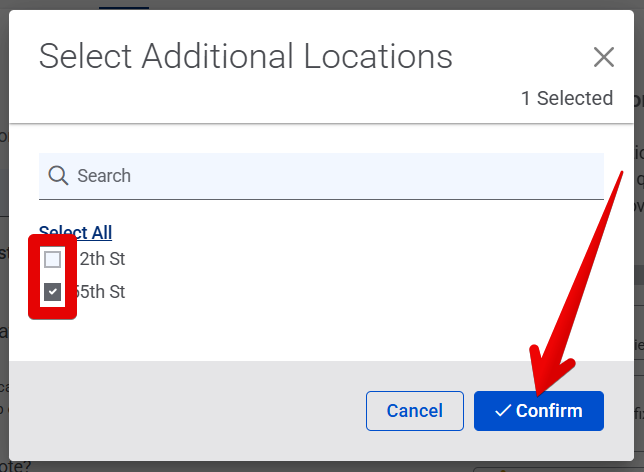
[If you need to make multiple hires for this job across multiple cities or ZIP Codes](https://adpsupport.careerplug.com/posting-a-job-to-multiple-locations-at-once?hsLang=en) and want to use the same job description and settings, click the **Select Locations** link.
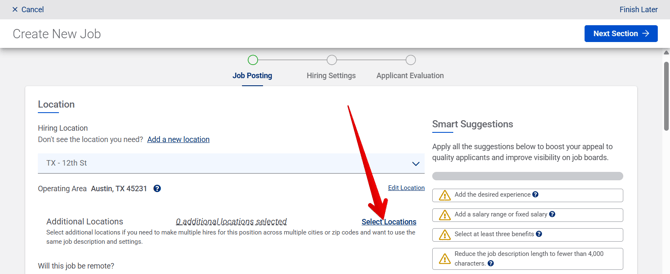
A pop-up will prompt you to select additional Locations from the list of available options. Make your selections and click the **Confirm** button.

#### Select remote status
To specify that your job is a remote position, select either **Temporarily Remote**, **Fully Remote**, or **Hybrid** from the options listed at the bottom of the Location section. If the position is not remote, select **In person**.
To increase your job's visibility on job boards and ensure it meets requirements for remote postings, we recommend including one of the following phrases in your job description:
- “This is a remote position”
- “Employee will be working remotely”
- “Remote work allowed”
- "Will be fully remote"

When you list a job as remote, it will be posted as a nationwide opportunity on job boards that support remote positions.
**Note:** For remote jobs, the Location you select for remote positions will only be used for internal purposes.
### Enter job title and job description
Enter a **Job Title** for your posting. It should be short, clear, and relevant.
Enter a job **Description**. Your job description needs to be clear, concise, and enticing, and it needs to include four key points:
- Why this job matters
- What the requirements and responsibilities are
- What benefits and perks you're offering for the role
- Who your company is

[A Requisition ID is an internal job code that you can use for reporting purposes](https://adpsupport.careerplug.com/using-requisition-id-to-improve-internal-tracking-reporting?hsLang=en). It is not visible to applicants. To learn more about using Requisition IDs, click on the orange tip below.
The posting language is the language your job appears in by default on your careers page. As long as [CareerPlug's built-in translation feature is enabled](https://adpsupport.careerplug.com/recruiting-bilingual-candidates?hsLang=en), applicants will automatically have the option to translate the page.
Use the editing toolbar to format your job description.

#### Use CareerPlug's AI-powered Job Description Builder
Available with a CareerPlug [Hire](https://adpsupport.careerplug.com/benefits-of-a-careerplug-hire-subscription?hsLang=en) or [Grow](https://adpsupport.careerplug.com/benefits-of-a-careerplug-grow-subscription?hsLang=en) Subscription.
With [CareerPlug's AI-powered Job Description Builder](https://adpsupport.careerplug.com/using-careerplug-s-ai-powered-job-description-builder?hsLang=en), you can officially say goodbye to the blank page. Generate a job description in seconds, review and tailor it to your company's voice and the position's requirements, and start attracting top talent sooner.
To quickly generate a job description, click the **Auto-generate** button above the Description field.
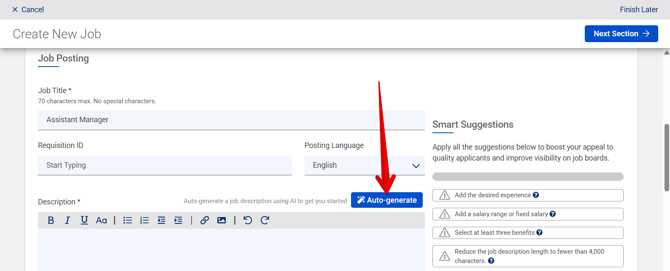
**Note:** Generating and formatting a job description can take up to 60 seconds. Each time you click the Auto-generate button, a new job description will be generated, replacing all existing text (and any edits you have made) in the Description field.
### Add benefits
Besides salary information, benefits are the most influential factor in a job seeker's decision to apply for a job. To ensure your job's benefits capture the attention of job seekers, we put them at the top of every job posting from CareerPlug. **We strongly recommend including at least 3 benefits on every job posting.**
Click to select any benefits your job offers from the listed options. Click a highlighted benefit again to remove it.
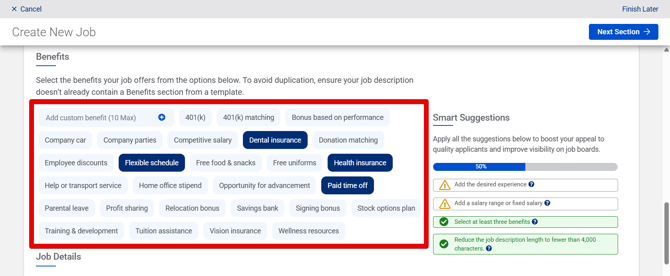
If you want to advertise additional benefits that aren't listed, you can create custom options to include in your job posting.
Enter your custom benefit in the empty field in the top-left corner of the Benefits section and click the **plus (+) icon** to add it to your job posting.

To remove a custom benefit, click the **X icon** on the right edge of the tile.
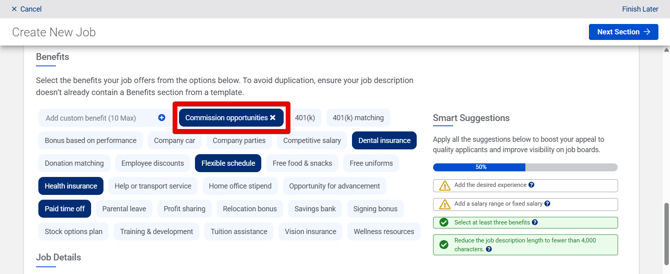
To avoid duplication, ensure your [job description](https://adpsupport.careerplug.com/posting-a-job#title) doesn't already include a Benefits section (if, for instance, you're using a [job template](https://adpsupport.careerplug.com/posting-a-job#template)).
### Set job details and salary information
Choose the **Employment Type** (Full Time, Part Time, Independent Contractor) for your job from the drop-down menu.
Set the **Desired Experience** (years) for the role using the drop-down menu. This can help with visibility on major job boards.

Add a salary amount or range that applies. Formatting this information correctly by using the salary information fields (pay style, amount, pay interval) will help improve this job's visibility on the job boards.
- **Pay style** - Choose between fixed (allows you to enter one amount) or ranged (requires you to add minimum and maximum amounts)
- **Amount ($)** - Enter the pay amount (number only)
- **Pay interval** - The interval can be per hour, day, week, month, or year
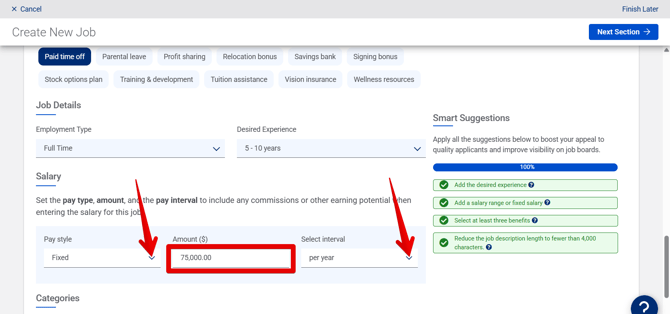
Applicants are drawn to job postings that include salary information, and many major job boards now automatically display compensation on every job, so we strongly recommend adding this information. **If you don't specify salary information yourself, job boards will assign an estimated compensation to your job posting.**
Nearly 20 states (and growing) now require by law that salary information be presented to job seekers. Please refer to your local state laws to maintain compliance.
### Select job categories
Add categories to your job posting to help job seekers find it on job boards.
To add categories, click the **Select Categories** link.

Select up to five categories by clicking the associated checkboxes. Click the **Confirm** button to add the selected categories to your job.
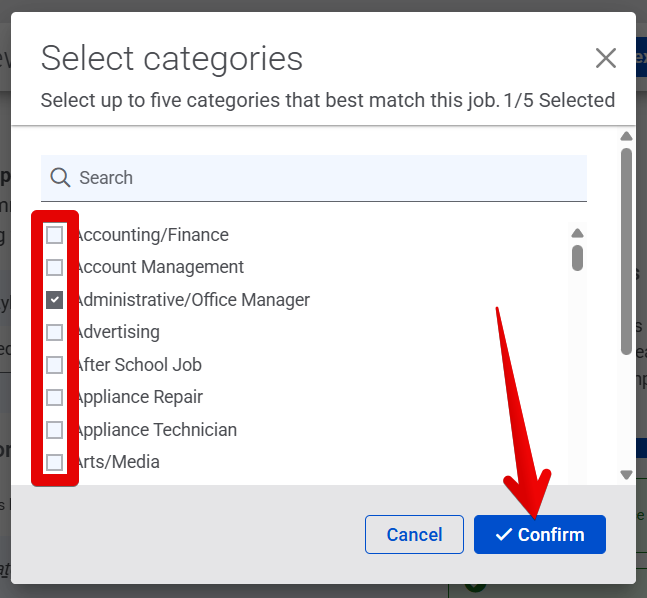
When you’re done configuring the Job Posting tab, click the **Next Section** button.

### Set hiring goals
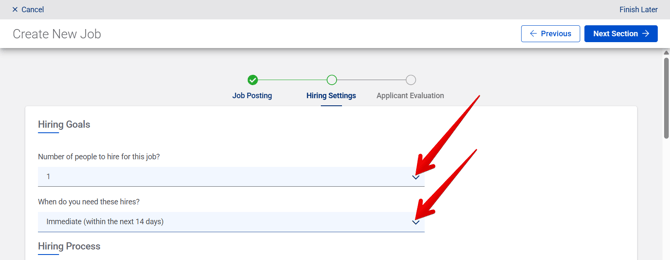
At the top of the Hiring Settings tab, you need to set the hiring goals for your job posting.
Choose the **Number of people to hire for this job** using the drop-down menu.
Select an urgency for your job posting using the **When do you need these hires** drop-down menu:
- Immediate (within the next 14 days)
- Very Soon (within 1 month)
- Soon (within 1-2 months)
- Not Urgent (in 2+ months)
### Select hiring process and offer letter
Your [hiring process](https://adpsupport.careerplug.com/creating-or-editing-a-hiring-process?hsLang=en) is the set of steps that an applicant must go through in order to be hired. For example, steps in your hiring process might include an initial review, a phone screen, and an offer.
You can easily [create your own or clone an existing hiring process](https://adpsupport.careerplug.com/creating-or-editing-a-hiring-process?hsLang=en) or click on the **Settings** link from the job builder, which will open in a new tab. If you create a new hiring process, refresh the page to see it reflected in the dropdown menu.
You’ll also need to [select an **Offer Letter Template**](https://adpsupport.careerplug.com/using-offer-letters?hsLang=en#default) for your job using the drop-down menu.

#### Use CareerPlug Grow and Autopilot to save time and land more interviews
With [CareerPlug Grow](https://adpsupport.careerplug.com/benefits-of-a-careerplug-premium-subscription?hsLang=en), get access to Autopilot, which cuts interview scheduling time by 91% and gets you 8x more interviews scheduled.
[Set up Autopilot](https://adpsupport.careerplug.com/getting-started-using-autopilot?hsLang=en) and select an Autopilot hiring process the next time you are creating a new job.
With an Autopilot-enabled hiring process in place, there are two additional features to consider: **Autopilot Defaults** and **Autopilot Fast Track**.

[Autopilot Defaults](https://adpsupport.careerplug.com/using-autopilot-defaults?hsLang=en) allow you to schedule Autopilot interviews with a single click.
To set up your Autopilot Defaults, click the **down arrow icon** to expand an Autopilot hiring step and configure its settings. Select an **Interviewer**, the amount of time an applicant has to schedule their interview (the **Can be scheduled up to** drop-down menu), and a **Hiring Manager** for each Autopilot hiring step.
**Note:** Autopilot Defaults only apply to the specific hiring step of the job you are configuring. You must set up separate Autopilot Defaults for each Autopilot hiring step for each job you have.
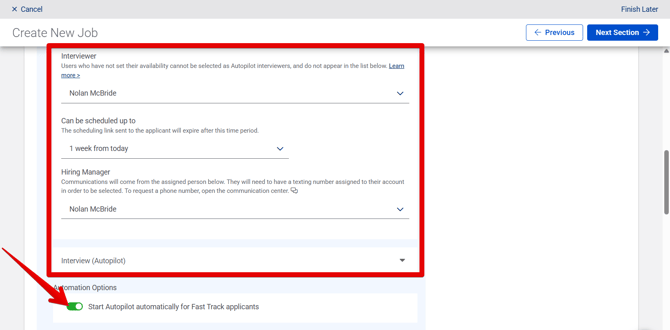
[Autopilot Fast Track](https://adpsupport.careerplug.com/using-autopilot-fast-track?hsLang=en) allows you to automatically schedule interviews with new Fast Track applicants — no input required from you!
To use Autopilot Fast Track, turn on the **Start Autopilot automatically for Fast Track applicants** toggle (under Automation Options).
You need to [set up at least one prescreen question with a Fast Track response](https://adpsupport.careerplug.com/setting-up-fast-track-for-prescreen-questions?hsLang=en) to use Autopilot Fast Track.
### Change permissions
[Permissions are based on user access to the Location](https://adpsupport.careerplug.com/giving-users-access-to-jobs-and-applicants-via-locations?hsLang=en) associated with your job.

To change permissions, click the **Job Posting** link (or navigate back to the **Job Posting** tab on your own) and [change the Hiring Location associated with your job](https://adpsupport.careerplug.com/posting-a-job#location) using the drop-down menu.

### Set hiring manager
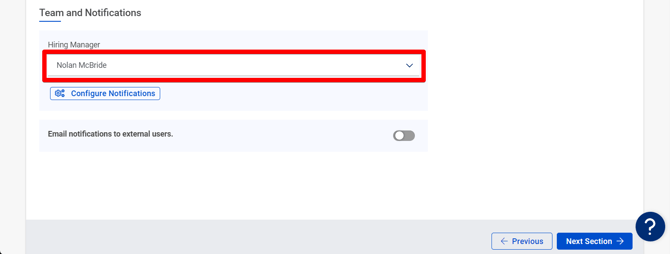
Confirm the **Hiring Manager** selected by default, or choose a different manager using the drop-down menu.
### Configure notifications
[Edit notification settings for all users (including yourself)](https://adpsupport.careerplug.com/managing-notification-settings?hsLang=en) with access to the job by clicking the **Configure Notifications** button.

In the Configure User Notifications drawer, click the **down arrow icon** next to a user's name to edit their notifications settings.

Set whether users receive notifications when **New Applicants** apply and when **Applicant Tasks** are completed by turning on/off the associated toggle.
- For **New Applicants** notifications, select the frequency of notifications from the drop-down list.
- For **Applicant Tasks** notifications, select which tasks you want users to be notified about when completed by applicants.

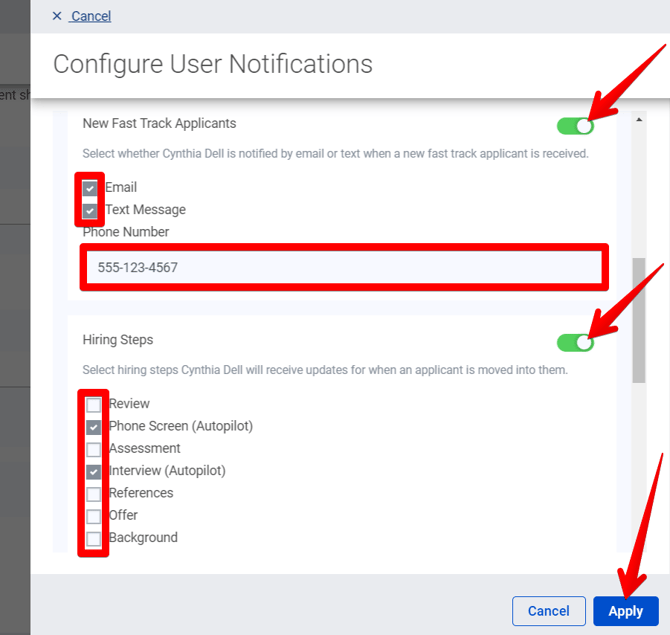
Set whether users receive notifications when **New Fast Track Applicants** are received and when applicants reach particular **Hiring Stages** by turning on/off the associated toggle.
- For **New Fast Track Applicants** notifications, select the methods by which you want users to be notified. If selecting text message notifications, you need to enter a **Phone Number**.
- For **Hiring Stages** notifications, select which hiring steps you want users to be notified about when reached by applicants.
When you're done configuring notifications settings for all of your users, click the **Apply** button to save your changes.
#### Email notifications to external users
If there are users outside of your organization that need access to a job, turn on the **Email notifications to external users** toggle. Enter any external email addresses needed in the field below, each separated by a comma.

When you’re done configuring the Hiring Settings tab, click the **Next Section** button.

### Require a resume
By default, CareerPlug jobs do not require applicants to upload a resume in order to apply.
To require applicants to submit a resume with their application, turn on the **Resume is required to apply to this job** toggle at the top of the Applicant Evaluation tab.

### Add prescreen questions
[Select any prescreen questions you would like to ask your applicants](https://adpsupport.careerplug.com/using-prescreen-questions?hsLang=en) either by choosing from our library of prewritten questions or creating your own prescreen question. **We strongly recommend including 3 prescreen questions, but you can have up to 5; including more than 5 will negatively impact applicant volume.**
Applicants must answer all prescreen questions when applying for your job. You can use the applicant's answers and prescreen score to help evaluate their level of fit for the position.
Prescreen questions should help you quickly identify top candidates based on your most important criteria and ensure applicants have the skills, availability, and work authorization to be eligible for your roles.
To add a prescreen question, click the **Add Questions** button and choose either **Select from library** or **Create a prescreen question** from the drop-down menu.

#### Select from library
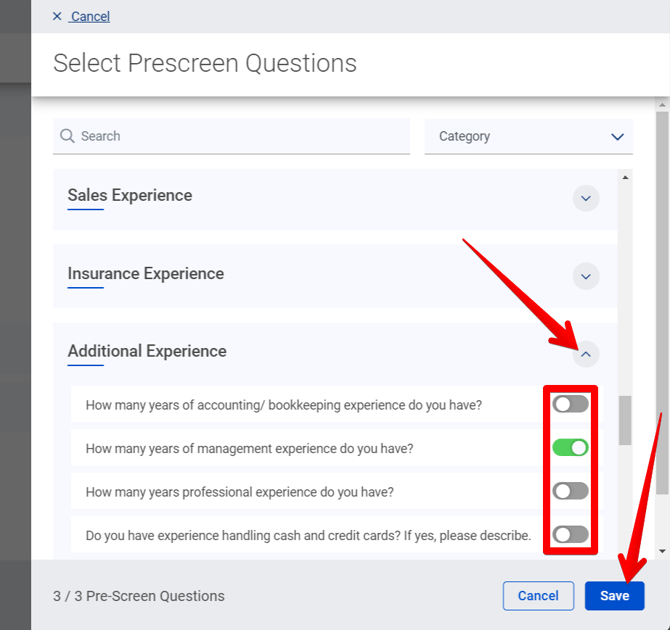
If you choose to select prescreen questions from the library, you can browse questions from the available sections — clicking the **down arrow icon** to expand them — and add them by turning on the toggle for each.
When you're done adding questions from the library, click the **Save** button.
#### Create a prescreen question
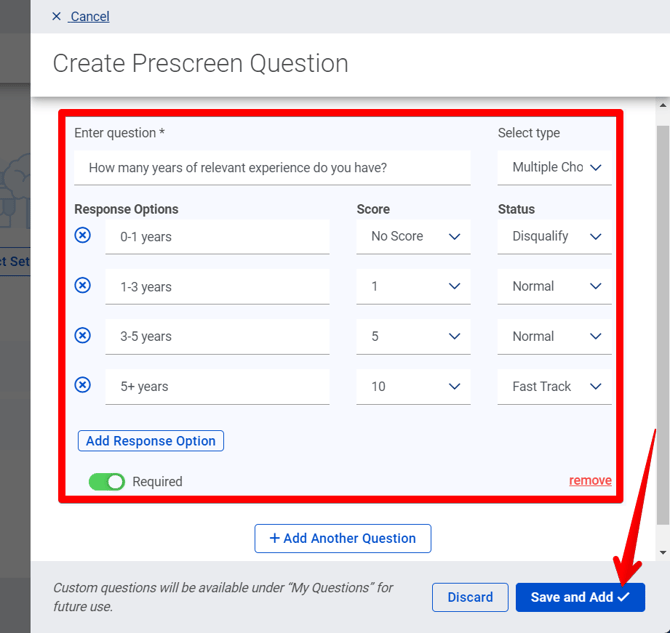
If you choose to create your own prescreen question, you can edit:
- The question (*field*)
- The question type (*drop-down*)
- Multiple choice
- Yes/No
- Open response
- Multi-select
- The response options that applicants can select (*field*)
- The score for each response (*drop-down*)
- The applicant status for each response (*drop-down*)
- Whether the question is required (*toggle*)
Add more custom questions by clicking the **Add Another Question** button. When you're done adding questions, click the **Save and Add** button.
#### Edit or remove a prescreen question
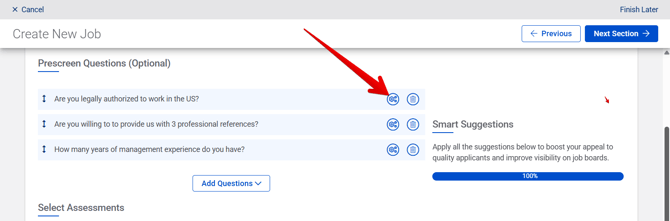
To edit a prescreen question you've already added to your job, click the **gear icon** to the right of the question.
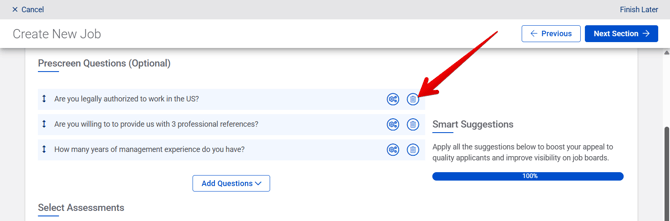
To remove a prescreen question, click the **trash can icon** to the right of the question.
#### Select a question set
If you have a group of prescreen questions that you want to use across multiple jobs or job templates, it can be a time-saver to [set up custom questionnaires instead of selecting prescreen questions](https://adpsupport.careerplug.com/using-custom-questionnaires-instead-of-prescreen-questions?hsLang=en) for every job. Add a question set by clicking the **Select Set** button.

Select the question set you'd like to use and click the **Save** button.

**Prescreen questions and question sets cannot be used at the same time.** The option to add a question set will not be available if you've already added prescreen questions to your job. To be able to add a question set, remove any prescreen questions from your job first.
### Select assessments
Available with a CareerPlug [Hire](https://adpsupport.careerplug.com/benefits-of-your-careerplug-hire-subscription?hsLang=en) or [Grow](https://adpsupport.careerplug.com/benefits-of-a-careerplug-grow-subscription?hsLang=en) subscription.
You have the option to include two assessments with your job. Send assessments to applicants to help evaluate whether they possess the necessary skills and personality traits to perform a job effectively.
To add the timed, standardized [**Math/Verbal Aptitude Assessment**](https://adpsupport.careerplug.com/using-the-math-verbal-assessment?hsLang=en) or the configurable [**Personality Assessment**](https://adpsupport.careerplug.com/careerplug-s-personality-assessment?hsLang=en) to your job, turn on the associated toggle.
#### Select categories for the Personality Assessment
If you add the Personality Assessment, [you can choose a number of categories on which to evaluate your applicants](https://adpsupport.careerplug.com/careerplug-s-personality-assessment?hsLang=en#configure) by clicking **Select Categories**.
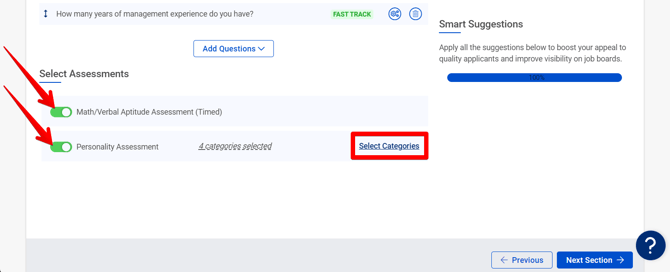
Make your selections and click the **Confirm** button to save your choices.
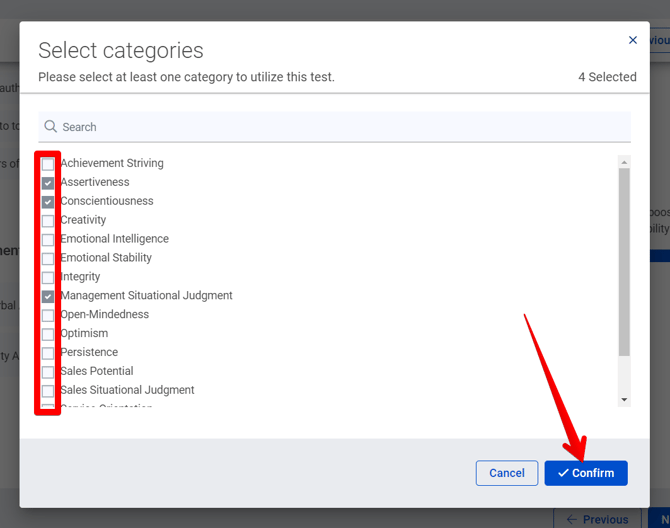
When you’re done configuring the Applicant Evaluation tab, click the **Next Section** button.

### Select posting status
The final step of creating your job is configuring the **Select posting status** pop-up.
##### In this section:
- [Set job post status](https://adpsupport.careerplug.com/posting-a-job#job-post-status)
- [Post job at a later date](https://adpsupport.careerplug.com/posting-a-job#post-later)
- [Post job to your careers page only](https://adpsupport.careerplug.com/posting-a-job#post-CP-only)
- [Turn job posting into a template](https://adpsupport.careerplug.com/posting-a-job#post-template)
- [Hide job posting from your careers page](https://adpsupport.careerplug.com/posting-a-job#hide)
- [Make your job confidential](https://adpsupport.careerplug.com/posting-a-job#confidential)
#### Set job post status
Set your job posting's status to **Active**, **Pending**, or **Careers Pages Only**.
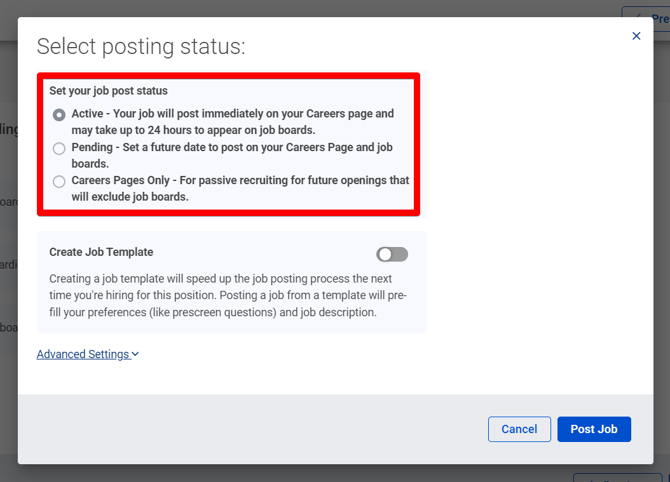
Here's an explanation of the three available job post statuses:
| **Active** | Your job will be immediately posted on your careers page and sent to external job boards. It may take up to 24 hours to appear on job boards. |
| --- | --- |
| **Pending** | Choose this status if you’re not ready for the job to be posted anywhere yet, or if you want to post the job at a future date. *You can find all of your Pending jobs on the **Drafts** tab of your **Jobs** page.* |
| **Careers Pages Only** | Your job will be created and posted on your careers page, but not sent to any external job boards. *You can find all of your internal-only jobs on the **Passive** tab of your **Jobs** page.* |
#### Post job at a later date
If you're thinking about a position you need to fill in the future while you're in your CareerPlug account, you have the option to create the job now but set it to post to job boards at a later date.
Setting a job to post at a later date helps you prepare for future hiring needs. Setting a job to post at a later date (think scheduling a job to go active in the future) also lets you set a job to post on the best days for applicant visibility — Monday through Wednesday, when job seekers are most active on the job boards — without having to sign into your account on those days.
To post a job at a later date, select **Pending** as the job post status.
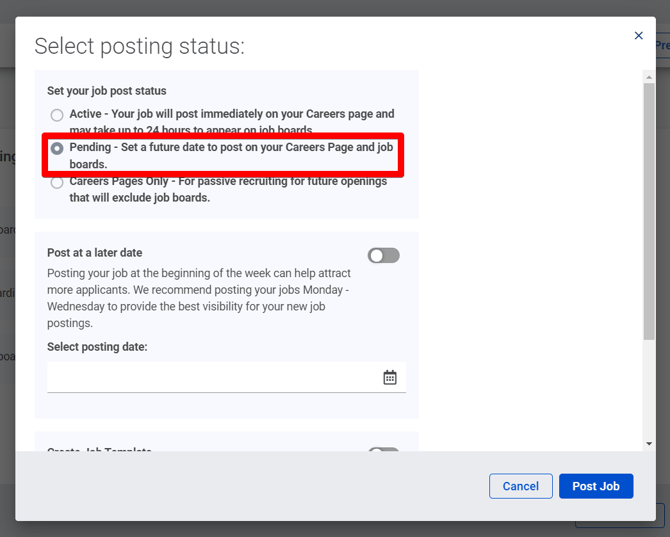
Turn on the **Post at a late date** toggle, then click the **calendar icon** to select your job's posting date from the drop-down calendar.

After you click the **Post Job** button, the job will be saved on the **Drafts** tab of your Jobs page until it is posted. If you did not set a future date for your job to post, it will remain on your Drafts tab until you update it with a date or post it (by making it an Active job).

#### Post job to your careers page only
Passive jobs — sometimes called internal-only jobs — are future openings posted to your careers page but not shared on job boards like Indeed. Passive recruiting allows you to build a hiring pipeline of qualified candidates who you can reach out to when openings become available.
Passive recruiting is important. Imagine one of your A-players quits and you are unexpectedly left shorthanded. You'll scramble to write a job description and get into hiring mode while your team feels the absence. But if you’re constantly searching for A-players, fostering relationships, and building your talent pipeline, you’ll already know where to find the best candidates when your A-player quits with two weeks’ notice.
To make a passive job posting, select **Careers Pages Only** as the job post status.
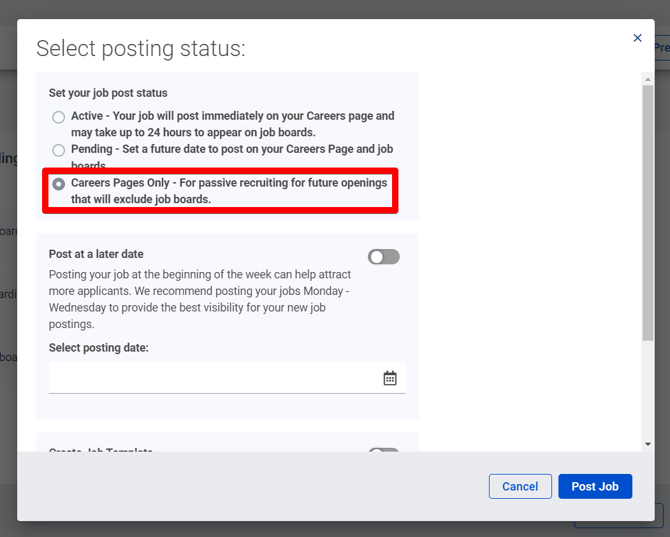
Selecting **Careers Pages Only** will expand the Posting Status pop-up and give you the option to schedule your passive job to post at a later date.
Turn on the **Post at a late date** toggle, then click the **calendar icon** to select your passive job's posting date from the drop-down calendar.

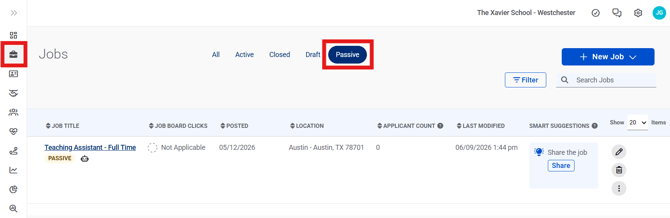
After you click the **Post Job** button, the job will be saved on the **Passive** tab of your Jobs page. If you did not set a future date, your job will post to your careers page immediately. If you selected a future date, your posting will go live on your careers page on that date.
#### Turn job posting into a template
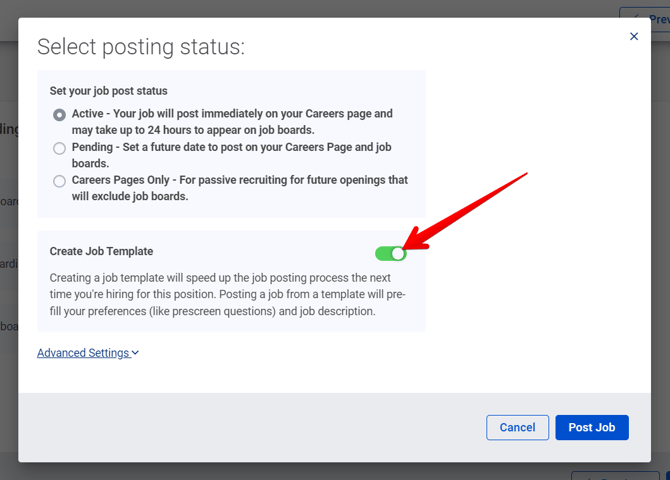
To speed up the job posting process the next time you’re hiring for a similar position, create a job template from this posting.
To turn your job posting into a template, turn on the **Create Job Template** toggle.
#### Hide job posting from your careers page
You have the ability to make your job active on job boards, but not have it displayed on your careers page.
To hide your job posting from your careers page, click the **Advanced Settings** link to expand your posting options and turn on the **Do not display on my Careers Page** toggle.

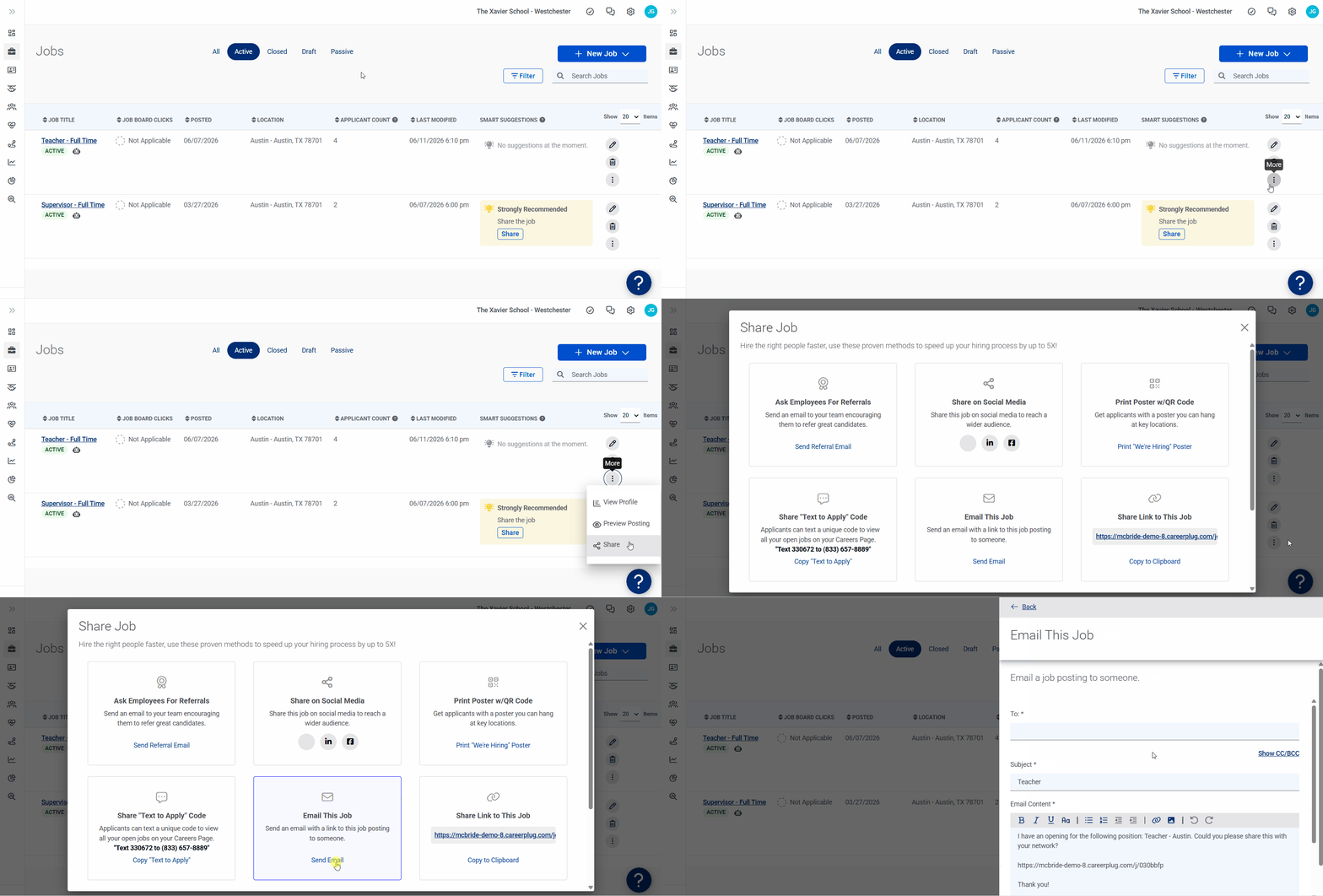
If you select this option, you will need to [email the link to your job to internal candidates using the **Share** button on your **Jobs** page](https://adpsupport.careerplug.com/sharing-your-job-on-external-sources?hsLang=en#email).
#### Make your job confidential
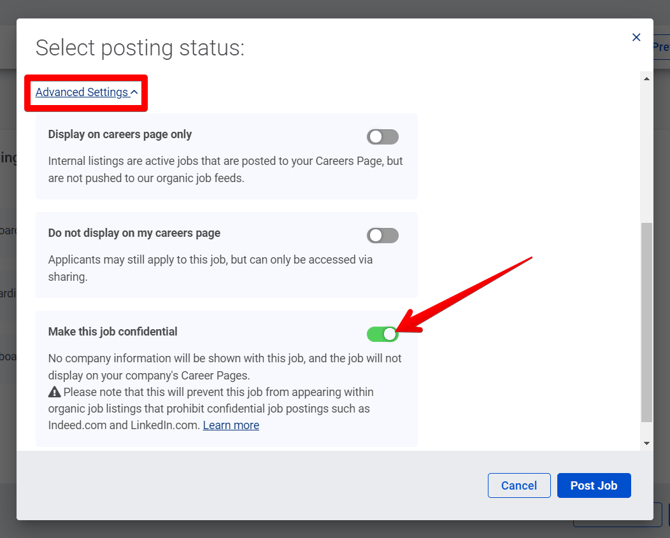
You have the option to make your job posting confidential. No company information will be shown with this job, and the job will not be displayed on your careers page. Selecting this option will prevent your job from appearing on job boards like Indeed and SimplyHired. When you [make your job posting confidential](https://adpsupport.careerplug.com/creating-a-confidential-job-posting?hsLang=en), you'll need to ensure that you have a Confidential Account Name set up.
To make your job posting confidential, click the **Advanced Settings** link to expand your posting options and turn on the **Make this job confidential** toggle.
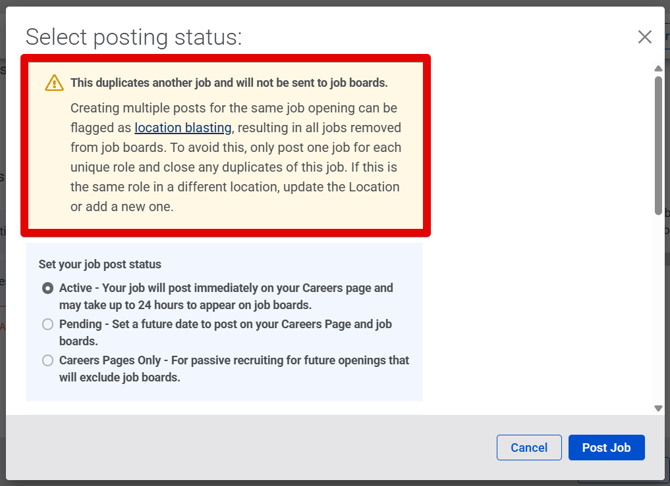
#### Duplicate job postings
If you try to create a new job with the same [job title](https://adpsupport.careerplug.com/posting-a-job#title), [location](https://adpsupport.careerplug.com/posting-a-job#location), *and* [employment type](https://adpsupport.careerplug.com/posting-a-job#details) as another active job posting, you'll notice a warning on the Select posting status pop-up advising you that duplicate jobs will not be sent to job boards. This is because job boards, such as [Indeed](https://indeedinc.my.site.com/employerSupport1/s/article/Policies-Regarding-Reposted-Content-Job-Post-Duplication-and-Manipulation-of-Search-Results?language=en_US), consider job postings from a single employer with the same job title, location, and employment type as duplicates.
**To avoid violating [job board guidelines](https://indeedinc.my.site.com/employerSupport1/s/topic/0TOQi000000ETJtOAO/policies?language=en_US) and negatively impacting a job's visibility, ensure any new job you create doesn't have the same combination of job title, location, and employment type as another active job in your account.** If you'd like to post an identical role to a different Location in CareerPlug, you just need to change the [Location](https://adpsupport.careerplug.com/posting-a-job#location) associated with the job.
### Post your job
When you're all done editing your job's posting status, click the **Post Job** button.
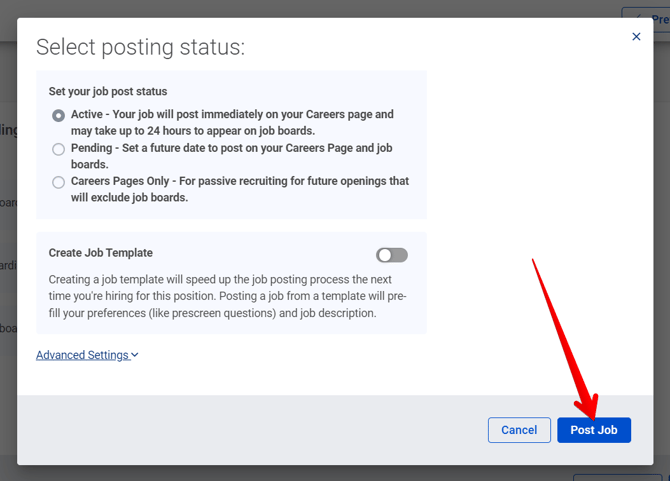
When you set your job to active, it may take up to 24 hours to appear on job boards.
### Share your job
After you post a job, a pop-up window will prompt you to share your job to additional sources beyond the [partner job boards where CareerPlug automatically shares your jobs](https://adpsupport.careerplug.com/job-boards-where-careerplug-automatically-sends-your-jobs?hsLang=en). [**Applicants from custom sources are 3x more likely to be hired than applicants from job boards**](https://www.careerplug.com/blog/recruiting-metrics-and-kpis/#best-places-to-post-jobs), which is why we highly recommend targeting additional sources beyond the usual job boards to attract more high-quality applicants.
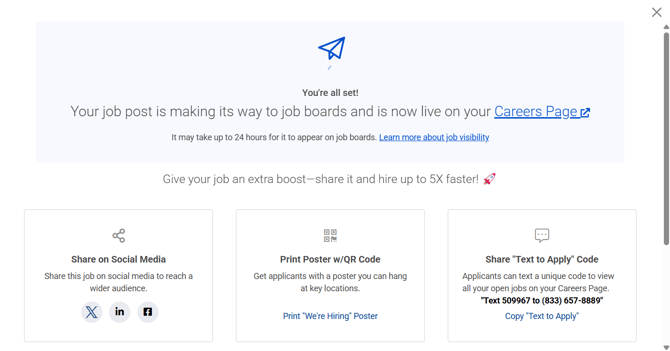
In the Share Job pop-up window, click the link associated with whichever method you'd like to use to share your job:
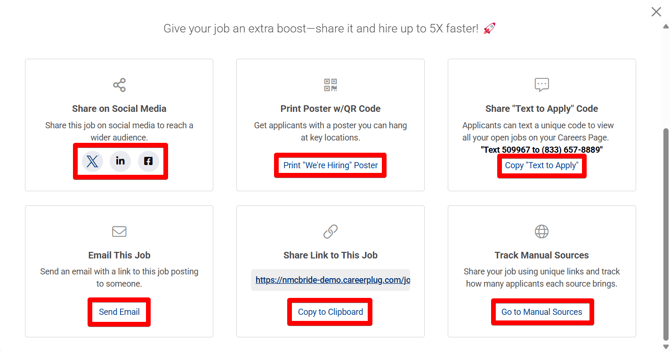
Learn more about [sharing your job on external sources](https://adpsupport.careerplug.com/sharing-your-job-on-external-sources?hsLang=en).
- [Getting Started](https://adpsupport.careerplug.com/getting-started?hsLang=en#main-content)
- [CareerPlug 101](https://adpsupport.careerplug.com/getting-started?hsLang=en#careerplug-101)
- [How To Hire](https://adpsupport.careerplug.com/getting-started?hsLang=en#how-to-hire)
- [Account Set Up](https://adpsupport.careerplug.com/account-set-up?hsLang=en#main-content)
- [About Your Account](https://adpsupport.careerplug.com/account-set-up?hsLang=en#about-your-account)
- [Billing](https://adpsupport.careerplug.com/account-set-up?hsLang=en#billing)
- [Configuring Your Account](https://adpsupport.careerplug.com/account-set-up?hsLang=en#configuring-your-account)
- [Locations](https://adpsupport.careerplug.com/account-set-up?hsLang=en#locations)
- [Your Careers Page](https://adpsupport.careerplug.com/account-set-up?hsLang=en#your-careers-page)
- [Notifications](https://adpsupport.careerplug.com/account-set-up?hsLang=en#notifications)
- [User Access](https://adpsupport.careerplug.com/account-set-up?hsLang=en#user-access)
- [Admin](https://adpsupport.careerplug.com/account-set-up?hsLang=en#admin)
- [Support](https://adpsupport.careerplug.com/support?hsLang=en#main-content)
- [Contacting Support](https://adpsupport.careerplug.com/support?hsLang=en#contacting-support)
- [Troubleshooting](https://adpsupport.careerplug.com/support?hsLang=en#troubleshooting)
- [Live Trainings](https://adpsupport.careerplug.com/support?hsLang=en#live-trainings)
- [Job Postings](https://adpsupport.careerplug.com/job-postings?hsLang=en#main-content)
- [About Your Jobs](https://adpsupport.careerplug.com/job-postings?hsLang=en#about-your-jobs)
- [Creating & Editing Job Postings](https://adpsupport.careerplug.com/job-postings?hsLang=en#creating-editing-job-postings)
- [Sponsoring Jobs](https://adpsupport.careerplug.com/job-postings?hsLang=en#sponsoring-jobs)
- [Passive Recruiting](https://adpsupport.careerplug.com/job-postings?hsLang=en#passive-recruiting)
- [Managing Your Jobs](https://adpsupport.careerplug.com/job-postings?hsLang=en#managing-your-jobs)
- [Sharing Your Jobs](https://adpsupport.careerplug.com/job-postings?hsLang=en#sharing-your-jobs)
- [Job Boards](https://adpsupport.careerplug.com/job-postings?hsLang=en#job-boards)
- [Applicant Flow](https://adpsupport.careerplug.com/job-postings?hsLang=en#applicant-flow)
- [Applicant Tracking](https://adpsupport.careerplug.com/applicant-tracking?hsLang=en#main-content)
- [Applicant Information](https://adpsupport.careerplug.com/applicant-tracking?hsLang=en#applicant-information)
- [Managing Applicants](https://adpsupport.careerplug.com/applicant-tracking?hsLang=en#managing-applicants)
- [Sorting & Filtering Applicants](https://adpsupport.careerplug.com/applicant-tracking?hsLang=en#sorting-filtering-applicants)
- [Contacting Applicants](https://adpsupport.careerplug.com/applicant-tracking?hsLang=en#contacting-applicants)
- [Interviewing Applicants](https://adpsupport.careerplug.com/applicant-tracking?hsLang=en#interviewing-applicants)
- [Applicant Activity](https://adpsupport.careerplug.com/applicant-tracking?hsLang=en#applicant-activity)
- [Hiring](https://adpsupport.careerplug.com/applicant-tracking?hsLang=en#hiring)
- [Applicant Experience](https://adpsupport.careerplug.com/applicant-tracking?hsLang=en#applicant-experience)
- [Hiring Tools & Automations](https://adpsupport.careerplug.com/hiring-tools-automations?hsLang=en#main-content)
- [Autopilot](https://adpsupport.careerplug.com/hiring-tools-automations?hsLang=en#autopilot)
- [Hiring Process](https://adpsupport.careerplug.com/hiring-tools-automations?hsLang=en#hiring-process)
- [Automations](https://adpsupport.careerplug.com/hiring-tools-automations?hsLang=en#automations)
- [Prescreen Questions](https://adpsupport.careerplug.com/hiring-tools-automations?hsLang=en#prescreen-questions)
- [Assessments](https://adpsupport.careerplug.com/hiring-tools-automations?hsLang=en#assessments)
- [Email & Text Messages](https://adpsupport.careerplug.com/hiring-tools-automations?hsLang=en#email-text-messages)
- [Scorecards](https://adpsupport.careerplug.com/hiring-tools-automations?hsLang=en#scorecards)
- [Offer Letters](https://adpsupport.careerplug.com/hiring-tools-automations?hsLang=en#offer-letters)
- [Templates](https://adpsupport.careerplug.com/hiring-tools-automations?hsLang=en#templates)
- [Integrations](https://adpsupport.careerplug.com/hiring-tools-automations?hsLang=en#integrations)
- [Other Tools](https://adpsupport.careerplug.com/hiring-tools-automations?hsLang=en#other-tools)
- [Reporting & Compliance](https://adpsupport.careerplug.com/reporting-compliance?hsLang=en#main-content)
- [Reporting](https://adpsupport.careerplug.com/reporting-compliance?hsLang=en#reporting)
- [Charts](https://adpsupport.careerplug.com/reporting-compliance?hsLang=en#charts)
- [Compliance](https://adpsupport.careerplug.com/reporting-compliance?hsLang=en#compliance)
- [FAQs & Integrations](https://adpsupport.careerplug.com/faqs-integrations?hsLang=en#main-content)
- [The CareerPlug + ADP Partnership](https://adpsupport.careerplug.com/faqs-integrations?hsLang=en#the-careerplug-adp-partnership)
- [Integrations](https://adpsupport.careerplug.com/faqs-integrations?hsLang=en#integrations)
- [What's New](https://adpsupport.careerplug.com/whats-new?hsLang=en#main-content)
- [Monthly Updates](https://adpsupport.careerplug.com/whats-new?hsLang=en#monthly-updates)
- [Account Changes](https://adpsupport.careerplug.com/whats-new?hsLang=en#account-changes)
[](https://adpsupport.careerplug.com?hsLang=en)
Handcrafted in Austin, Texas
© 2026 CareerPlug. All rights reserved.