---
title: Setting up your calendar for Autopilot
description: Set your availability and let Autopilot start doing the work of scheduling interviews so you can get back to managing your business!
---
[Skip to content](https://adpsupport.careerplug.com/setting-up-your-calendar-for-autopilot#main-content)
[Submit a Request](https://adpsupport.careerplug.com/kb-tickets/new?hsLang=en)
[![CP ADP Logo 2025.png\]](https://adpsupport.careerplug.com/hs-fs/hubfs/CP%20ADP%20Logo%202025.png?width=297&height=40&name=CP%20ADP%20Logo%202025.png)](https://adpsupport.careerplug.com?hsLang=en)
Open main navigation
Close main navigation
- [Submit a Request](https://adpsupport.careerplug.com/kb-tickets/new)
- [Get help now!](https://adpsupport.careerplug.com/help)
[Get help now!](https://adpsupport.careerplug.com/help?hsLang=en)
How can we help?
- There are no suggestions because the search field is empty.
1. [ADP Help Center](https://adpsupport.careerplug.com/?hsLang=en)
2. [Hiring Tools & Automations](https://adpsupport.careerplug.com/hiring-tools-automations?hsLang=en)
3. [Autopilot](https://adpsupport.careerplug.com/hiring-tools-automations?hsLang=en#autopilot)
# Setting up your calendar for Autopilot
With [CareerPlug's Hire plan](https://adpsupport.careerplug.com/benefits-of-your-careerplug-pro-subscription?hsLang=en), Autopilot — CareerPlug's automated interview scheduling tool — can be added to all your hiring processes and open jobs. That means there's only one step before you're ready to start using Autopilot. **Set your availability and let Autopilot start doing the work of scheduling interviews so you can get back to managing your business!**
You have two different options to set your availability:
- [Set Weekly Hours for your CareerPlug built-in calendar](https://adpsupport.careerplug.com/setting-up-your-calendar-for-autopilot#built-in-calendar)
- [Connect a calendar account to CareerPlug](https://adpsupport.careerplug.com/setting-up-your-calendar-for-autopilot#external-calendar)
### Set Weekly Hours for your CareerPlug built-in calendar
Every account with a subscription to CareerPlug's Hire plan includes a built-in calendar that can be used for interview scheduling. Set your availability via Weekly Hours and let Autopilot take care of the rest!
**Note:** You can use CareerPlug’s built-in calendar without needing to connect an external calendar account or grant third-party access to your data.
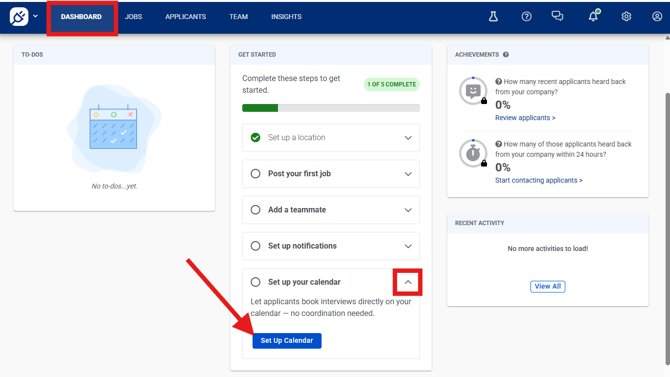
1\. In the Getting Started widget on your Dashboard, click the **down arrow icon** next to **Set up your calendar**. Click on the **Set Up Calendar** button. You'll be redirected to the Calendars tab of **My Profile (person icon)**.
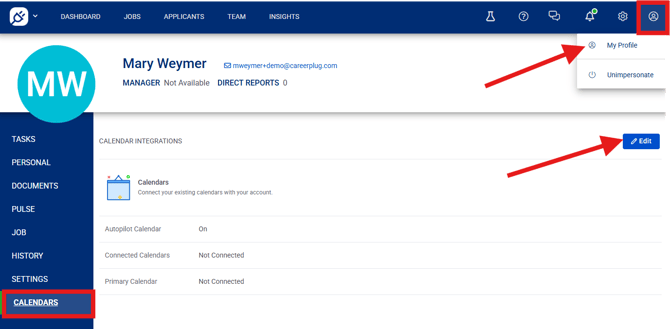
**Note:** If you have dismissed the Getting Started widget, you can also set up Autopilot by navigating to the **My Profile (person icon) \> Calendars** and clicking the **Edit** button in the top-right corner of the page, as shown below.
2\. Set your **Weekly Hours** for interviews using the calendar. Click any of the green ("Available") blocks on your calendar to deselect them and make yourself unavailable for interviews on that day/time. *Weekly Hours will default to 9 a.m. - 5 p.m. Monday through Friday in your account's default time zone.*
*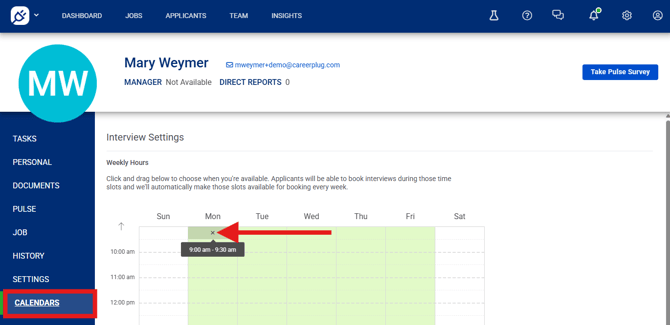*
Applicants can only select time slots within the assigned interviewer's Weekly Hours (as set on their built-in calendar).
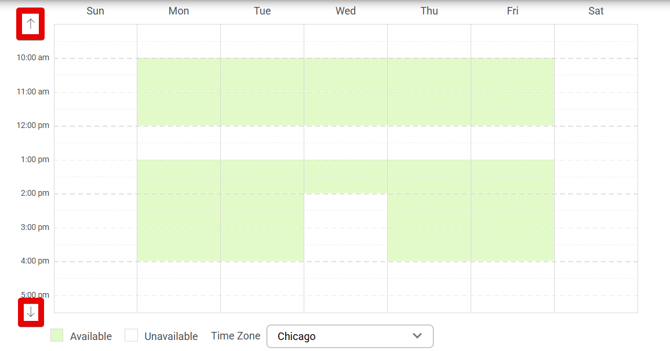
To see and edit more times in your Weekly Hours, use the **up or down arrows** in the calendar's upper and lower left corners.
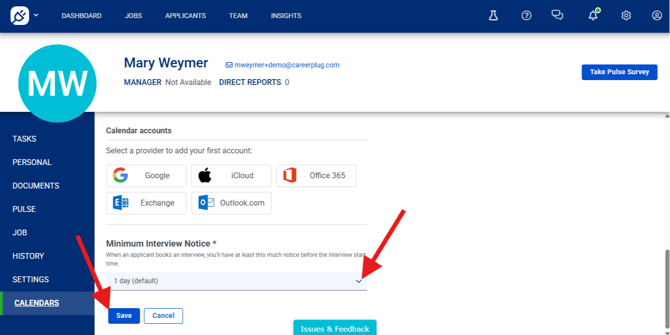
3\. Set your **Minimum Interview Notice** using the drop-down menu. This is the minimum notice you require when an applicant schedules an interview. *Minimum Interview Notice will default to 1 hour.*
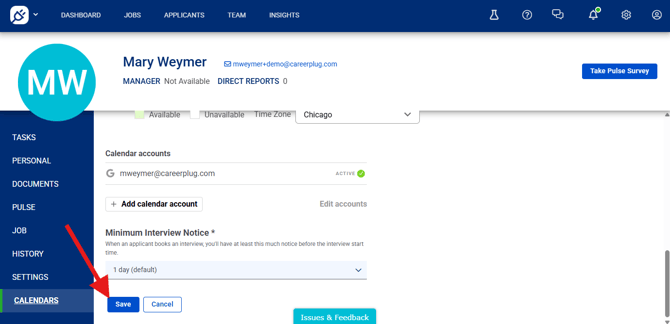
4\. Once your availability is set, click the **Save** button at the bottom of the page.
Now that you've set up your built-in calendar, you can start [using Autopilot to automatically schedule interviews with your applicants](https://adpsupport.careerplug.com/scheduling-interviews-using-autopilot?hsLang=en)!
### Connect a calendar account to CareerPlug
Besides the built-in calendar, you can also set your Autopilot availability by connecting an external calendar account to CareerPlug.
Watch [this video](https://www.loom.com/share/3298b4765bd14330affd51d34a8b8cb0) to learn how to connect a calendar account to CareerPlug, or follow the instructions below:
1\. From your Dashboard, navigate to **My Profile (person icon) \> Calendars**.
2\. Click the **Edit** button in the top-right corner of the page.
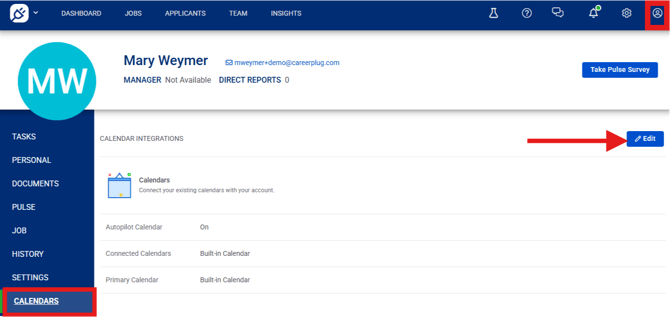
You can also connect a calendar account by clicking the **Set Your Availability** button in your top navigation bar (if available).
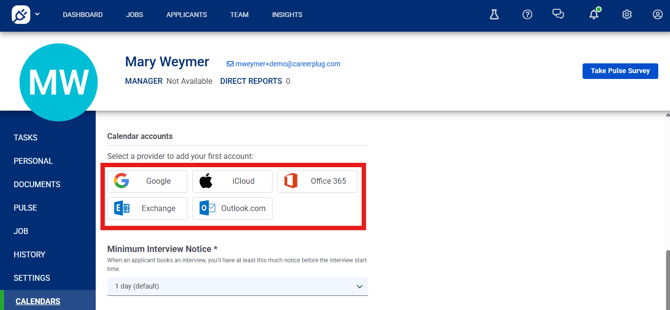
3\. Scroll down to the **Calendar accounts** section, find your calendar account provider, and click the associated button.
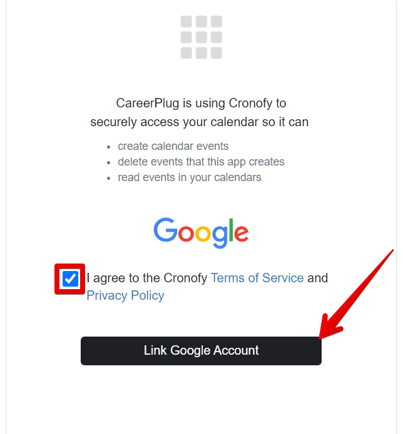
4\. On the following page, click the checkbox to agree to the terms and allow CareerPlug to access your calendar account.
5\. Click the **Link \[Provider\] Account** button.
6\. Select the calendar account you want to connect to CareerPlug.
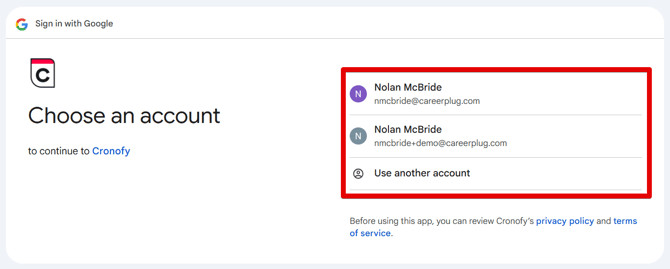
If you select an account not currently signed into your browser, you must enter your sign-in credentials. If you don't see the account you're looking for, click **Use another account** to enter sign-in credentials for a different calendar account.
7\. Click the **Continue** button.
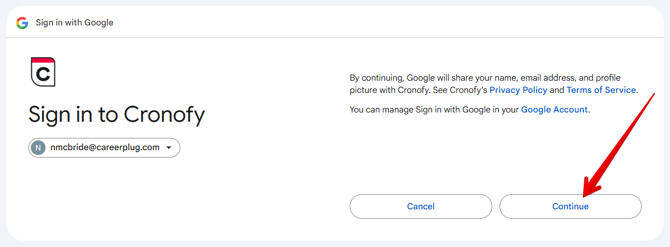
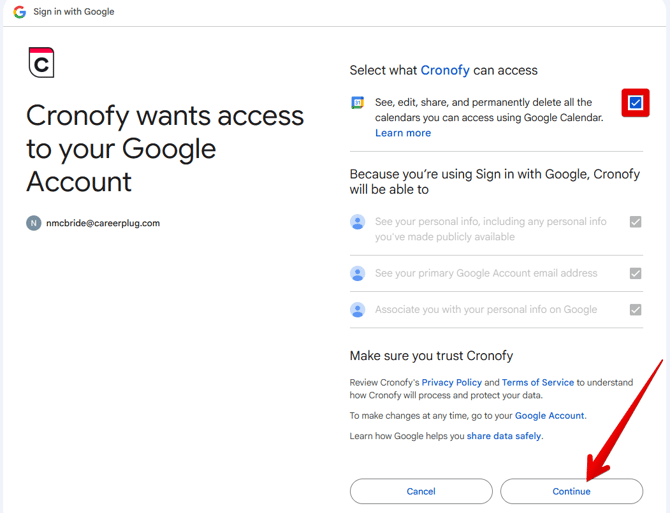
8\. Click the checkbox to allow CareerPlug to access your calendar.
9\. Click the **Continue** button to finish connecting your calendar.
Now that you've connected your calendar account to CareerPlug, it's time to set your availability!
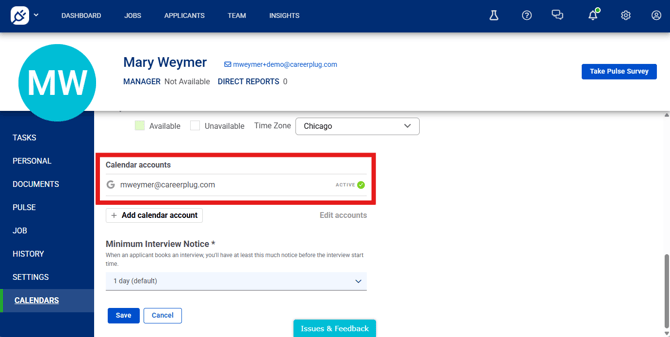
10\. Set your **Weekly Hours** for interviews using the calendar. Click any of the green ("Available") blocks on your calendar to deselect them and make yourself unavailable for interviews on that day/time. *Weekly Hours will default to 9 a.m. - 5 p.m. Monday through Friday in your account's default time zone.*
**
When determining time slots to offer applicants, Autopilot looks for existing events on an interviewer's connected calendar and then considers the Weekly Hours they set. **Applicants can only select time slots that are open on an interviewer's connected calendar and fall within their Weekly Hours.** They cannot see any event information or personal details on a calendar.
To see and edit more times in your Weekly Hours, use the **up or down arrows** in the calendar's upper and lower left corners.

11\. Set your **Minimum Interview Notice** using the drop-down menu. This is the minimum notice you require when an applicant schedules an interview. *Minimum Interview Notice will default to 1 hour.*
12\. Click the **Save** button at the bottom of the page to finish setting your availability.
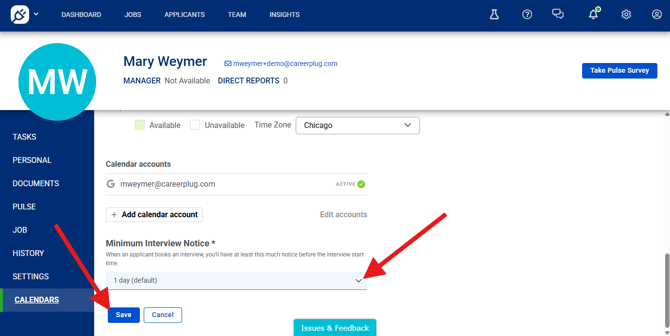
Now that you've connected your calendar account to CareerPlug, you can start [using Autopilot to automatically schedule interviews with your applicants](https://adpsupport.careerplug.com/scheduling-interviews-using-autopilot?hsLang=en)!
#### Can I connect more than one calendar account?
1\. To connect additional calendar accounts to CareerPlug, click the **Add calendar account** button and [follow steps 3 through 9 above](https://adpsupport.careerplug.com/setting-up-your-calendar-for-autopilot#step-3).
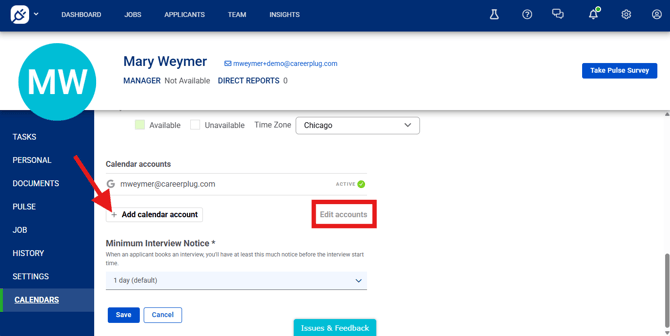
To disconnect an active calendar account, click the **Edit accounts** link and then the "**X**" icon to the left of the calendar account.
2\. Verify the **Included calendars** you'd like Autopilot to consider when scheduling interviews with applicants. *This will default to including all connected calendars.*
If you want Autopilot to only consider one calendar for scheduling purposes (or a select few, if you have more than two calendars connected), click the **plus (+) icon** and select the email address(es) you want Autopilot to use from the drop-down menu.
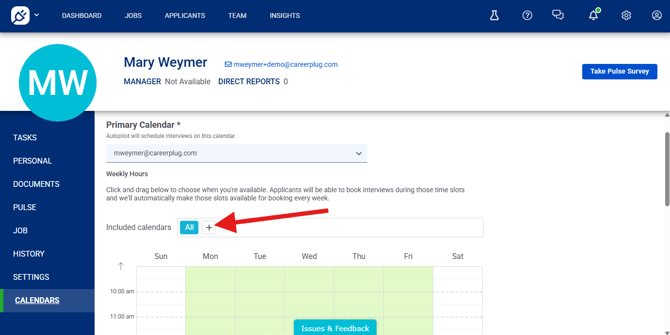

When determining time slots to offer applicants, Autopilot looks for existing events on an interviewer's connected calendars and then considers the Weekly Hours they set. **Applicants can only select time slots that are open on all of an interviewer's included calendars and fall within their Weekly Hours.**
3\. Select your **Primary Calendar** using the drop-down menu. This is the calendar where Autopilot will automatically add scheduled interviews. *This will default to the first calendar account that you connect to CareerPlug.*
*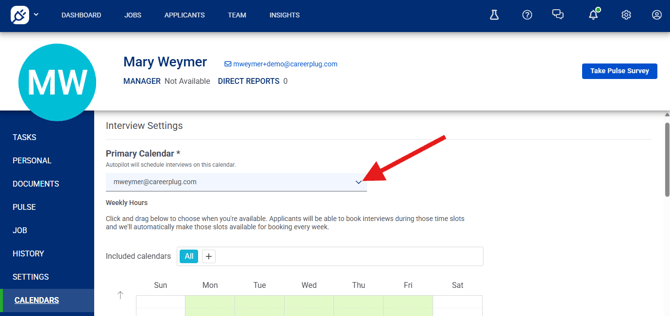*
When applicants choose a time slot for their interview, Autopilot will automatically add the event to your Primary Calendar.
4\. Click the **Save** button at the bottom of the page to update your availability.
- [Getting Started](https://adpsupport.careerplug.com/getting-started?hsLang=en#main-content)
- [CareerPlug 101](https://adpsupport.careerplug.com/getting-started?hsLang=en#careerplug-101)
- [How To Hire](https://adpsupport.careerplug.com/getting-started?hsLang=en#how-to-hire)
- [Account Set Up](https://adpsupport.careerplug.com/account-set-up?hsLang=en#main-content)
- [About Your Account](https://adpsupport.careerplug.com/account-set-up?hsLang=en#about-your-account)
- [Billing](https://adpsupport.careerplug.com/account-set-up?hsLang=en#billing)
- [Configuring Your Account](https://adpsupport.careerplug.com/account-set-up?hsLang=en#configuring-your-account)
- [Locations](https://adpsupport.careerplug.com/account-set-up?hsLang=en#locations)
- [Your Careers Page](https://adpsupport.careerplug.com/account-set-up?hsLang=en#your-careers-page)
- [Notifications](https://adpsupport.careerplug.com/account-set-up?hsLang=en#notifications)
- [User Access](https://adpsupport.careerplug.com/account-set-up?hsLang=en#user-access)
- [Admin](https://adpsupport.careerplug.com/account-set-up?hsLang=en#admin)
- [Support](https://adpsupport.careerplug.com/support?hsLang=en#main-content)
- [Contacting Support](https://adpsupport.careerplug.com/support?hsLang=en#contacting-support)
- [Troubleshooting](https://adpsupport.careerplug.com/support?hsLang=en#troubleshooting)
- [Live Trainings](https://adpsupport.careerplug.com/support?hsLang=en#live-trainings)
- [Job Postings](https://adpsupport.careerplug.com/job-postings?hsLang=en#main-content)
- [About Your Jobs](https://adpsupport.careerplug.com/job-postings?hsLang=en#about-your-jobs)
- [Creating & Editing Job Postings](https://adpsupport.careerplug.com/job-postings?hsLang=en#creating-editing-job-postings)
- [Sponsoring Jobs](https://adpsupport.careerplug.com/job-postings?hsLang=en#sponsoring-jobs)
- [Passive Recruiting](https://adpsupport.careerplug.com/job-postings?hsLang=en#passive-recruiting)
- [Managing Your Jobs](https://adpsupport.careerplug.com/job-postings?hsLang=en#managing-your-jobs)
- [Sharing Your Jobs](https://adpsupport.careerplug.com/job-postings?hsLang=en#sharing-your-jobs)
- [Job Boards](https://adpsupport.careerplug.com/job-postings?hsLang=en#job-boards)
- [Applicant Flow](https://adpsupport.careerplug.com/job-postings?hsLang=en#applicant-flow)
- [Applicant Tracking](https://adpsupport.careerplug.com/applicant-tracking?hsLang=en#main-content)
- [Applicant Information](https://adpsupport.careerplug.com/applicant-tracking?hsLang=en#applicant-information)
- [Managing Applicants](https://adpsupport.careerplug.com/applicant-tracking?hsLang=en#managing-applicants)
- [Sorting & Filtering Applicants](https://adpsupport.careerplug.com/applicant-tracking?hsLang=en#sorting-filtering-applicants)
- [Contacting Applicants](https://adpsupport.careerplug.com/applicant-tracking?hsLang=en#contacting-applicants)
- [Interviewing Applicants](https://adpsupport.careerplug.com/applicant-tracking?hsLang=en#interviewing-applicants)
- [Applicant Activity](https://adpsupport.careerplug.com/applicant-tracking?hsLang=en#applicant-activity)
- [Hiring](https://adpsupport.careerplug.com/applicant-tracking?hsLang=en#hiring)
- [Applicant Experience](https://adpsupport.careerplug.com/applicant-tracking?hsLang=en#applicant-experience)
- [Hiring Tools & Automations](https://adpsupport.careerplug.com/hiring-tools-automations?hsLang=en#main-content)
- [Autopilot](https://adpsupport.careerplug.com/hiring-tools-automations?hsLang=en#autopilot)
- [Hiring Process](https://adpsupport.careerplug.com/hiring-tools-automations?hsLang=en#hiring-process)
- [Automations](https://adpsupport.careerplug.com/hiring-tools-automations?hsLang=en#automations)
- [Prescreen Questions](https://adpsupport.careerplug.com/hiring-tools-automations?hsLang=en#prescreen-questions)
- [Assessments](https://adpsupport.careerplug.com/hiring-tools-automations?hsLang=en#assessments)
- [Email & Text Messages](https://adpsupport.careerplug.com/hiring-tools-automations?hsLang=en#email-text-messages)
- [Scorecards](https://adpsupport.careerplug.com/hiring-tools-automations?hsLang=en#scorecards)
- [Offer Letters](https://adpsupport.careerplug.com/hiring-tools-automations?hsLang=en#offer-letters)
- [Templates](https://adpsupport.careerplug.com/hiring-tools-automations?hsLang=en#templates)
- [Integrations](https://adpsupport.careerplug.com/hiring-tools-automations?hsLang=en#integrations)
- [Other Tools](https://adpsupport.careerplug.com/hiring-tools-automations?hsLang=en#other-tools)
- [Reporting & Compliance](https://adpsupport.careerplug.com/reporting-compliance?hsLang=en#main-content)
- [Reporting](https://adpsupport.careerplug.com/reporting-compliance?hsLang=en#reporting)
- [Charts](https://adpsupport.careerplug.com/reporting-compliance?hsLang=en#charts)
- [Compliance](https://adpsupport.careerplug.com/reporting-compliance?hsLang=en#compliance)
- [FAQs & Integrations](https://adpsupport.careerplug.com/faqs-integrations?hsLang=en#main-content)
- [The CareerPlug + ADP Partnership](https://adpsupport.careerplug.com/faqs-integrations?hsLang=en#the-careerplug-adp-partnership)
- [Integrations](https://adpsupport.careerplug.com/faqs-integrations?hsLang=en#integrations)
- [What's New](https://adpsupport.careerplug.com/whats-new?hsLang=en#main-content)
- [Monthly Updates](https://adpsupport.careerplug.com/whats-new?hsLang=en#monthly-updates)
- [Account Changes](https://adpsupport.careerplug.com/whats-new?hsLang=en#account-changes)
[](https://adpsupport.careerplug.com?hsLang=en)
Handcrafted in Austin, Texas
© 2026 CareerPlug. All rights reserved.