![CP ADP Logo 2025.png]](https://adpsupport.careerplug.com/hs-fs/hubfs/CP%20ADP%20Logo%202025.png?width=297&height=40&name=CP%20ADP%20Logo%202025.png)
Application forms enable you to invite candidates to fill out a form, such as a formal application, after their initial application to CareerPlug.
We recommend adding application forms later in your hiring process. If you add a form, for instance, to the Review step, applicants will be prompted to complete the form immediately after applying for your job, which can result in applicant confusion and low completion rates.
In this article:
- How do I create an application form?
- How do I add an application form to a job?
- How do I invite applicants to complete a form?
- How do I get more applicants to complete my application form?
How do I create an application form?
1. Navigate to Company settings (gear icon) > Hiring tools > Forms.
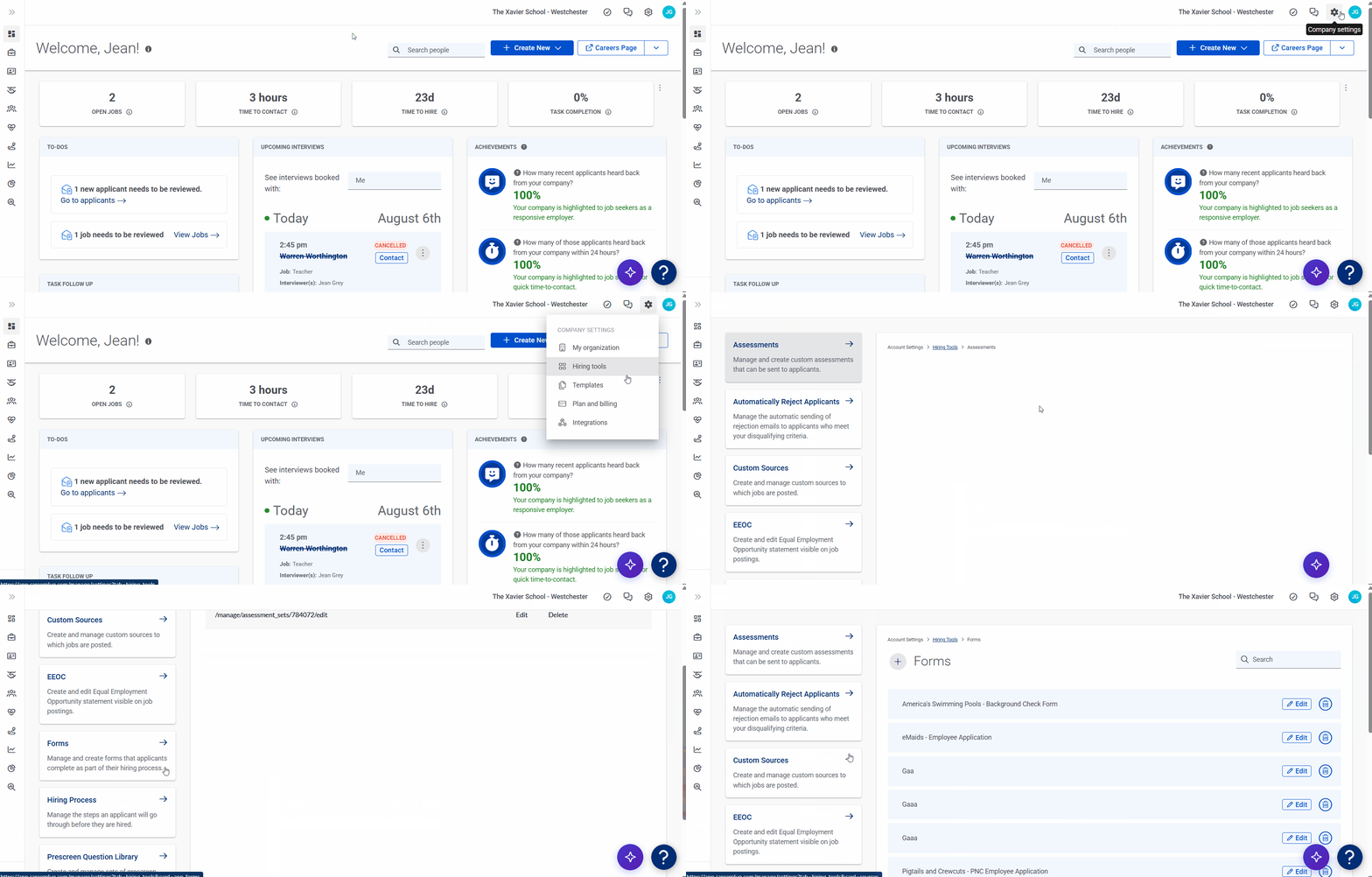
2. Click the plus (+) icon to create a new application form.
%20Pointed%20to%20create%20new%20form%20(cropped).png?width=670&height=256&name=Settings%2c%20Hiring%20Tools%2c%20Forms%20(Nav%20bar%20minimized)%20Pointed%20to%20create%20new%20form%20(cropped).png)
Note: If you do not see the Forms tile in your Hiring tools, contact our Hiring Expert team to have it added to your account.
3. Select which type of form you would like to create: Visual Editor, Download/Upload, Question and Answer Editor, or PDF Form Builder.
%20(unmarked).png?width=550&height=534&name=Choose%20Form%20Type%20pop-up%20(8.6.26)%20(unmarked).png)
Note: We do not recommend creating Visual Editor forms unless you're very familiar with creating HTML forms and custom styles from scratch. They are intended for advanced users only.
- If you choose the Download/Upload type form:
- Enter a Name for the form.
- Enter Instructions for Applicant on how to complete the form.
- Click the Add Form button and upload a PDF or text document (e.g., Microsoft Word, Google Docs) that you would like the applicant to download, complete, and re-upload.
- Click the checkbox for any Hiring Steps in your hiring process with which this form should be associated. You'll need to check the desired step for each hiring process in your account.
-
Click the checkboxes under Additional Options to have an email sent to a job owner (i.e., the person who posted the job) each time this form is completed, or to add this form to the application process for existing and/or new jobs.
-
Click the Update Required Form button.
%20(8.6.26)%20(top)%20(highlights).png?width=670&height=312&name=Create%20Required%20Form%20page%20(Download+Upload)%20(8.6.26)%20(top)%20(highlights).png)
%20(8.6.26)%20(mid)%20(Add%20form+Choose%20File)%20(highlights).png?width=670&height=198&name=Create%20Required%20Form%20page%20(Download+Upload)%20(8.6.26)%20(mid)%20(Add%20form+Choose%20File)%20(highlights).png)
%20(8.6.26)%20(bottom)%20(highlights).png?width=670&height=362&name=Create%20Required%20Form%20page%20(D+U%20and%20Q+A)%20(8.6.26)%20(bottom)%20(highlights).png)
- If you choose the Question and Answer Editor form:
- Enter a Name for the form.
- Click the Add Question button and configure your new question in the pop-up. You can add as many questions as you'd like.
- Select a question type from the top drop-down menu.
- Enter your new question in the open field.
- Click the Required checkbox to require candidates to complete this form as part of your application process.
- Enter Response Options for your question. If you need more, click the Add response option button.
- If a response is considered a deal-breaker, select Red Flag from the Flag drop-down menu.
- Click the Add button.
-
- Click the Add Comment button and enter your comment for candidates in the pop-up. You can add as many comments as you'd like.
- Click the Add button when you're done entering your comment.
- Click the checkbox for any Hiring Steps in your hiring process with which this form should be associated. You'll need to check the desired step for each hiring process in your account.
-
Click the checkboxes under Additional Options to have an email sent to a job owner (i.e., the person who posted the job) each time this form is completed, or to add this form to the application process for existing and/or new jobs.
- Click the Update Required Form button.
- Click the Add Comment button and enter your comment for candidates in the pop-up. You can add as many comments as you'd like.
%20(8.6.26)%20(top)%20(highlights).png?width=670&height=255&name=Create%20Required%20Form%20page%20(Question+Answer)%20(8.6.26)%20(top)%20(highlights).png)
%20(highlights).png?width=345&height=316&name=Create%20Required%20Form%20-%20Add%20New%20Question%20pop-up%20(8.6.26)%20(highlights).png)
%20(highlights).png?width=345&height=165&name=Create%20Required%20Form%20-%20Add%20New%20Comment%20pop-up%20(8.6.26)%20(highlights).png)
- If you choose the PDF Form Builder:
- Enter a name for the form.
- It's important to label Form Fields on PDF forms. When an applicant views a form on a mobile device, they need the field name to know what data to enter.
- Click the Upload File button and upload a PDF or text document (Microsoft Word, Google Docs, etc.) that you would like the applicant to download, complete, and re-upload. You'll be redirected to the PDF Form Builder.
- Drag any Form Fields you want to use onto the document and edit the Field Details in the left sidebar. You can resize and move fields as needed; however, adjusting field heights affects the Form Field order (applicants will be prompted to complete higher fields first).
- Signature - A field to capture electronic signatures or initials from the form filler.
- Text Field - A field for the form filler to enter a response or a field that you can prefill with specific data.
- Checkbox - A field for the form filler to check off (as an acknowledgment, selection, etc.).
- Radio - A field with a list of options for the form filler to choose from.
- Date - A field for the form filler to select a date or a field that you can prefill with the current date.
- Dropdown - A drop-down field with selectable options for the form filler to choose from.
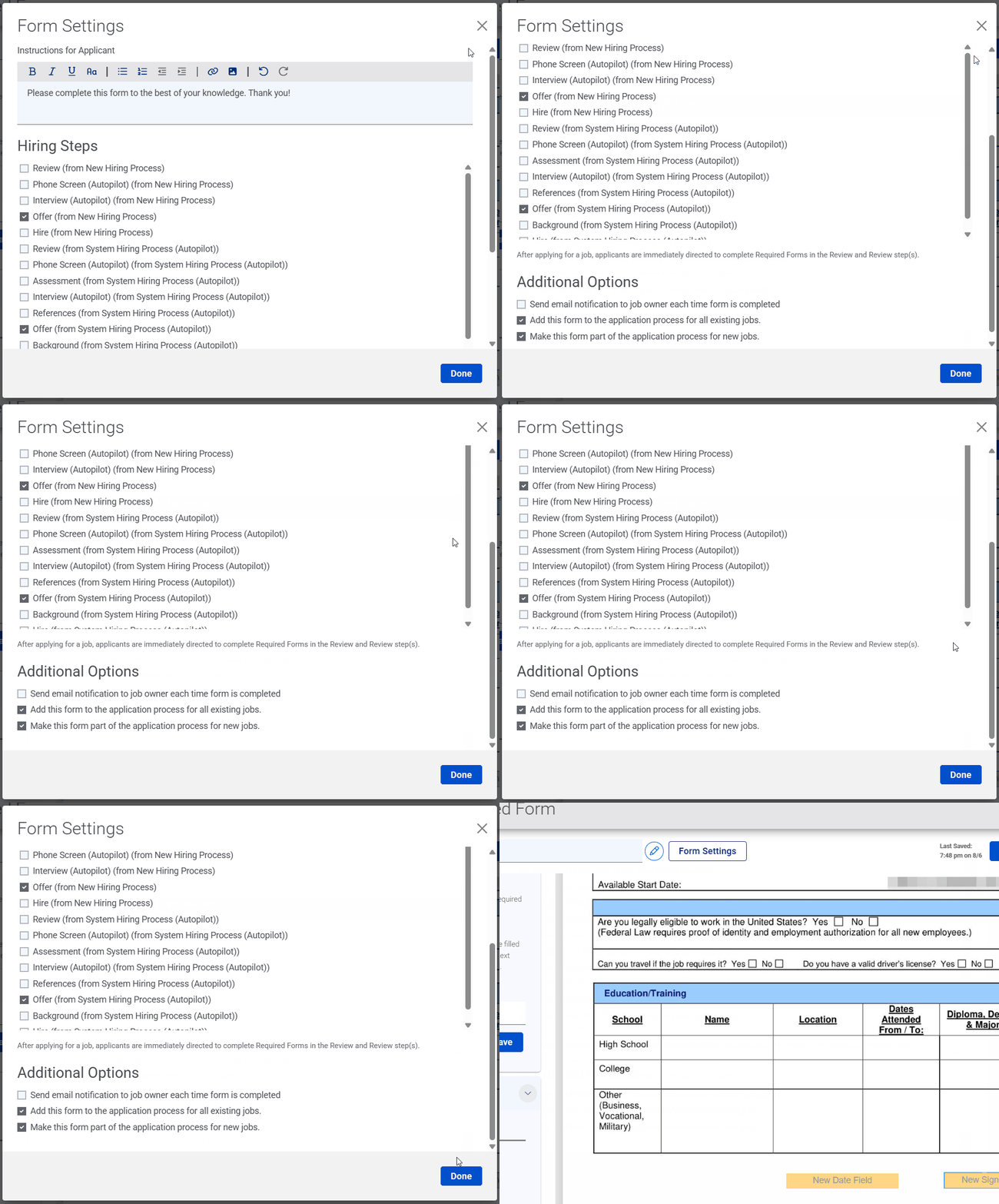
- Click the Form Settings button to add instructions and assign your form to hiring steps.
- Enter Instructions for Applicant on how to complete the form.
- Click the checkbox for any Hiring Steps in your hiring process with which this form should be associated. You'll need to check the desired step for each hiring process in your account.
-
Click the checkboxes under Additional Options to have an email sent to a job owner (i.e., the person who posted the job) each time this form is completed, or to add this form to the application process for existing and/or new jobs.
-
Click the Save and Exit button in the top-right corner.
- Enter a name for the form.
%20(8.6.26)%20(top)%20(highlights).png?width=670&height=235&name=Create%20Required%20Form%20page%20(PDF%20Builder%20-%20Upload%20PDF%20page)%20(8.6.26)%20(top)%20(highlights).png)
%20(8.6.26)%20(fields%20added)%20(revised%20highlights).png?width=670&height=357&name=Create%20Required%20Form%20page%20(PDF%20Builder%20-%20Form%20Builder%20page)%20(8.6.26)%20(fields%20added)%20(revised%20highlights).png)
%20(8.6.26)%20(fields%20added)%20(Save%20arrow).png?width=670&height=102&name=Create%20Required%20Form%20page%20(PDF%20Builder%20-%20Form%20Builder%20page)%20(8.6.26)%20(fields%20added)%20(Save%20arrow).png)
Your new form is ready to use! You can begin adding this form to existing and future job postings.
Editing Field Details in the PDF Form Builder
When you use the PDF Form Builder, you'll need to add Form Fields to allow applicants to enter information or make selections.
After you add a Form Field, click on it to edit the Field Details. Field Details vary by field type; see below for more information on setting them up.
%20(8.6.26)%20(Field%20Details)%20(highlights).png?width=670&height=360&name=Create%20Required%20Form%20page%20(PDF%20Builder%20-%20Form%20Builder%20page)%20(8.6.26)%20(Field%20Details)%20(highlights).png)
- For all field types:
- Enter a new Field Name (if desired). You can also leave it as is.
- Enter Instructions to provide any guidance a form filler might need in relation to this field (if desired).
- Check the Required checkbox to make the field required (if desired).
- Check the Opaque checkbox to add a white background to the filled field on the finalized PDF (if desired).
-
- For Signature field types:
- Select the Signature Type you want from a form filler using the drop-down menu: Signature Area or Signed Initials.
- For Text Field field types:
-
Select the Text Field Type you want using the drop-down menu: Open Text Response or Large Open Text Response.
-
Add Prefill data to the Text Field (if desired) using the drop-down menu to choose what type of data will be prefilled.
-
- For Checkbox field types:
- Select the Selection Type you want using the drop-down menu: Multiple Selection (Checkbox) or Single Selection (Radio).
- Enter Answers in the available field(s). Click the Add Answer button to add another field. Click the X icon to remove a field.
- For Radio field types:
- Enter Answers in the open field(s). Click the + Add Answer button to add more fields.
- For Date field types:
- Add Prefill data to the Date field (if desired) using the drop-down menu; select Today's Date.
- For Dropdown field types:
- Enter Dropdown options that you want a form filler to be able to select. Click the Add Option button to add another field.
To change the Field Order, either click the three-lines icon to the left of a field and drag it up or down, or hover over a field name and then click the up arrow icon or down arrow icon on the right to change its position.
When you're done editing the Field Details, click the Save button.
%20(8.6.26)%20(Field%20Order)%20(highlights).png?width=670&height=361&name=Create%20Required%20Form%20page%20(PDF%20Builder%20-%20Form%20Builder%20page)%20(8.6.26)%20(Field%20Order)%20(highlights).png)
How do I add an application form to a job?
Note: We recommend adding forms later in the hiring process. Adding forms early on can result in applicant confusion and low completion rates.
Once you've created an application form, you can start adding it as a requirement to your job postings.
1. Navigate to your Jobs page.
2. Click the Edit (pencil) icon to the right of the job you want to add the form to (or click the + New Job button to post a new job).
%20(Edit%20arrow)%20(cropped).png?width=670&height=194&name=Jobs%20Page%2c%20Active%20(Nav%20Bar%20Minimized)%20(Edit%20arrow)%20(cropped).png)
3. Navigate to the Hiring Settings tab.
.png?width=670&height=202&name=Job%20Builder%2c%20Cropped%2c%20Hiring%20Settings%20(7.21.26).png)
4. Scroll down to the Forms section and turn on the toggle for any form you want to assign to your job.
5. Click the Update Job Post button to save your changes.
%20(Forms)%20(highlights).png?width=670&height=309&name=Editing%20Job%20-%20Hiring%20Settings%20(8.7.26)%20(Forms)%20(highlights).png)
You can now invite applicants for your job to complete this form!
How do I invite applicants to complete a form?
Once you add a form (or a formal application) to your job, you can invite an applicant to complete it during whichever step in your hiring process it was assigned.
1. Navigate to your Applicants page.
2. Click the applicant’s name to view the applicant's profile and hiring process.
%20(NavEXP)%20(Standard)%20Highlighting%20applicant%20page%2c%20applicant.png?width=670&height=268&name=Applicants%20page%20(6.9.26)%20(NavEXP)%20(Standard)%20Highlighting%20applicant%20page%2c%20applicant.png)
3. Scroll down to the hiring step to which the form is assigned and click the Send Reminder button.
%20(Form%20-%20Send%20Reminder%20button)%20(8.7.26)%20(Send%20Reminder%20arrow%20-%20fixed).png?width=670&height=294&name=Applicant%20Profile%20(NavCOL)%20(Form%20-%20Send%20Reminder%20button)%20(8.7.26)%20(Send%20Reminder%20arrow%20-%20fixed).png)
4. Configure the pre-written email and text messages inviting the applicant to complete the form. Do not edit or delete the auto-generated link in the email — that is how applicants will access your form.
5. When you're done editing the message template, click the Send Email button.
%20GIF.gif?width=551&height=470&name=Send%20Reminder%20Drawer%20(app%20form)%20GIF.gif)
The applicant will receive an email notifying them that they need to complete the form.
You can access the completed form from the Applicant Evaluation tab of the applicant’s profile (under Forms). Click the View button to the right.
%20(App%20Eval%20tab)%20(Forms)%20(highlights).png?width=550&height=411&name=Applicant%20profile%20(8.7.26)%20(App%20Eval%20tab)%20(Forms)%20(highlights).png)
Note: If you added the form to the Review step (not recommended), candidates will automatically be prompted to complete it after applying. You do not need to take the above steps to invite applicants to complete the form. However, you can send a reminder email by following the steps above, if needed.
How do I get more applicants to complete my application form?
When candidates apply to your CareerPlug job postings, they are not required to submit a formal application until after they have provided their basic contact information and answered prescreen questions. This increases the number of applicants you receive by making it faster and easier to apply for a job, especially from a mobile device. However, this means you'll need to remind some applicants to submit your formal application.
Below are some options to help ensure applicants complete your formal application forms.
In this section:
- Edit the Applicant Confirmation - Thank You Email template
- Manually send a reminder email
- View applicants who have completed their application form
- Alternatives to formal application forms
Edit the Applicant Confirmation - Thank You Email template
You can edit the email that's automatically sent to candidates upon submitting their application so that it includes a link to your formal application form. You should do this only if you absolutely require a formal application for all of your jobs (and your require it this early in the hiring process).
1. Navigate to Company settings (gear icon) > Templates > General Messages.
.png?width=670&height=271&name=Settings%2c%20Template%2c%20General%20Messages%20(Nav%20bar%20minimized).png)
2. Find the Applicant Confirmation - Thank You Email template and click the Edit button to the right.
3. A pop-up will notify you that this will create a copy of the template for you to edit. Click the Continue button.
%20(App%20Thank%20You%20email)%20(Edit%20arrow).png?width=670&height=152&name=Settings%20-%20Templates%20-%20Gen%20Messages%20(8.7.26)%20(App%20Thank%20You%20email)%20(Edit%20arrow).png)
4. Enter a new Title for your template so you can easily identify it.
5. Edit the Subject line to indicate the applicant has one more step before their application is complete.
6. Add the following text in the Body of the message: "If you haven’t already done so, please make sure that you complete our formal application: { { forms_link } }." The dynamic field is where the URL for the form will populate.
Do not include an extra space between the double curly brackets when you enter a dynamic field such as "{ { forms_link } }" in CareerPlug. They only appear this way in our Help Center due to formatting limitations.
%20(highlights).png?width=670&height=329&name=Edit%20App%20Confirmation%20-%20Thank%20You%20template%20(8.7.26)%20(highlights).png)
Click the Include email signature by default checkbox to attach your email signature to the bottom of every message sent using this template. To include additional documents with messages sent using this template, click the Add Attachments button and choose a file on your device.
7. When you're done editing the template, click the Save (or Save and Exit) button.
Manually send a reminder email
1. Navigate to your Applicants page.
2. Click the applicant’s name to view the applicant's profile and hiring process.
3. Scroll down to the hiring step to which the form is assigned and click the Send Reminder button.
4. Configure the pre-written email and text messages inviting the applicant to complete the form. Do not edit or delete the auto-generated link in the email — that is how applicants will access your form.
5. When you're done editing the message template, click the Send Email button.
The applicant will receive an email notifying them that they need to complete the form.
You can access the completed form from the Applicant Evaluation tab of the applicant’s profile (under Forms). Click the View button to the right.
Note: If you added the form to the Review step (not recommended), the applicant will automatically be prompted to complete it after applying. You do not need to take the above steps to invite applicants to complete the form. However, you can send a reminder email following the above steps, if needed.
Editing the reminder email
If you want to permanently change the reminder email's message, you need to edit the message template.
1. Navigate to Company settings (gear icon) > Templates > General Messages.
2. Find the Required Form Instructions template and click the Edit button to the right.
3. A pop-up will notify you that this will create a copy of the template for you to edit. Click the Continue button.
%20(Req%20Form%20Instr%20email)%20(Edit%20arrow).png?width=670&height=225&name=Settings%20-%20Templates%20-%20Gen%20Messages%20(8.7.26)%20(Req%20Form%20Instr%20email)%20(Edit%20arrow).png)
4. Enter a new Title for your template so you can easily idenitfy it.
5. Revise the Body of the template to your liking. Do not edit or delete the APP_FORM_LINK dynamic field in the email — that is how applicants will access your form.
%20(highlights%20-%20fixed).png?width=670&height=323&name=Edit%20Req%20Form%20Instruction%20template%20(8.7.26)%20(highlights%20-%20fixed).png)
Click the Include email signature by default checkbox to attach your email signature to the bottom of every message sent using this template. To include additional documents with messages sent using this template, click the Add Attachments button and choose a file on your device.
6. When you're done editing the template, click the Save (or Save and Exit) button.
View applicants who have completed their application form
1. To see only applicants who have completed a required application form, click the Filter button on your Applicants page.
%20(NavEXP)%20(Filter%20arrow%20crop).png?width=670&height=203&name=Applicants%20page%20(8.7.26)%20(NavEXP)%20(Filter%20arrow%20crop).png)
2. In the Filter Applicants drawer, click the Application Status drop-down and select Application Complete from the menu.
3. Click the Apply button at the bottom of the drawer.
%20(Application%20Status)%20(highlights%20fixed).png?width=550&height=538&name=Filter%20Applicants%20Drawer%20(6.23.26)%20(Application%20Status)%20(highlights%20fixed).png)
Alternatives to formal application forms
Hiring trends show that more and more applicants prefer a shorter application process. Many applicants are applying on their phones, and it can be a frustrating experience to be required to complete a complex form immediately after filling out basic information and submitting a resume.
In today's competitive job market, many applicants will bypass long, complex application processes in favor of simpler forms that capture vital information upfront and can easily be completed from any device.
Many CareerPlug clients have revamped their hiring process to provide a better applicant experience by using one (or both) of the following strategies.
Move formal application forms to the end of the hiring process
Is the information you’re collecting on a formal application not required until the applicant receives a formal employment offer? Move this form to the end of your hiring process!
This saves time on the initial application and improves the applicant’s initial experience with your brand while still collecting the formal application before a hire is made.
Collect more information with prescreen questions
Is the information you're collecting on the formal application vital to making an initial decision about the applicant? Use prescreen questions to vet your candidate instead and ditch the application form altogether!
This allows you to have applicants answer these questions in a consistent format and without the long, complex application form.