---
title: Using Autopilot Defaults
description: Learn how to set up and use Autopilot Defaults for your jobs to start scheduling interviews with a single click.
---
[Skip to content](https://adpsupport.careerplug.com/using-autopilot-defaults#main-content)
[Submit a Request](https://adpsupport.careerplug.com/kb-tickets/new?hsLang=en)
[![CP ADP Logo 2025.png\]](https://adpsupport.careerplug.com/hs-fs/hubfs/CP%20ADP%20Logo%202025.png?width=297&height=40&name=CP%20ADP%20Logo%202025.png)](https://adpsupport.careerplug.com?hsLang=en)
Open main navigation
Close main navigation
- [Submit a Request](https://adpsupport.careerplug.com/kb-tickets/new)
- [Get help now!](https://adpsupport.careerplug.com/help)
[Get help now!](https://adpsupport.careerplug.com/help?hsLang=en)
How can we help?
- There are no suggestions because the search field is empty.
1. [ADP Help Center](https://adpsupport.careerplug.com/?hsLang=en)
2. [Hiring Tools & Automations](https://adpsupport.careerplug.com/hiring-tools-automations?hsLang=en)
3. [Autopilot](https://adpsupport.careerplug.com/hiring-tools-automations?hsLang=en#autopilot)
# Using Autopilot Defaults
Only Admins and Full Access users can create and edit Autopilot Defaults. Limited Access users can toggle off an Autopilot Default and make changes to Autopilot before launching but cannot change the default configuration itself.
Available with a CareerPlug [Hire](https://adpsupport.careerplug.com/benefits-of-your-careerplug-hire-subscription?hsLang=en) or [Grow](https://adpsupport.careerplug.com/benefits-of-a-careerplug-grow-subscription?hsLang=en) subscription.
Set up Autopilot Defaults for your jobs to start scheduling interviews with a single click. They will save you time manually selecting interview scheduling details each time you begin Autopilot for an applicant!
#### In this article:
- [What are Autopilot Defaults?](https://adpsupport.careerplug.com/using-autopilot-defaults#APdefault)
- [How do I create Autopilot Defaults?](https://adpsupport.careerplug.com/using-autopilot-defaults#create)
- [How do I use Autopilot Defaults?](https://adpsupport.careerplug.com/using-autopilot-defaults#use)
- [How do I override Autopilot Defaults?](https://adpsupport.careerplug.com/using-autopilot-defaults#edit)
- [How do I edit a job's Autopilot Defaults?](https://adpsupport.careerplug.com/using-autopilot-defaults#open)
### What are Autopilot Defaults?
Autopilot Defaults are the saved Autopilot configuration for a specific Autopilot hiring step of a specific job. You can easily apply this Autopilot configuration to all future applicants who apply for this job.

You must set up separate Autopilot Defaults for both the Phone Screen and Interview hiring steps for each job you have. Autopilot Defaults only apply to the hiring step you are configuring for that specific job.
### How do I create Autopilot Defaults?
The easiest way to set up your first Autopilot Default is when you begin Autopilot for your next applicant.
1\. Once an applicant reaches an Autopilot hiring step, click the **Begin Autopilot** button on your Applicants page.

2\. In the Begin Autopilot drawer, select the type of interview: **In Person**, **Phone**, or **Video**.
3\. Enter In Person, Phone, or Video details in the field below: a physical address, a phone number, or a [video link](https://adpsupport.careerplug.com/interviewing-applicants-using-video-conferencing?hsLang=en).

4\. Select how long the **Interview will last for** from the drop-down menu.

5\. Select the **Interviewer(s)** from the drop-down menu, clicking the checkbox next to any users you want to be involved in the interview.
Interviewers are the users whose calendars will be used to determine interview availability for the applicant and who will receive all notifications about the interview. Applicants will see only available times when all team members are free.
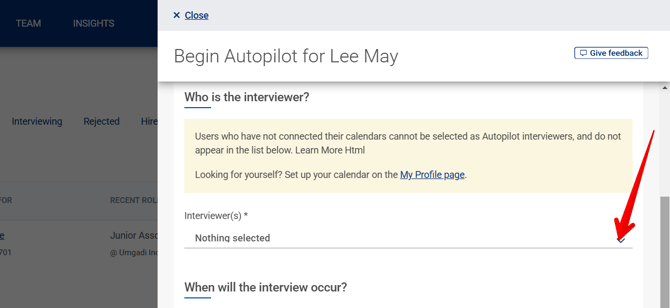
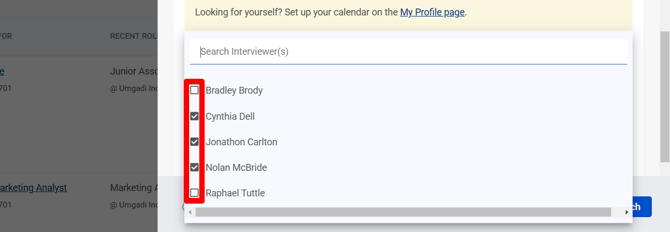
If an interviewer you want to select is not listed, advise them to [connect their calendar to CareerPlug](https://adpsupport.careerplug.com/setting-up-your-calendar-for-autopilot?hsLang=en).
6\. Set the expiration date for the interview link – or how long the applicant will have to schedule the interview using the link provided – using the **Can be scheduled up to** drop-down menu.
7\. Turn on the toggle in the bottom left corner of the drawer.
8\. Click the **Launch** button to begin Autopilot for the current applicant and save your choices as the Autopilot Default for this job's current Autopilot hiring step.

### How do I use Autopilot Defaults?
The next time you begin Autopilot for an applicant, your Autopilot Defaults will prefill all necessary interview scheduling details — just click the **Launch** button!

### How do I override Autopilot Defaults?
To override an Autopilot Default, turn off the **Autopilot defaults** toggle and edit any fields or drop-downs before you launch Autopilot.

Overriding an Autopilot Default only affects that instance of Autopilot. It will not impact using this Autopilot Default for future applicants. If you want to update your Autopilot Default with the new settings, turn on the toggle in the bottom left corner of the Begin Autopilot drawer.
### How do I edit a job's Autopilot Defaults?
Whether editing an open job or creating a new one, once you reach the **Hiring Settings** tab, you can set your Autopilot Defaults by expanding either option using the **drop-down arrow** to the right.

Once you finish configuring your Autopilot Defaults, click the **Update Job Post** button to save your changes.
- [Getting Started](https://adpsupport.careerplug.com/getting-started?hsLang=en#main-content)
- [CareerPlug 101](https://adpsupport.careerplug.com/getting-started?hsLang=en#careerplug-101)
- [How To Hire](https://adpsupport.careerplug.com/getting-started?hsLang=en#how-to-hire)
- [Account Set Up](https://adpsupport.careerplug.com/account-set-up?hsLang=en#main-content)
- [About Your Account](https://adpsupport.careerplug.com/account-set-up?hsLang=en#about-your-account)
- [Billing](https://adpsupport.careerplug.com/account-set-up?hsLang=en#billing)
- [Configuring Your Account](https://adpsupport.careerplug.com/account-set-up?hsLang=en#configuring-your-account)
- [Locations](https://adpsupport.careerplug.com/account-set-up?hsLang=en#locations)
- [Your Careers Page](https://adpsupport.careerplug.com/account-set-up?hsLang=en#your-careers-page)
- [Notifications](https://adpsupport.careerplug.com/account-set-up?hsLang=en#notifications)
- [User Access](https://adpsupport.careerplug.com/account-set-up?hsLang=en#user-access)
- [Admin](https://adpsupport.careerplug.com/account-set-up?hsLang=en#admin)
- [Support](https://adpsupport.careerplug.com/support?hsLang=en#main-content)
- [Contacting Support](https://adpsupport.careerplug.com/support?hsLang=en#contacting-support)
- [Troubleshooting](https://adpsupport.careerplug.com/support?hsLang=en#troubleshooting)
- [Live Trainings](https://adpsupport.careerplug.com/support?hsLang=en#live-trainings)
- [Job Postings](https://adpsupport.careerplug.com/job-postings?hsLang=en#main-content)
- [About Your Jobs](https://adpsupport.careerplug.com/job-postings?hsLang=en#about-your-jobs)
- [Creating & Editing Job Postings](https://adpsupport.careerplug.com/job-postings?hsLang=en#creating-editing-job-postings)
- [Sponsoring Jobs](https://adpsupport.careerplug.com/job-postings?hsLang=en#sponsoring-jobs)
- [Passive Recruiting](https://adpsupport.careerplug.com/job-postings?hsLang=en#passive-recruiting)
- [Managing Your Jobs](https://adpsupport.careerplug.com/job-postings?hsLang=en#managing-your-jobs)
- [Sharing Your Jobs](https://adpsupport.careerplug.com/job-postings?hsLang=en#sharing-your-jobs)
- [Job Boards](https://adpsupport.careerplug.com/job-postings?hsLang=en#job-boards)
- [Applicant Flow](https://adpsupport.careerplug.com/job-postings?hsLang=en#applicant-flow)
- [Applicant Tracking](https://adpsupport.careerplug.com/applicant-tracking?hsLang=en#main-content)
- [Applicant Information](https://adpsupport.careerplug.com/applicant-tracking?hsLang=en#applicant-information)
- [Managing Applicants](https://adpsupport.careerplug.com/applicant-tracking?hsLang=en#managing-applicants)
- [Sorting & Filtering Applicants](https://adpsupport.careerplug.com/applicant-tracking?hsLang=en#sorting-filtering-applicants)
- [Contacting Applicants](https://adpsupport.careerplug.com/applicant-tracking?hsLang=en#contacting-applicants)
- [Interviewing Applicants](https://adpsupport.careerplug.com/applicant-tracking?hsLang=en#interviewing-applicants)
- [Applicant Activity](https://adpsupport.careerplug.com/applicant-tracking?hsLang=en#applicant-activity)
- [Hiring](https://adpsupport.careerplug.com/applicant-tracking?hsLang=en#hiring)
- [Applicant Experience](https://adpsupport.careerplug.com/applicant-tracking?hsLang=en#applicant-experience)
- [Hiring Tools & Automations](https://adpsupport.careerplug.com/hiring-tools-automations?hsLang=en#main-content)
- [Autopilot](https://adpsupport.careerplug.com/hiring-tools-automations?hsLang=en#autopilot)
- [Hiring Process](https://adpsupport.careerplug.com/hiring-tools-automations?hsLang=en#hiring-process)
- [Automations](https://adpsupport.careerplug.com/hiring-tools-automations?hsLang=en#automations)
- [Prescreen Questions](https://adpsupport.careerplug.com/hiring-tools-automations?hsLang=en#prescreen-questions)
- [Assessments](https://adpsupport.careerplug.com/hiring-tools-automations?hsLang=en#assessments)
- [Email & Text Messages](https://adpsupport.careerplug.com/hiring-tools-automations?hsLang=en#email-text-messages)
- [Scorecards](https://adpsupport.careerplug.com/hiring-tools-automations?hsLang=en#scorecards)
- [Offer Letters](https://adpsupport.careerplug.com/hiring-tools-automations?hsLang=en#offer-letters)
- [Templates](https://adpsupport.careerplug.com/hiring-tools-automations?hsLang=en#templates)
- [Integrations](https://adpsupport.careerplug.com/hiring-tools-automations?hsLang=en#integrations)
- [Other Tools](https://adpsupport.careerplug.com/hiring-tools-automations?hsLang=en#other-tools)
- [Reporting & Compliance](https://adpsupport.careerplug.com/reporting-compliance?hsLang=en#main-content)
- [Reporting](https://adpsupport.careerplug.com/reporting-compliance?hsLang=en#reporting)
- [Charts](https://adpsupport.careerplug.com/reporting-compliance?hsLang=en#charts)
- [Compliance](https://adpsupport.careerplug.com/reporting-compliance?hsLang=en#compliance)
- [FAQs & Integrations](https://adpsupport.careerplug.com/faqs-integrations?hsLang=en#main-content)
- [The CareerPlug + ADP Partnership](https://adpsupport.careerplug.com/faqs-integrations?hsLang=en#the-careerplug-adp-partnership)
- [Integrations](https://adpsupport.careerplug.com/faqs-integrations?hsLang=en#integrations)
- [What's New](https://adpsupport.careerplug.com/whats-new?hsLang=en#main-content)
- [Monthly Updates](https://adpsupport.careerplug.com/whats-new?hsLang=en#monthly-updates)
- [Account Changes](https://adpsupport.careerplug.com/whats-new?hsLang=en#account-changes)
[](https://adpsupport.careerplug.com?hsLang=en)
Handcrafted in Austin, Texas
© 2026 CareerPlug. All rights reserved.