![CP ADP Logo 2025.png]](https://adpsupport.careerplug.com/hs-fs/hubfs/CP%20ADP%20Logo%202025.png?width=297&height=40&name=CP%20ADP%20Logo%202025.png)
With CareerPlug's Hire Plan, Autopilot can be applied to all of your hiring process and open jobs.
To add Autopilot to a new job:
1. Navigate to your Jobs page.
2. Click the + New Job button in the upper right corner of your Jobs page.
3. Choose whether to Use a Job Template or Create From Scratch from the drop-down menu.
%20Highlight%20new%20job%2c%20navigation%20(cropped).png?width=670&height=176&name=Jobs%20Page%2c%20Active%2c%20New%20Job%20Dropdown%20(Nav%20Bar%20Expanded)%20Highlight%20new%20job%2c%20navigation%20(cropped).png)
4. Configure your job posting as you would for any new job.
%20(No%20OB)%20(Location%20selected)%20(unmarked).png?width=670&height=349&name=Create%20New%20Job%20-%20Job%20Posting%20(10.15.25)%20(No%20OB)%20(Location%20selected)%20(unmarked).png)
5. When you reach the Hiring Settings tab, select an Autopilot-enabled hiring process from the drop-down menu.
%20(Hiring%20Goals+HP)%20(HP%20arrow).png?width=670&height=365&name=Create%20New%20Job%20-%20Hiring%20Settings%20(12.18.25)%20(Hiring%20Goals+HP)%20(HP%20arrow).png)
If you want to use Autopilot Defaults — default configurations that allow you to schedule Autopilot interviews with a single click — you can set them up on the Hiring Settings tab.
%20(Hiring%20Process%20+%20Offer%20Letter)%20(AP%20Defaults%20highlight).png?width=670&height=295&name=Create%20New%20Job%20-%20Hiring%20Settings%20(10.15.25)%20(Hiring%20Process%20+%20Offer%20Letter)%20(AP%20Defaults%20highlight).png)
6. Finish configuring the Hiring Settings tab and click the Next Section button in the top-right corner.
%20(Hiring%20Goals+HP)%20(Next%20Section%20arrow).png?width=670&height=130&name=Create%20New%20Job%20-%20Hiring%20Settings%20(12.18.25)%20(Hiring%20Goals+HP)%20(Next%20Section%20arrow).png)
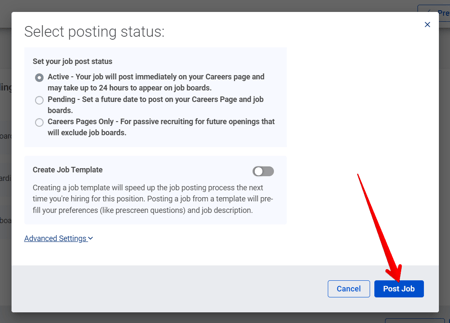
7. Finish configuring your job posting and click the Post Job button to create your new Autopilot-enabled job!
To add Autopilot to an open job: click the Edit (pencil) icon to the right of a job on your Jobs page, navigate to the Hiring Settings tab, update your hiring process with an Autopilot-enabled hiring process (as shown above), and click the Update Job Post button.