![CP ADP Logo 2025.png]](https://adpsupport.careerplug.com/hs-fs/hubfs/CP%20ADP%20Logo%202025.png?width=297&height=40&name=CP%20ADP%20Logo%202025.png)
Note: Only Admin users can make changes to careers pages.
Your careers page is often the first point of contact for applicants. It is a landing page where you can direct applicants to learn more about your company and apply for your open positions.
What are the benefits of customizing your careers page?
According to CareerPlug internal statistics from the 2025 Recruiting Metrics Report, a company’s careers page only accounts for 13% of applicants, but 26% of total hires. Applicants who apply from your careers page are 4 times more likely to be hired than those who found your job through a job board. A good careers page can help attract high-quality applicants who are aligned with your brand, culture, and message.
The most successful hiring managers configure their careers page to make their company stand out from the many options job seekers have available to them. It is also a chance to show applicants how passionate your company is about their employees and the hiring process.
Using colors, photos, and information that accurately reflect your company’s branding also gives a sense of cohesion to those unfamiliar with your company. Think of your careers page as an extension of your brand, website, or brick-and-mortar location, and ensure that all the information you provide is up to date, accurate, and reflects well on your company.
Watch this 3-minute video about the importance of a careers page.
Watch this video on how to configure your careers page or follow along below.
In this article:
- View your careers page
- Edit your careers page
- Gather assets
- Select your brand's main color
- Upload your logo
- Configure the header
- Add a company description
- Add your company's social media websites
- Add company photos
- Add perks and benefits
- Add testimonials
- Configure job list settings
- Configure advanced settings
- Using the web widget
- What are the next steps?
View your careers page
To view your careers page (or find your careers page URL), click the Careers Page button in the top-right corner of your Dashboard.
%20(navexp)%20(standard)%20(careers%20page%20arrow)%20(cropped+fixed).png?width=670&height=137&name=Dashboard%20(6-9-26)%20(navexp)%20(standard)%20(careers%20page%20arrow)%20(cropped+fixed).png)
If this is your first time using your careers page, it will likely be blank.
Edit your careers page
To update your careers page to match your branding and hiring efforts, click the down arrow icon to the right of the Careers Page button on your Dashboard, and select Edit Careers Page from the drop-down menu.
%20(NavEXP)%20(Careers%20Page%20drop-down)%20(Edit%20Careers%20Page%20highlights).png?width=670&height=135&name=Dashboard%20(6.9.26)%20(NavEXP)%20(Careers%20Page%20drop-down)%20(Edit%20Careers%20Page%20highlights).png)
You can also edit your careers page by navigating to Settings (gear icon) > My Organization and clicking the Edit Careers Page button.
%20(Edit%20careers%20page%20highlights).png?width=670&height=219&name=Settings%2c%20My%20Organization%2c%20Careers%20Page%20(Nav%20Bar%20Minimized)%20(Edit%20careers%20page%20highlights).png)
In the editor, you can expand and edit each individual section of your careers page.
Click a down arrow icon to expand a section, or a pencil icon to open a relevant drawer where you can make changes. Any changes you make will update in real time, and you can easily preview them on this page.
![Careers page [how to edit each section] (4-21-26) (cropped)](https://adpsupport.careerplug.com/hs-fs/hubfs/Careers%20page%20%5Bhow%20to%20edit%20each%20section%5D%20(4-21-26)%20(cropped).png?width=670&height=301&name=Careers%20page%20%5Bhow%20to%20edit%20each%20section%5D%20(4-21-26)%20(cropped).png)
Gather assets
The most basic careers pages include photos, a company description, and a company color. If you do nothing else, we recommend updating these to reflect your brand.
Successful careers pages, however, include information about employee perks and benefits, employee testimonials that reflect what it’s like to work for your company, and a company video highlighting what you do best. Although optional, these elements allow candidates to better evaluate whether your company is a good fit for them and ensure you receive more applicants who are truly invested in your company.
The most important content for your careers page is:
- Your company's website
- Your company's social media websites
- 4-5 company photos that highlight your company/employee culture (minimum of 1024 x 768 pixels; landscape orientation only; PNG, JPG, or GIF)
- 1 logo with a transparent background (minimum of 300 pixels in width; maximum of 1200 x 1200 pixels; maximum file size of 750 KB; PNG or JPG)
- 2-4 paragraphs advertising your company to prospective employees, not customers
- Color scheme for branding (Hex codes, for example #FFFFFF)
- Company perks
Optional content for your careers page includes:
- 1 background image for the header area (minimum of 1600 pixels in width by 400 pixels in height, ideally with a 4:1 ratio; no text; JPG or PNG)
- Employee testimonials
The sections below describe how to add all of this content to your careers page.
Select your brand's main color
Your brand’s main color appears in several places across your careers page and is an important part of aligning with your company’s specific branding.
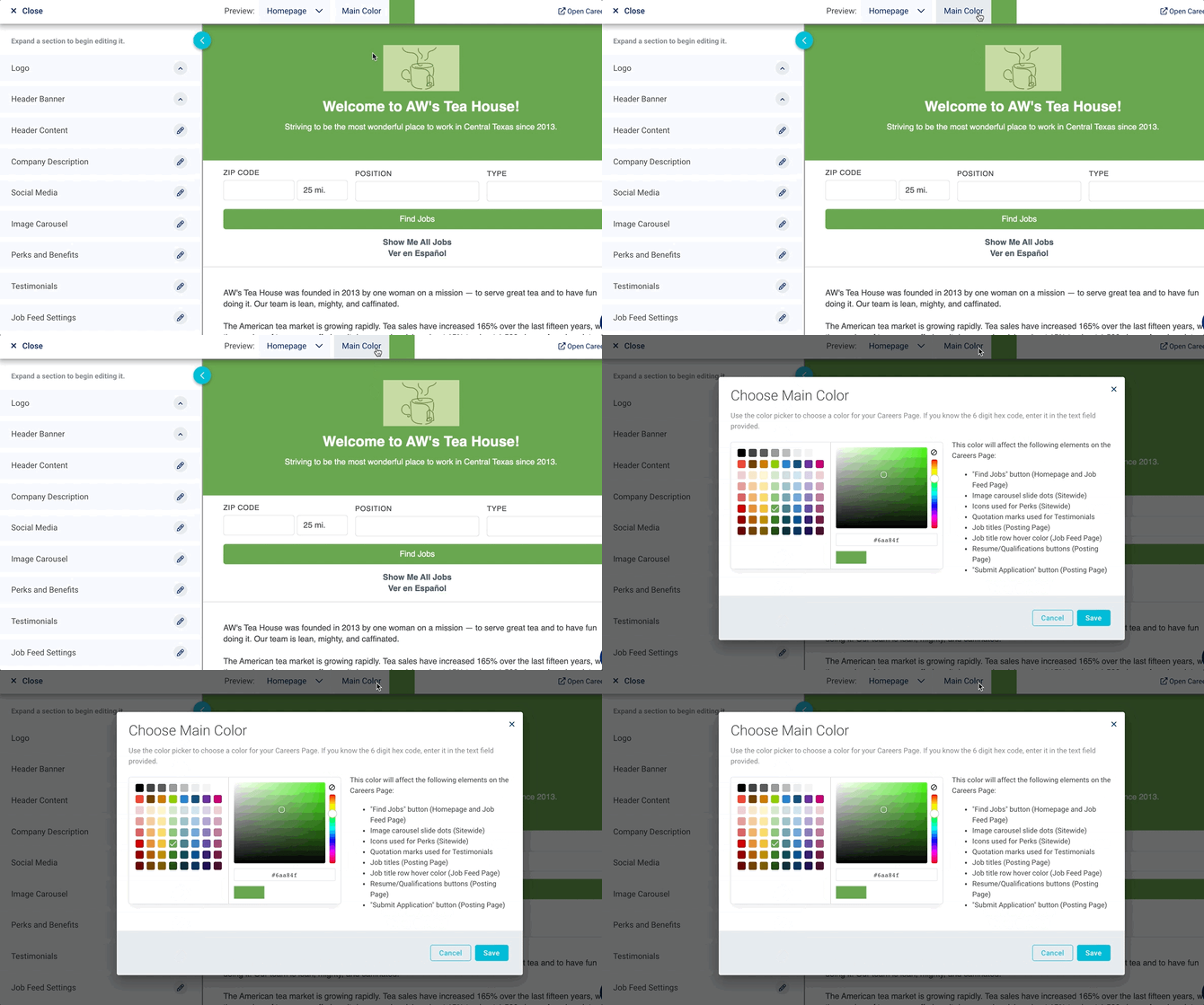
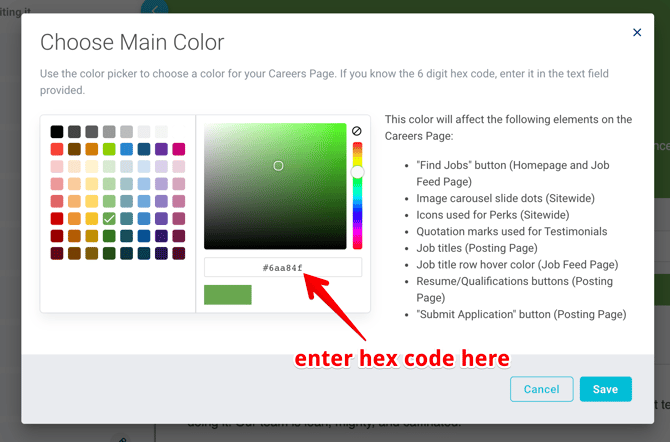
We recommend that you input your primary color hex code. Choosing a main color that your brand already uses makes it clear that your careers page and your hiring process are an extension of your company, not an afterthought.
A useful tool to locate a color’s hex code is the Google Chrome extension called ColorPick Eyedropper — this tool allows you to drag your mouse over any color, and it will give you that color’s exact hex code. You can then copy and paste the hex code into the blank under the color picker.
Note: The ColorPick Eyedropper can only be used in a Google Chrome web browser.
If you don’t know your brand's primary color or hex code, you can choose from the colors offered. We recommended choosing a color close to your brand's primary color.
Upload your logo
Your company logo will be displayed at the top of your careers page, and on every job you post through CareerPlug.
Click the + Upload Image button and select a file from your computer or device. You cannot upload images from a website or other hosted domain; they must be on your device.

The only accepted file types for logos are PNGs and JPGs. Logos must be at least 300 pixels in width, with a maximum size of 1200 x 1200 pixels, and no larger than 750 KB.
We recommend using a logo with a transparent background. If you have a logo without a transparent background that you want to use, you can find free online tools to help convert your file, such as Adobe Express.
Don’t see the change reflected? It may need a moment. Refresh your page to see your logo displayed!
Configure the header
There are two sections to configure your careers page header: Header Banner and Header Content.
Header Banner
The Header Banner section allows you to add an image to your careers page header, and set a background color to overlay the header (and header image, if uploaded).
To add a header image, click the + Upload Image button and select a file from your computer or device.

The only accepted file types for header images are PNGs and JPGs. Images should be at least 1600 x 400 pixels, with an ideal aspect ratio of 4:1, so they fit in the header with minimal cropping.
We recommend choosing a header image with no text for a couple of reasons:
-
It can be difficult to center text properly in the header, which can cause it to be cut off or distorted.
-
It can cause overlap when viewing job postings on your careers page, making everything harder to read.
- It can be extremely difficult to read on a mobile device, and this could cause potential applicants to leave before applying.
If your image is very large or not the ideal aspect ratio, you may need to crop it. To change what part of the image is displayed in the header, you can drag a side or corner to adjust the highlighted area. You can also click anywhere within the area to drag the entire highlight around the image.
When you're happy with your header image, click the Save button in the bottom-right corner of the pop-up.

To edit a header image after saving it, click the + Change Image button and select the file from your device to re-upload it. Crop and resize your image as necessary.
To change the Background Color for your header, click the open field and select a color from the drop-down menu, or enter the hex code for the color you want. If you don't choose a color, the header background will default to black.
%20(background%20color%20drop-down)%20(highlights).png?width=500&height=578&name=Careers%20Page%20Editor%20-%20Header%20Banner%20(7.2.26)%20(background%20color%20drop-down)%20(highlights).png)
Header Content
The Header Content drawer allows you to add text to the header.
Enter text in the Title, Subtitle, and Description fields to customize the text that overlays your header image.

After adding text to the Header Content, you may need to edit the Header Banner again. For example, you may notice that the Title or Subtitle is hard to read.
To ensure candidates can easily read any text in your header, change the Background Color to contrast with the color of the text. The color you choose will overlay the image, making it opaque. This is a great way to contrast a very bright or very dark header image and make your text pop. This is also important technique because you have limited options to customize the text itself within the careers page editor.
The Subtitle is the only text within the header you can easily change — and only by changing your brand's main color since the two are linked. Both the Title and Description text will always be white. If you'd like to change the color of their text, you must apply CSS.
Below is an example of a careers page with a header image plus a Title and Subtitle:

Add a company description
We recommend configuring your company description before posting your first job in order to attract quality applicants. Your company description is displayed on all of your job postings and helps show potential applicants why they should work for you. This is your chance to describe your company and show off its unique culture.
The Company Description section allows you to edit your company’s description. This is the description and the first impression any potential applicant will see when they land on your careers page.
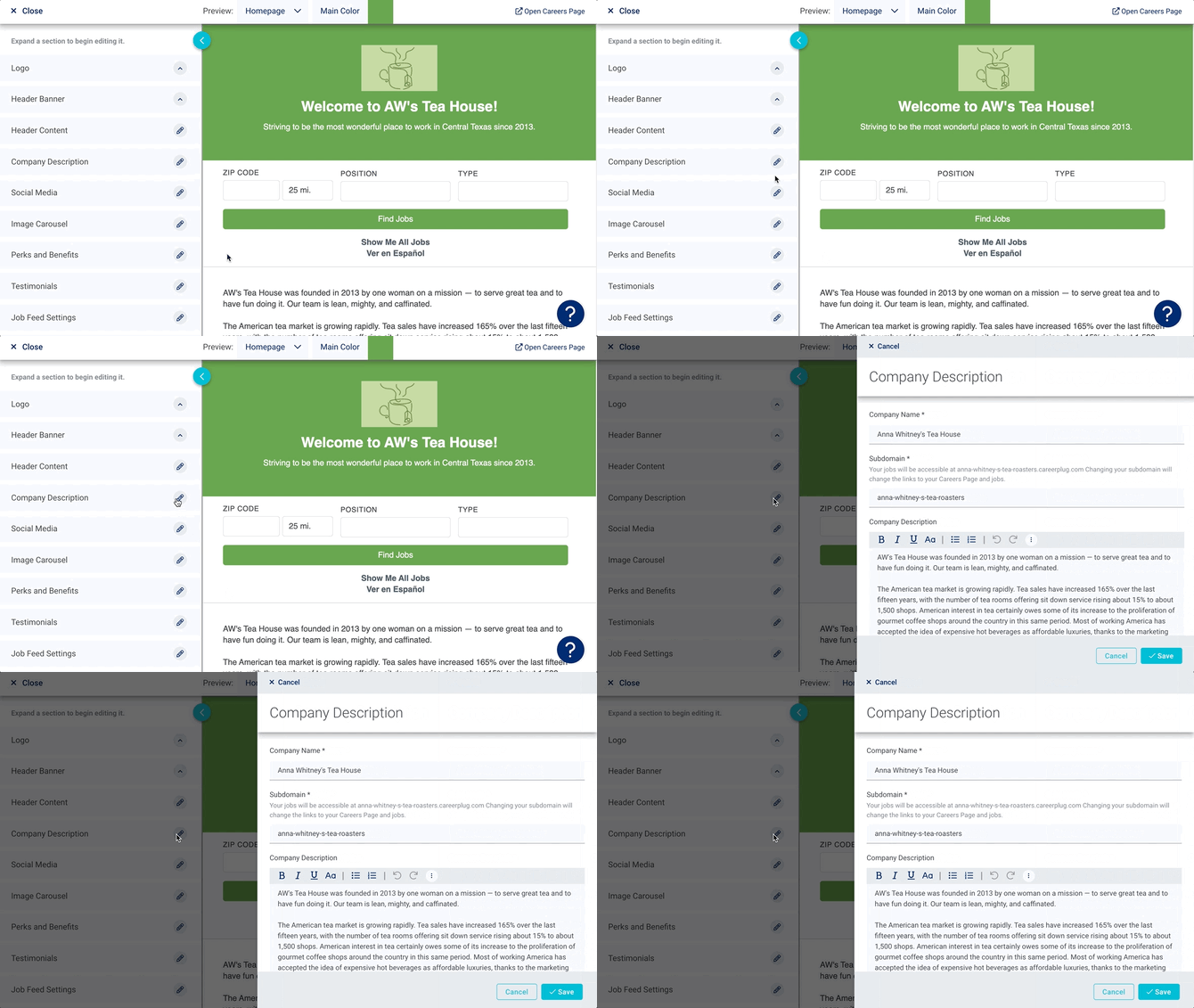
Use the text editor to create bulleted or numbered lists, bold or italicize text, and more. When you're finished, click the Save button at the bottom of the page.
Depending on your account type, you can also adjust your subdomain in this section. Your subdomain is the identifying section of the URL to your careers page, and you should only update it with extreme caution.
We recommend only updating your subdomain before you finish configuring your careers page or during a major brand transition. If the Subdomain field is grayed out, please contact CareerPlug Support for assistance.
Any time you update your careers page subdomain, all previous links to your careers page will become invalid, including Text-To-Apply and QR codes.

Here is what the company description will look like on your careers page:

How do I write a compelling company description?
It is important to have a compelling company description — this is your opportunity not only to describe your company but also to showcase your unique culture. Job seekers have multiple options when applying for jobs, so it's best to set yourself apart.
Most importantly, you should be selling your company to prospective employees. The best company descriptions are honest, tell a great story, and answer the right questions for their intended audiences. What can the candidate stand to gain from working at your company? How will you help them advance their career? What benefits do you offer? What makes your company stand out from others in your industry? Answering these questions will help attract the best applicants for the job.
The most common mistake made here is reusing a description that sells your company to prospective clients, not employees. Make sure your description is fully written for prospective employees, who have different concerns from prospective clients.
Add your company's social media websites
Adding your social media is a recommended step. This allows applicants to find where you post content that accurately reflects the day-to-day workings of your company, and gives them a sense of your company culture.
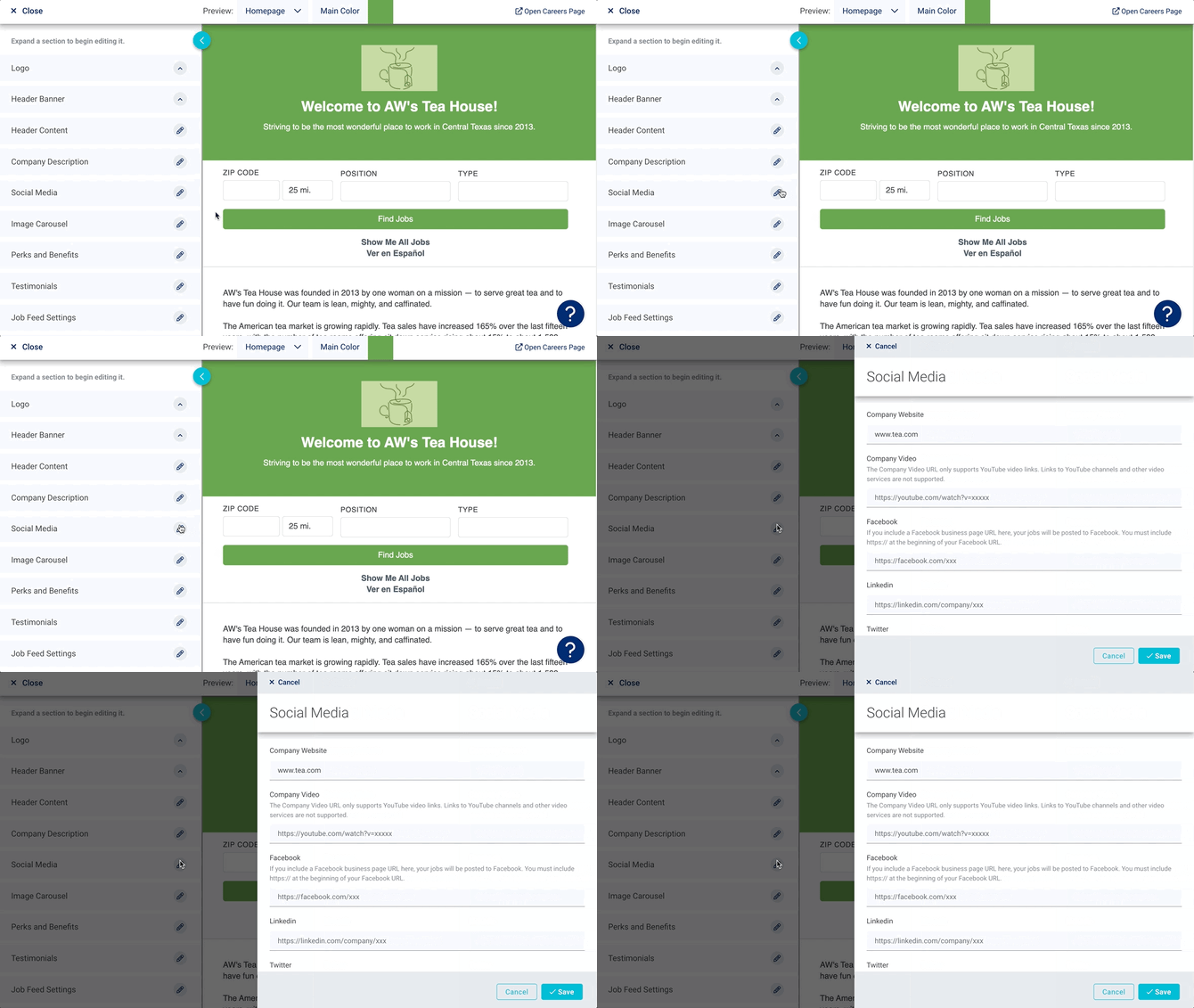
Here, you can add:
- Your company website
- A YouTube video showcasing your company
- Your Facebook Business page URL
- Your company's LinkedIn page URL
- Your company's X URL
- Your company's Instagram URL
The most important thing to add here is your company website, if you have one. This will allow potential applicants to validate your company information and learn more about you if they have never heard of your company before. This link will be displayed as entered, so avoid using any long tracking links.
All links added should be to the main page of your social media account, not a specific post, video, or photo. The only exception to this is the YouTube link, which must point to a specific long-form, public-facing video. You cannot use a link to a YouTube Short, a private or hidden video, or to your brand's main YouTube landing page.
Add company photos
Your Image Carousel will be shared when your job posting is published and will be seen by applicants visiting your careers page. The images you select should represent your company and its culture.
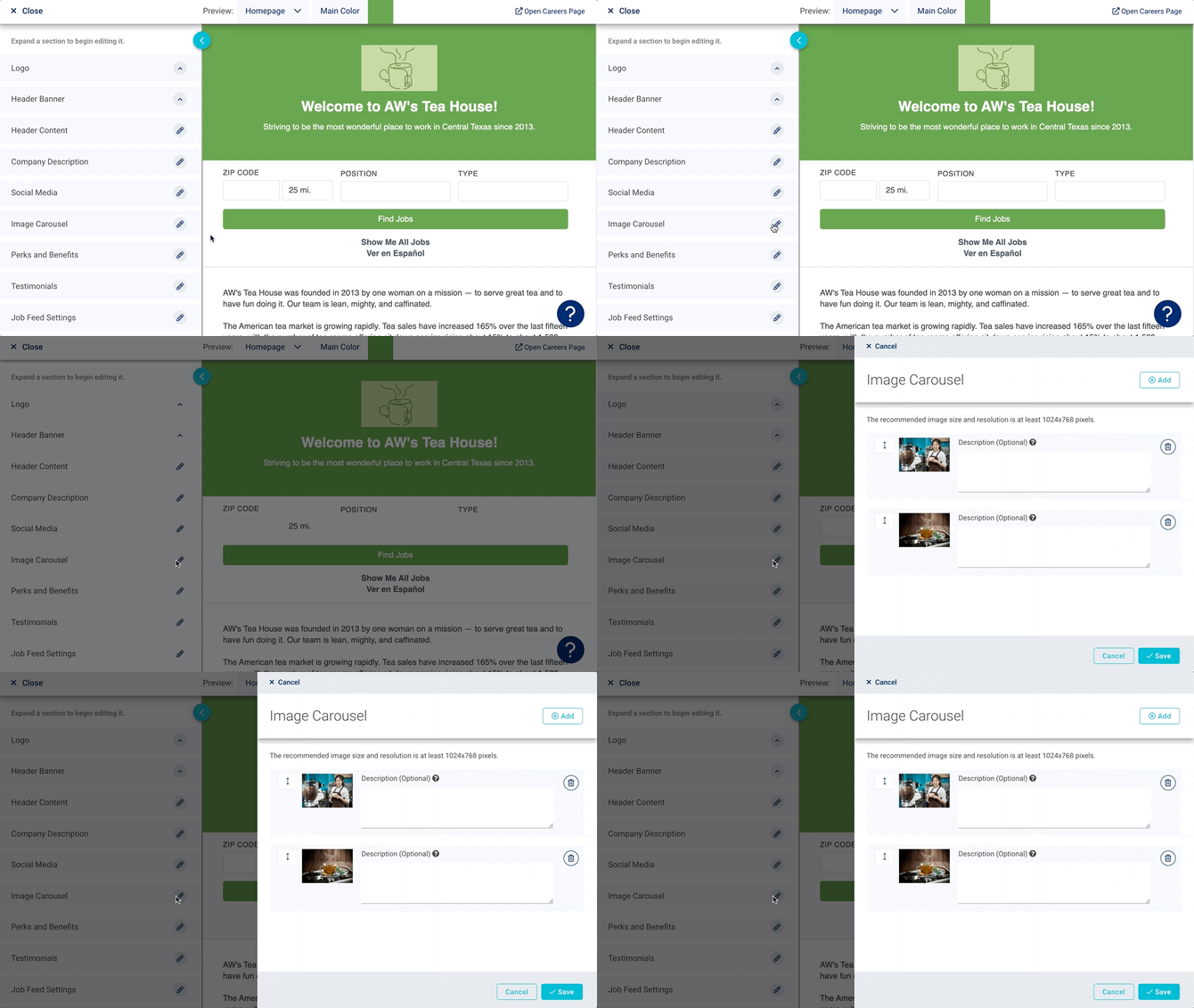
Click the Add button, find the photo on your computer, and select it to upload it to your Image Carousel. Save your changes. Click the Save button in the bottom-right corner to save any uploaded images.
The only accepted file types are JPG, PNG, and GIF. The recommended image size is at least 1024x768 pixels, ideally in a landscape orientation.
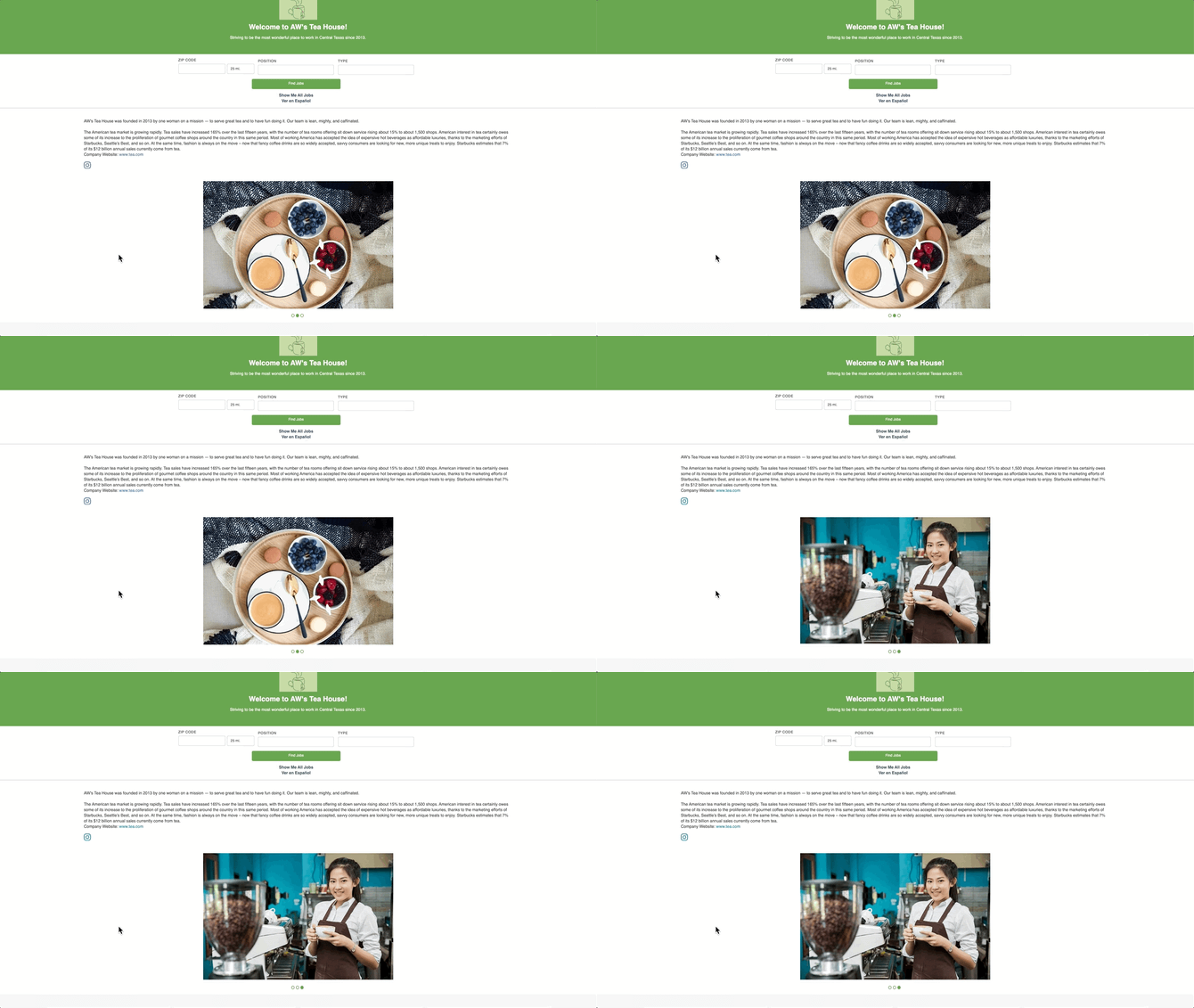
The best practice is to upload 3-5 company images of the same size or aspect ratio. This is because when you upload multiple images, the photos will rotate like a carousel. Images with a drastically different aspect ratio or size can cause the page to jump.
The best images are photos from company outings, photos of employees performing day-to-day duties, or images of the ‘final product’ you produce. Anything that gives prospective applicants insight into what it’s like to work with your company is appropriate.
This is how images uploaded to your careers page will rotate:
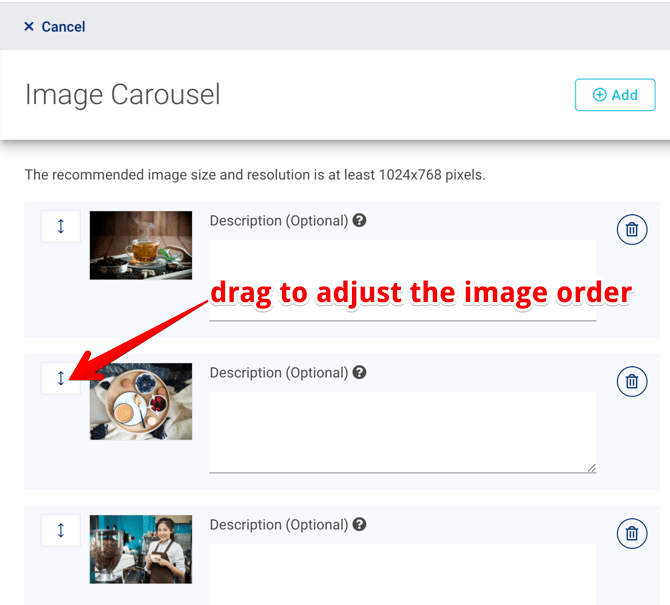
To adjust the order of the photos, drag the images using the up-and-down arrow icons to the left of the thumbnail. Remember to click the Save button before exiting the editor to save your changes.
When you share your jobs on social media, your post will auto-populate with an image pulled from your image carousel. If there are no photos in your image carousel, the system will pull an image from your careers page — usually a distorted section of your banner image.
Add perks and benefits
Filling out the Perks and Benefits section of your careers page can help you stand out from others in your industry and show potential applicants what you have to offer right off the bat. Add perks and benefits that are general enough to apply to most employees on your payroll. If there is a specific perk or benefit that applies only to a single job, it should be added to the job listing for that job instead.
We recommend giving the perks and benefits section a title to stand out. This can be anything from “Benefits” to “What We Offer” to “Why Work for Us?”. None of this is required, but can make your page look cleaner
Your color customization options for this section are limited. The subtitle will match whatever you select as your company color. The title and description will both default to black, and cannot be changed without using CSS.
Here is a sample of a careers page with added perks, including a title, subtitle, and description:

To add a perk, click the Add button. Make sure to enter a title for each perk (the only required section).
Commonly mentioned perks include:
- Compensation
- Bonus Potential
- Retirement Savings Plans
- Paid Time Off
- Insurance Benefits
- Employee Discounts/free benefits
Besides a title, we also recommend adding an icon from our extensive library. You can either choose a consistent icon for all perks (e.g., a check mark) or use a different icon for each perk. The color of icons will match the main color of your careers page. This cannot be changed.

Sometimes if you add many perks at once, they may display in a different order. To adjust the order of the perks, drag them using the up-and-down arrow icons to the left of the thumbnail.

Click the Save button in the bottom right corner when you’re finished.
Add testimonials
The Testimonials section has 5 blanks: Name, (Job) Title, Location, Testimonial, and Avatar.
Testimonials are a great way to give real insight into how your employees feel about your company. The best testimonials are honest, open, and tell potential applicants what it’s like to work there. We recommend using testimonials from a variety of roles across your company so they can speak to any of your job openings.
To add testimonials, click the Add button. The only required fields are Name and Testimonial, but anything additional you add can give prospective applicants more insight into your company.

Testimonials with an image are most effective, but employees may be uncomfortable with you using their likeness. Instead of an employee headshot, you can always upload a copy of your company logo here to maintain brand consistency without compromising employee privacy or preferences.
Here's an example of a careers page with testimonials:

The color of a testimonial’s quotation mark is based on the main color of your page and cannot be changed without using CSS.
Configure job list settings
The job list settings determine how your jobs are filtered on your careers page.
You can give job seekers five options to filter your jobs. We recommend at least allowing applicants to use the Zip Code Search and Narrow by Job Title filters.

From the Job List Settings drawer, you can also change how your jobs are grouped on your careers page (Table Grouping), what data you want to display to potential applicants (Table Columns), and how applicants see your location information (Location Fields). These settings are based on best practices, and we do not recommend changing these unless necessary.
Configure advanced settings
If you have experience in HTML/CSS and want to explore further configuration options, you can do this in the Advanced Settings tab.

Add custom CSS in the Custom Style Code field under Advanced Code. We recommend only doing this if you have experience with CSS.
You can also disable reCAPTCHA from this drawer. CareerPlug uses reCAPTCHA to prevent fraud or spam applicant submissions, so we highly recommend that you do not disable reCAPTCHA.
From this page, you can add custom pixel tracking to support any marketing or hiring efforts you have. The majority of companies opt not to use this. You can learn more about it here.
Using the web widget
In addition to linking to your careers page, you can also use a web widget. You can embed the web widget on your company’s website to help turn clients into employees.
To find the code to embed your careers page as a widget on your company's website, navigate to Settings (gear icon) > My Organization.
Click Copy Code to copy the entire code, and paste it anywhere on your website. Most companies will put this on a careers-centric page, or at the bottom of an About Us section.
%20Pointing%20to%20Copy%20Code.png?width=670&height=257&name=Settings%2c%20My%20Organization%2c%20Widget%20(Nav%20Bar%20Minimized)%20Pointing%20to%20Copy%20Code.png)
What are the next steps?
Once you have updated your careers page to accurately reflect your company’s branding, don’t let it just sit there! You can do a lot to promote hiring from your careers page.
Think of your established careers page as your own personal job board. You can share this link on your social media pages, add the widget to your website, and even print posters with a QR code directly linking to your careers page. When you’re actively hiring, you should consider these posters not just for your brick-and-mortar location, but also at local activity centers, bulletin boards, and other places the community you serve gathers. This can help you hire locally, and even turn clients into employees!
QR codes that link to your careers page aren’t limited to just a poster, either. Consider putting them on business cards to give out at a hiring event, offering magnets to potential applicants, and using stickers with existing signage and marketing.
Don’t hesitate to add the direct link to your careers page to places you interact with the community. This can be your email signature, the bio of your company's social media profiles, or in internal communications. Employee referrals are an excellent source of candidates, too!